Custom email sending domains and addresses
Send Moonbase transactional and marketing emails from your own domain. Add a sending domain, publish the DNS records, verify, and create from-addresses.
Written By Tobias Lønnerød Madsen
Sending Moonbase emails from your own domain (instead of the default platform sender) improves deliverability and makes the messages look like they come from you. This guide walks through the full setup: adding a sending domain, publishing the DNS records Moonbase needs, and creating the from-addresses your customers will see.
Where to find this
In the merchant dashboard, go to Settings → Email. The page has two sections, top to bottom:
Email sending domains – authorise Moonbase to send mail on your behalf.
Email sending addresses – the from-addresses bound to a verified domain.
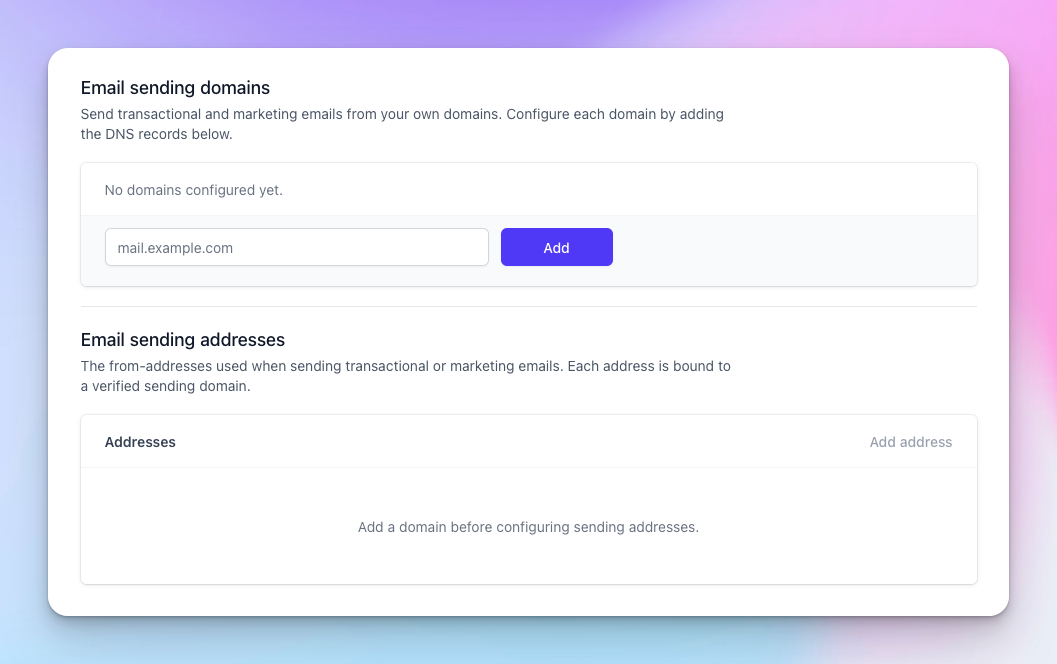
You need at least one verified sending domain before you can add any sending addresses.
1. Add a sending domain
In the Email sending domains section, type the domain you want to send from (for example, mail.example.com) and click Add.
Tip: use a dedicated subdomain like mail.yourbrand.com rather than your apex/root domain for any marketing emails. That way, a deliverability problem on your campaign mail won't affect the regular email on your main domain.
Once added, a card appears with the domain in Pending status and a list of DNS records you need to publish.
2. Publish the DNS records
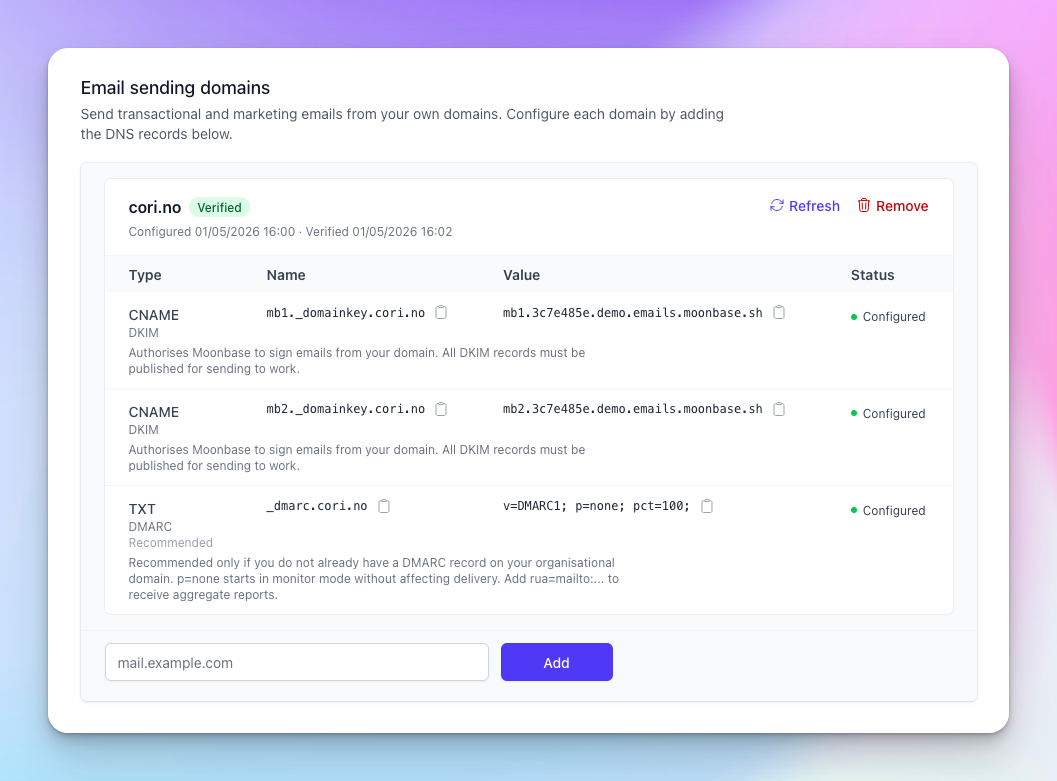
Open your DNS provider (Cloudflare, Route 53, Namecheap, GoDaddy, etc.) and add the records exactly as shown on the domain card. Use the copy icon next to each Name and Value to grab them without typos.
DKIM (required) – two CNAME records
"Authorises Moonbase to sign emails from your domain. All DKIM records must be published for sending to work."
Both records must be published. Verification will not complete until both are live.
DMARC (recommended) – one TXT record
If your organisational domain doesn't already have a DMARC policy, add one. The card will tell you whether it's needed.
p=none is monitor mode – it won't affect delivery. To receive aggregate reports, append rua=mailto:reports@your-domain.com. If you’re comfortable that no email is misconfigured, and you are ready to start sending marketing email, you should change the policy to quarantine or reject.
3. Wait for verification
Moonbase polls your DNS automatically. The status badge on the domain card moves through these states:
Pending – "Add the records below to your DNS. Verification happens automatically once they're published."
Provisioning – "DNS records detected. Waiting for verification — this usually takes a few minutes."
Verified – everything is in place; you can now create sending addresses.
Failed – verification didn't complete. The card shows the reason. Verification times out after 72 hours if records never appear.
The small dot next to each DNS record tells you which records still need attention:
Configured – Moonbase can see the record at your DNS provider and it matches what's expected.
Misconfigured – the record exists but the value doesn't match. Re-copy the value from the dashboard.
Missing – the record hasn't been detected yet.
Click Refresh on the domain card to re-check immediately instead of waiting for the next poll.
A fully configured domain should look like this:
Common DNS pitfalls
Auto-appended apex. Many DNS hosts add your apex automatically. If your provider shows the record as
mb1._domainkey.your-domain.com.your-domain.com, paste onlymb1._domainkey(without your domain) into the name field.Quoted CNAME values. Don't wrap the value in quotes – CNAMEs aren't quoted strings.
Cloudflare proxying. Make sure the orange cloud is off (DNS-only / grey cloud) for these CNAMEs. Proxied records won't validate.
Only one DKIM record. Verification needs both
mb1andmb2. Publishing only one keeps the domain stuck in Provisioning.Existing DMARC. If you already have a DMARC record, leave it alone – don't replace it with the default
p=nonepolicy.
4. Add a sending address
Once a domain shows the green Verified badge, scroll down to Email sending addresses and click Add address.
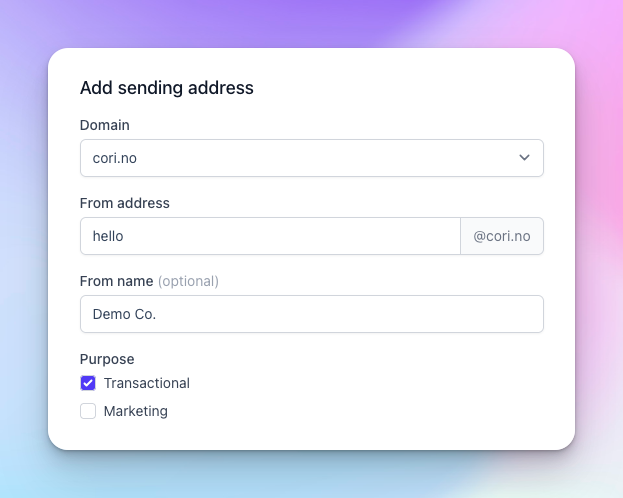
Domain – pick the verified domain from the dropdown. (You can't change a sending address's domain after it's created – delete and re-add if you need a different one.)
From address – the local-part of the address, e.g.
supportforsupport@mail.yourbrand.com.From name (optional) – the display name customers see. Defaults to your business name if left blank.
Purpose – pick at least one:
Transactional – order confirmations, receipts, password resets, and similar one-to-one mail.
Marketing – campaigns and broadcasts.
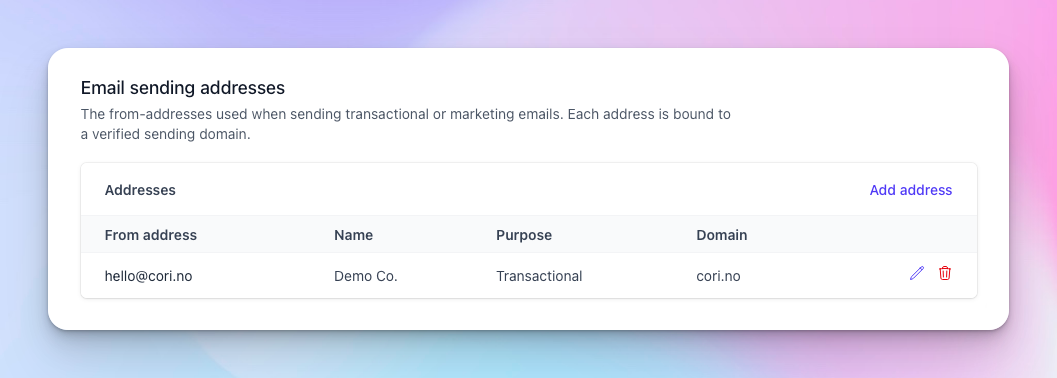
You can add several addresses on the same domain – for example, support@ for transactional and news@ for marketing.
Removing a domain or address
To remove a sending domain, click Remove on its card. The dashboard will warn you that "Removing this domain also removes any sending addresses that reference it. This cannot be undone." After removal, mail from those addresses falls back to Moonbase's default platform sender.
To remove a sending address, click the trash icon in its row. Emails will stop sending from that address.
What if I don't configure a sending domain?
Moonbase will still send all your transactional and marketing email – just from the default platform sender. You'll get reliable delivery, but the from-address won't be branded to your business and your DMARC alignment won't include Moonbase. Setting up a custom sending domain is recommended for most production storefronts.
Was this helpful?
Still need help? Ask the team