Coupons
Use these promotional codes in marketing campaigns to drive conversions
Written By Tobias Lønnerød Madsen
Whether you’re partnering up with creators to market your products, or you run your own campaigns, using coupons to drive conversions is a good tool to have. Coupons are similar to
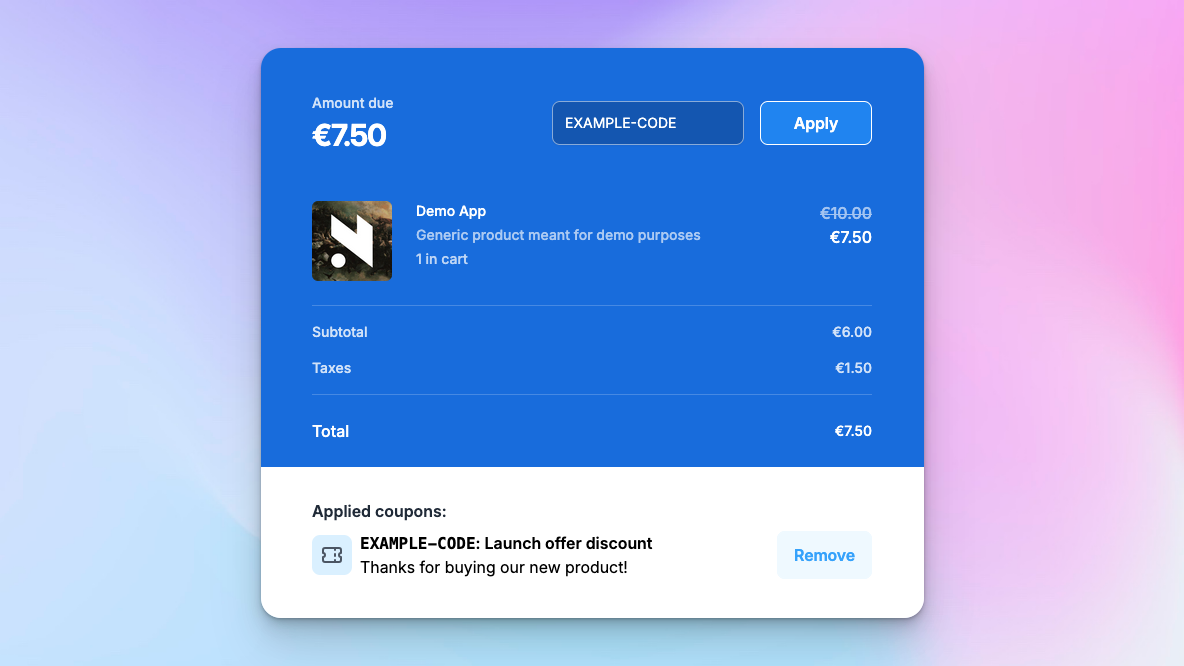
When we talk about coupons, we actually distinguish between two different things:
“Coupon”: this is the discount being applied to items
“Coupon Code”: this is a code to apply said discount
For a coupon to be redeemable by customers, you need to add codes for them to apply to their purchases, and the discount needs to be set up. Each coupon can only be redeemed once per purchase, no matter how many codes of the same coupon may be applied.
Configuring the discount
Just like Product Discounts , coupons center around a discount to be applied to items in orders. The discount itself can be a percentage based discount, or a flat amount, and you can also limit the number of subscription payments it will be valid for. Since coupons stack on top of product discounts by default, you can also control precisely what coupons can be combined with:
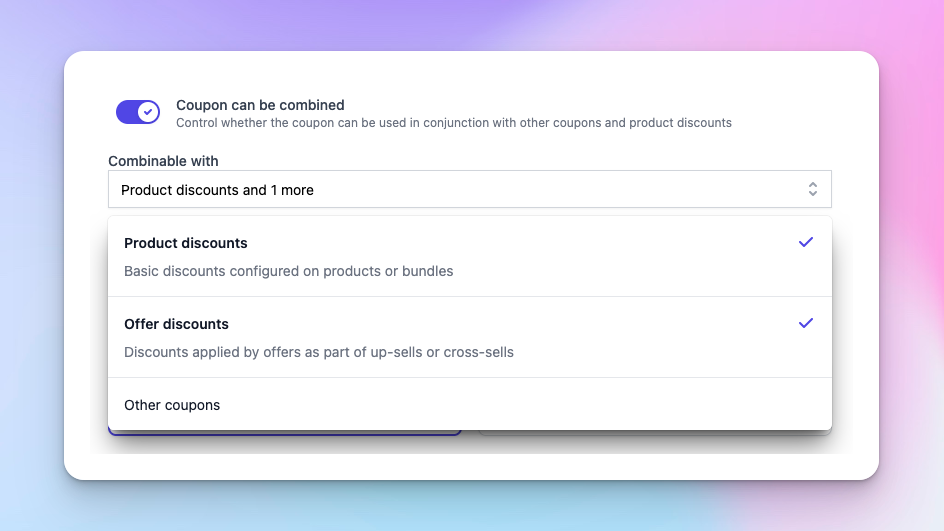
In the example above, we’ve configured this coupon to only be combinable with product discounts and offers, not other coupons.
Applying restrictions
To further narrow down how a coupon or code within may be used, we allow a number of restrictions:
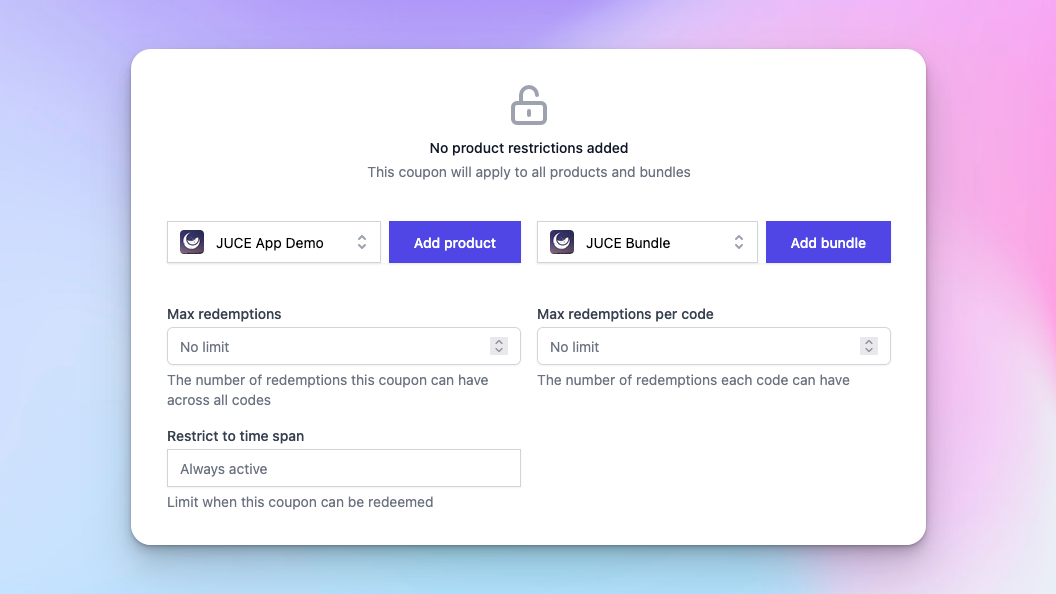
Adding product or bundle restrictions allow you to choose which products can receive the coupon discount, and you can even narrow down to the specific pricing variation of each product or bundle.
If you want to limit how many times each coupon or coupon code can be redeemed, you can add a max redemption limit. This will prevent further uses of the coupon once the limit is reached, and is great for “limited offers”.
Lastly, you can adjust the time span of when the coupon should be redeemable, to prevent customers redeeming coupons after a sale is over.
Adding codes
As the last step, you need to add some codes to the coupon, so customers can redeem it. Codes should be separated by lines when entered, and you can choose yourself how your codes should look. If you want to generate semi-random codes, you can use online code generators like https://www.couponcarrier.io/code-generator/.
Be aware that coupon codes will be case insensitive, and always presented as uppercased codes.
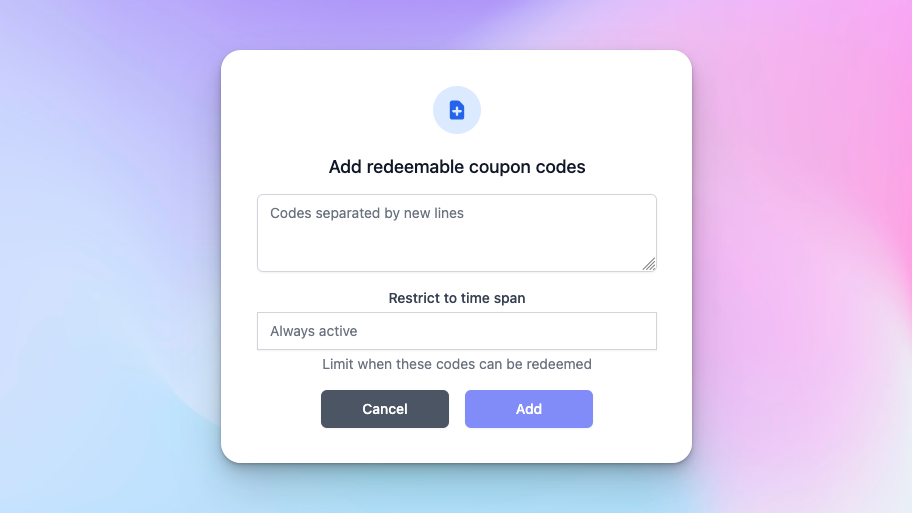
Similarly to the coupon itself, you can also restrict individual codes to a time span in which they should be redeemable. This is useful if you want to periodically add codes to a coupon, but with different expiry dates.
If you use the same code for multiple coupons, and customers try to redeem that code, all relevant and eligible coupons will be applied to the purchase.
Was this helpful?
Still need help? Ask the team