Offers
Present up-sells in carts to drive more revenue and customer satisfaction
Written By Tobias Lønnerød Madsen
Being able to smartly offer relevant up-sells or cross-sells to customers while shopping has shown to drive more revenue for most merchants, and Offers is the way you can do that with Moonbase.
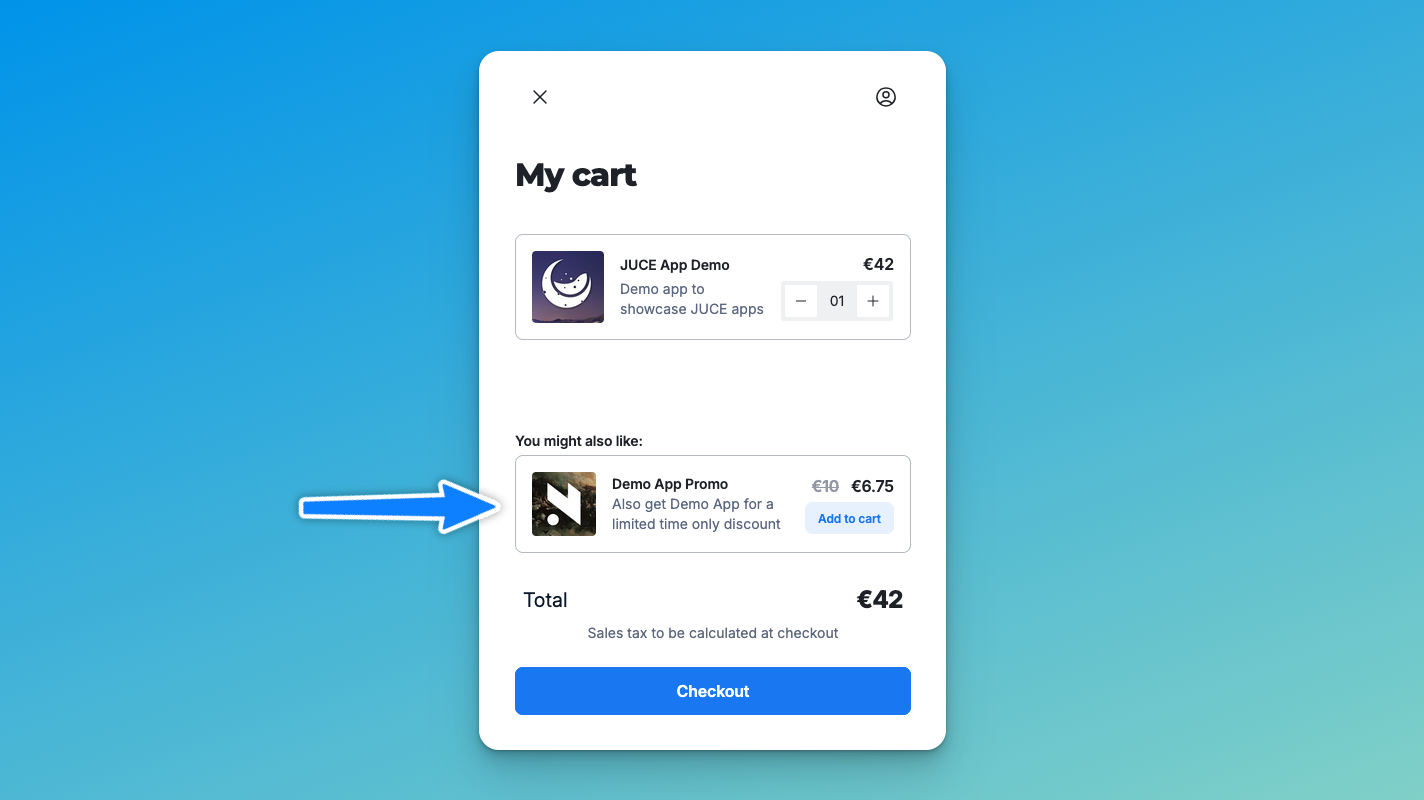
Each offer that you make is designed to promote a specific product or bundle, and conditionally show in carts depending on context. Along with a target product, you can also configure how these offers should be presented, as well as an optional discount to be applied when the offer is utilized.
Adding a condition
To determine when a certain offer should be shown to customers, you configure a condition on offers. Right now, we support a condition based on cart contents, where you can show offers depending on which other products are already in cart. This way, you can create unique combinations between different companion products, or simply reward larger purchases with many cart items.
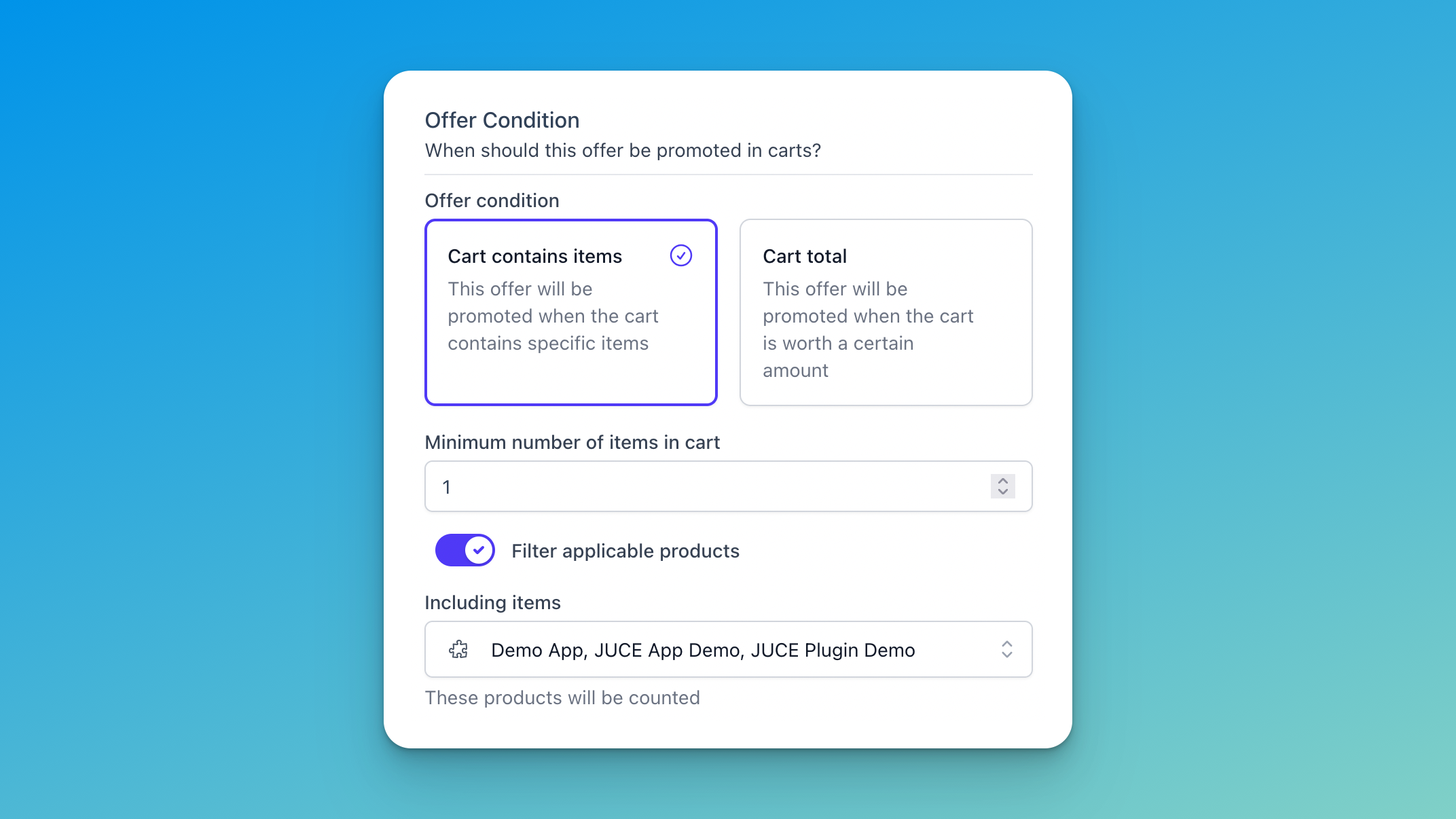
In the example above, the offer will only be shown once both products are added to the cart by customers. You can also filter these items by the pricing variation selected, which is useful if only certain variations should be eligible for discounted offers.
Two conditions are currently supported:
Show an offer when a cart contains certain items
This lets you create offers that combine multiple products, so when someone shops for one product, you can suggest similar products, and optionally discount that combination.
It also lets you suggest bundles to replace the product with, to up-sell to a collection.
Show an offer based on the cart total
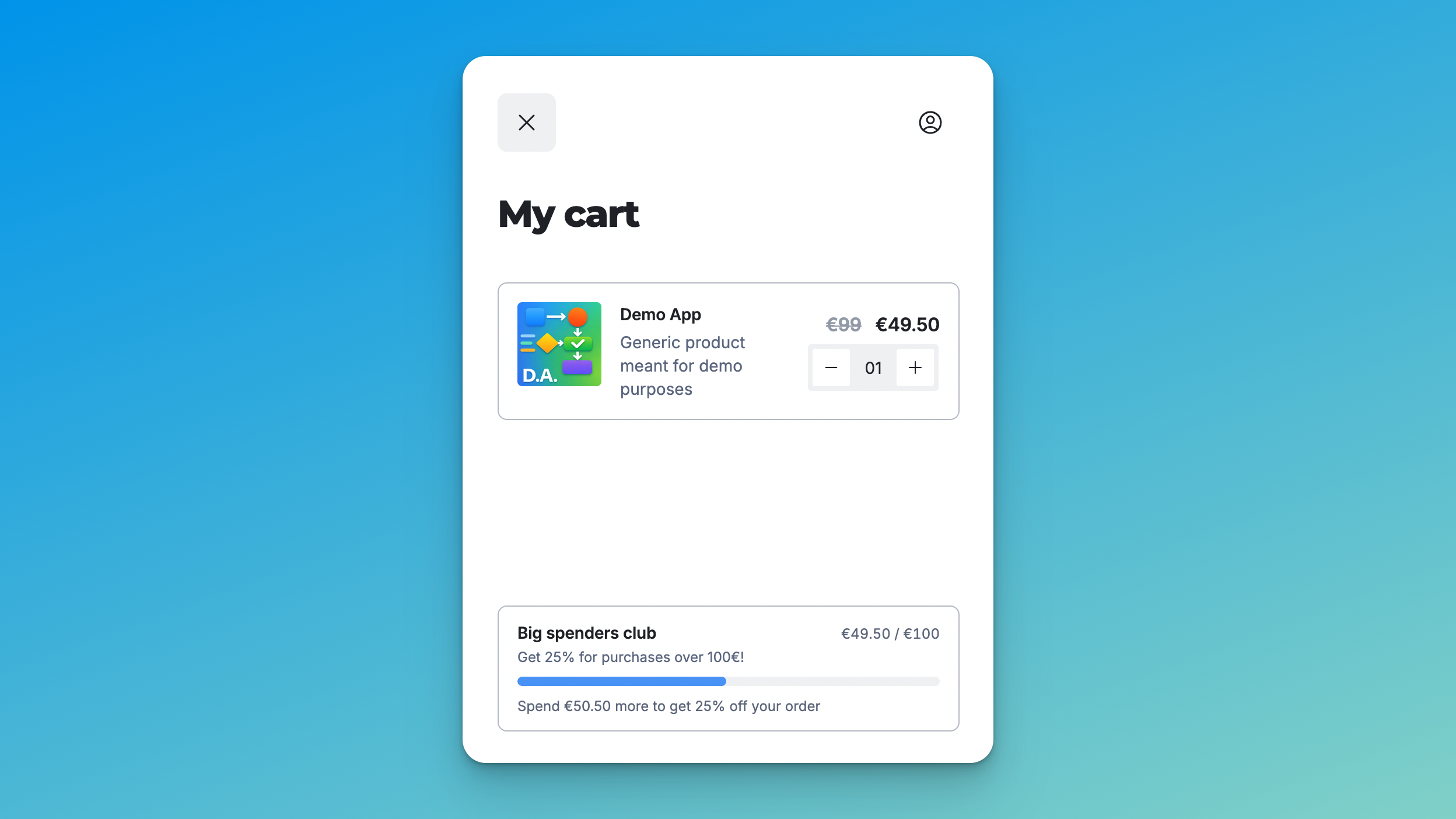
This will show a progress indicator towards the threshold defined, where the offer kicks in and applies a discount or adds a product.
Configuring the discount
Just like Product Discounts , offers can also apply a discount to the item that is added by the offer. Unlike other discounts, you can leave this discount at 0% to not apply any discount, but rather just use the offer for visibility. This is useful when using offers to upgrade single items to bundles.
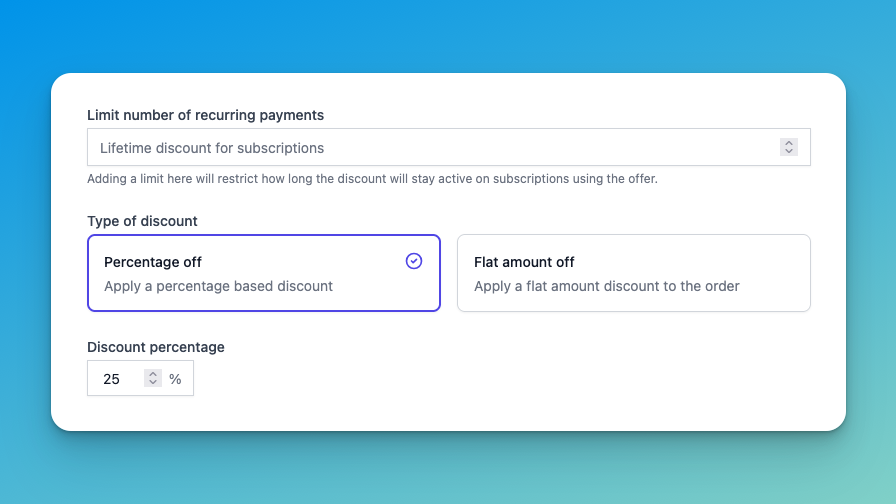
Similarly to other discounts, you can also determine how many subscription payments the offer discount should be applied to.
Ranking offers
When choosing which offer should be shown in the cart, we start by looking at the priority of the offer. This priority can be changed in the list of offers, by dragging them to the order you want:
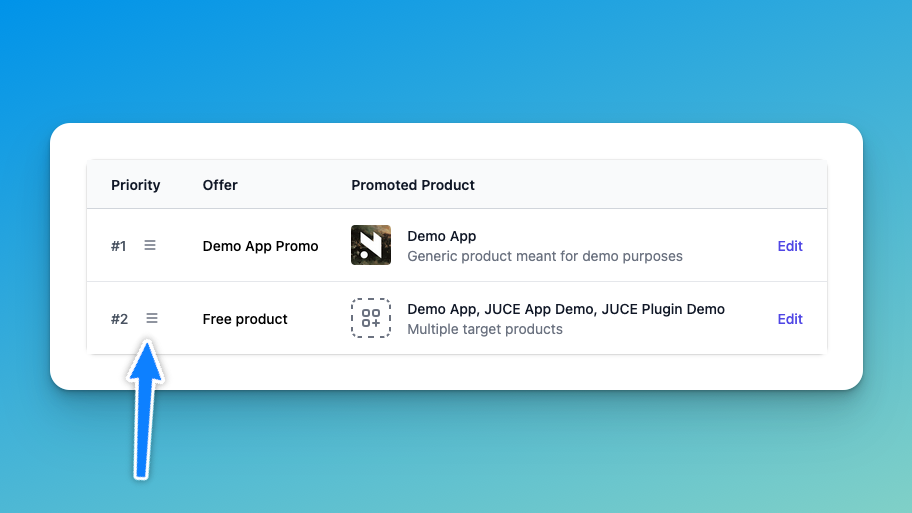
In your storefront, the Moonbase SDKs will automatically select the best offer to show based on a number of factors:
Filter away offers where:
The customer already owns the target product
(Unless they own all offer products, in which case it’s still shown)The target product is already in the cart
Find the highest priority offer
This way, we can show the best offers for the given customer at all times.
How targets behave
Offers will always have a product or a bundle that is the target of the offer. Depending on what you select here, you may see different behavior:
Single product
When promoting a single product, the offer will add that product to cart when the offer is accepted in the cart.
Bundles
When promoting a bundle, the offer will add that bundle to the cart when accepted, replacing every product already in the cart that the bundle contains. This way, customers will have a smooth up-sell journey into a bundle purchase. If the bundle is removed, the original products that were replaced are added back to the cart.
Multiple products or bundles
If you select multiple products or bundles as the promotional target of an offer, the customer needs to choose which target to use the offer on. A single offer can only be used once per purchase, so this choice is limited to a single item.
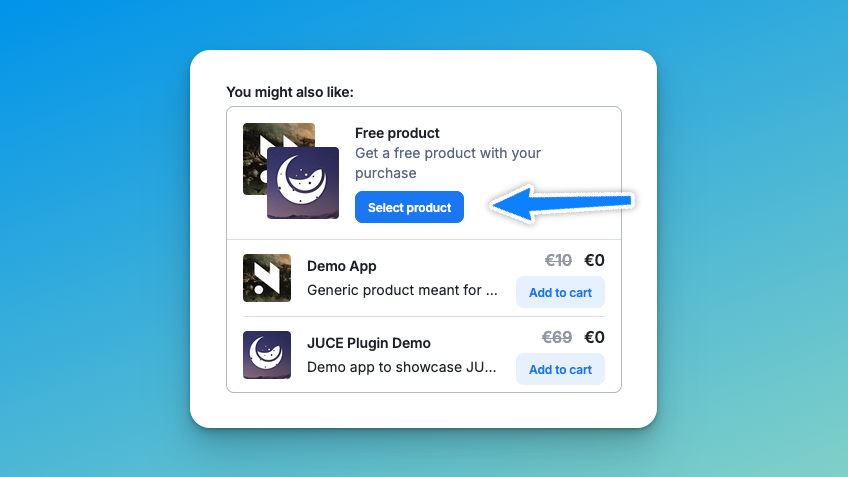
When showing options for a multiple target offer, we apply similar logic to the offer selection; we filter away products already in the cart, or products that are already owned by the customer.
In the example shown above, we apply a 100% off discount on the offer. This enables use-cases like giving out a free product together with certain purchases.
The Whole Cart
Lastly, you can also apply an offer to the whole cart. This lets you create offers that give the user an overall discount on their purchase (or a subset of products), based on a condition like specific products in the cart, or more commonly, based on the cart total.
The typical use-case for this is to give discounts for larger purchases:
Was this helpful?
Still need help? Ask the team