Email campaigns
Write and send marketing emails to your customers from Moonbase, with personal coupons, gifted licenses, and a report on how every send did
Written By Tobias Lønnerød Madsen
Telling your customers about a new release or a sale shouldn't mean exporting a list, importing it into another tool, and hoping the opt-outs still line up. With campaigns, you write and send marketing emails right from Moonbase, to the customers you already have, with your products, coupons and licenses built into the email itself.
Every campaign you create sits in one list, together with its audience and how far along it is:
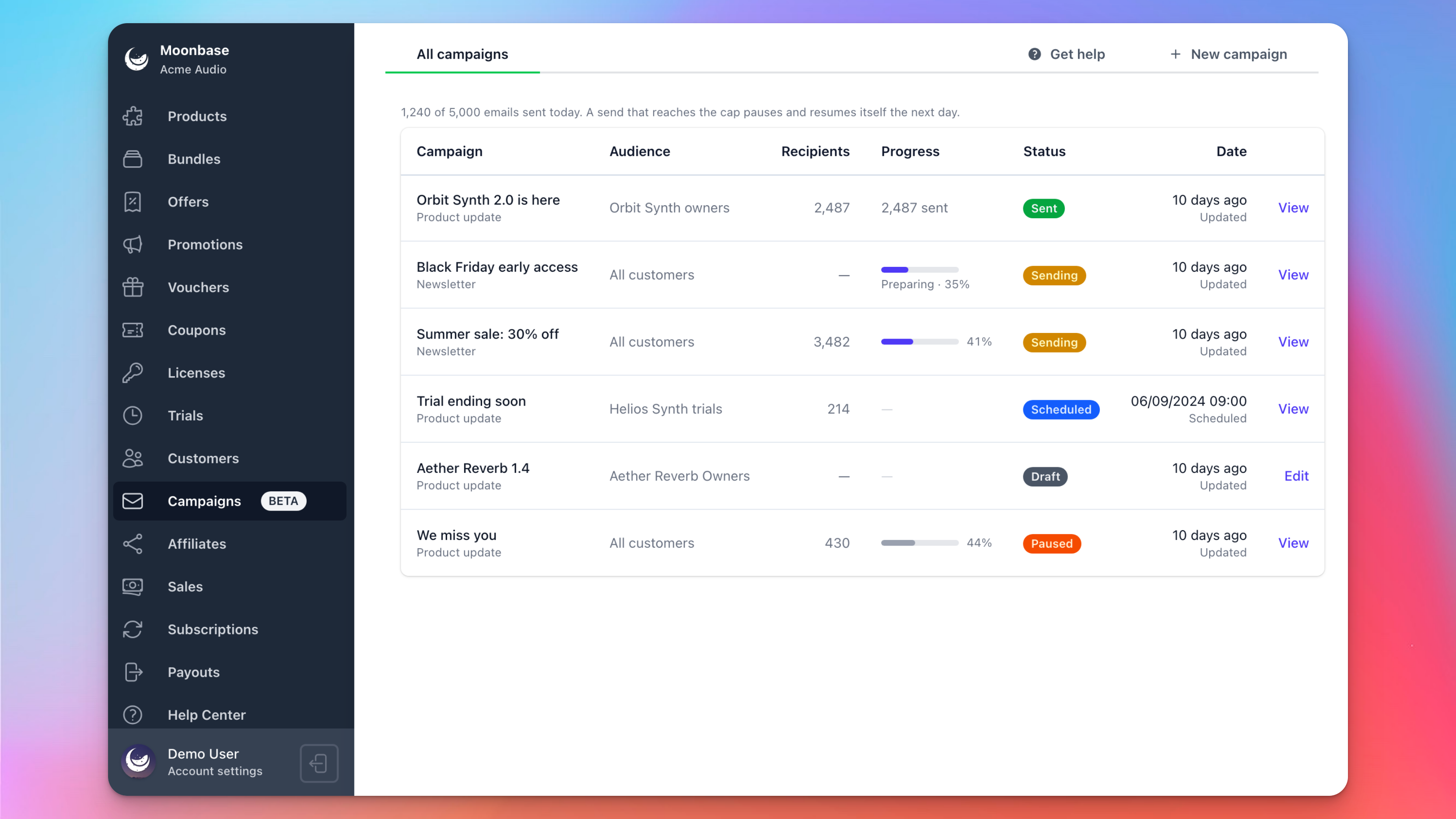
Before you send
Campaigns are sent from your own domain, so there are two things that need to be in place before the first one goes out:
Your account needs to be live. Campaigns can't be sent while you are still onboarding.
You need a sending address for marketing. Add a sending domain, verify it, and create a sending address with the Marketing purpose on it. The Custom email sending domains and addresses article walks you through it.
You can start writing a campaign before either of these is done, but you can't send it, not even as a test. The top of the editor shows the address your campaign will be sent from, or tells you if there isn't one yet.
We recommend sending marketing emails from a subdomain like mail.yourbrand.com. That way, a problem with your campaign emails never affects the email on your main domain.
Creating a campaign
Click New campaign and fill in three things:
Name: what you call the campaign in Moonbase. Only you see it, and you write the subject line later.
Type: either Product update or Newsletter. Customers opt in to each of these separately, so the type decides who is allowed to receive the email.
Audience: the group of customers the campaign is for.
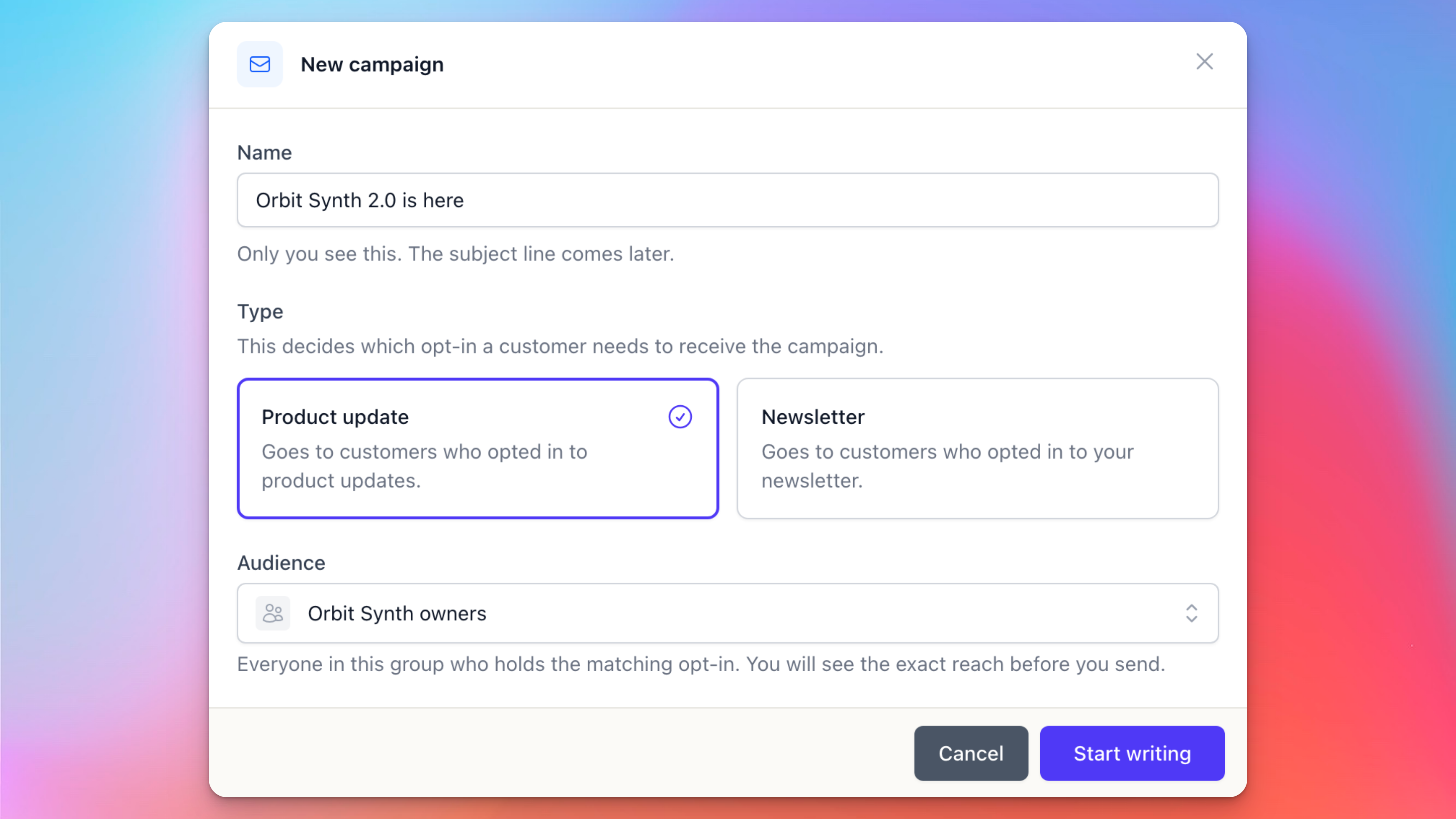
Click Start writing to open the editor.
Choosing who receives it
An audience always starts from a group. That can be All customers, one of the product groups Moonbase keeps for you, like the owners, trial users or subscribers of a product, or one of your own Customer segments and lists.
When you only want to reach part of a group, there is no need to create a new segment for it. Open the audience from the editor and turn on Narrow this audience, which uses the same checks as a segment's rule. "Owners of Helios who haven't opened an email in six months" is then just a group and one check:
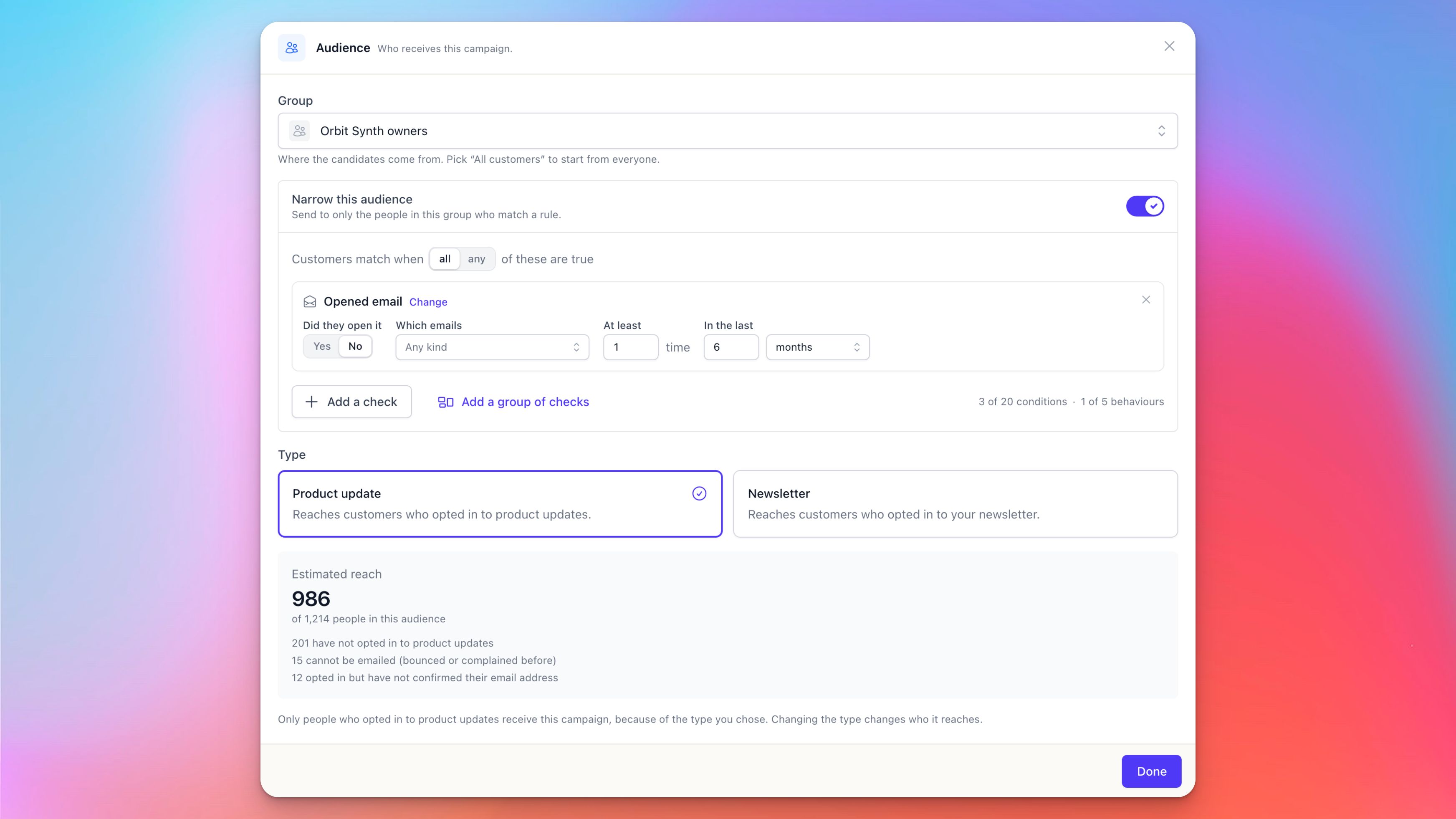
As you make changes, the Audience dialog shows the estimated reach, along with who is left out and why: customers who haven't opted in to this type of email, addresses we can't send to because they bounced or reported spam before, and customers who opted in but haven't confirmed their email address yet.
A campaign only ever goes to customers who opted in to its type. Customers opt in at checkout, when they sign up, from your newsletter form, or through an email tool you have connected, and every campaign carries an unsubscribe link, so opt-outs are always respected.
Writing the email
At the top of the editor, fill in the Subject line and the Preview text, which is the line most inboxes show right after the subject. Below them is the email itself. Type / anywhere, or open the blocks panel, to add a block:
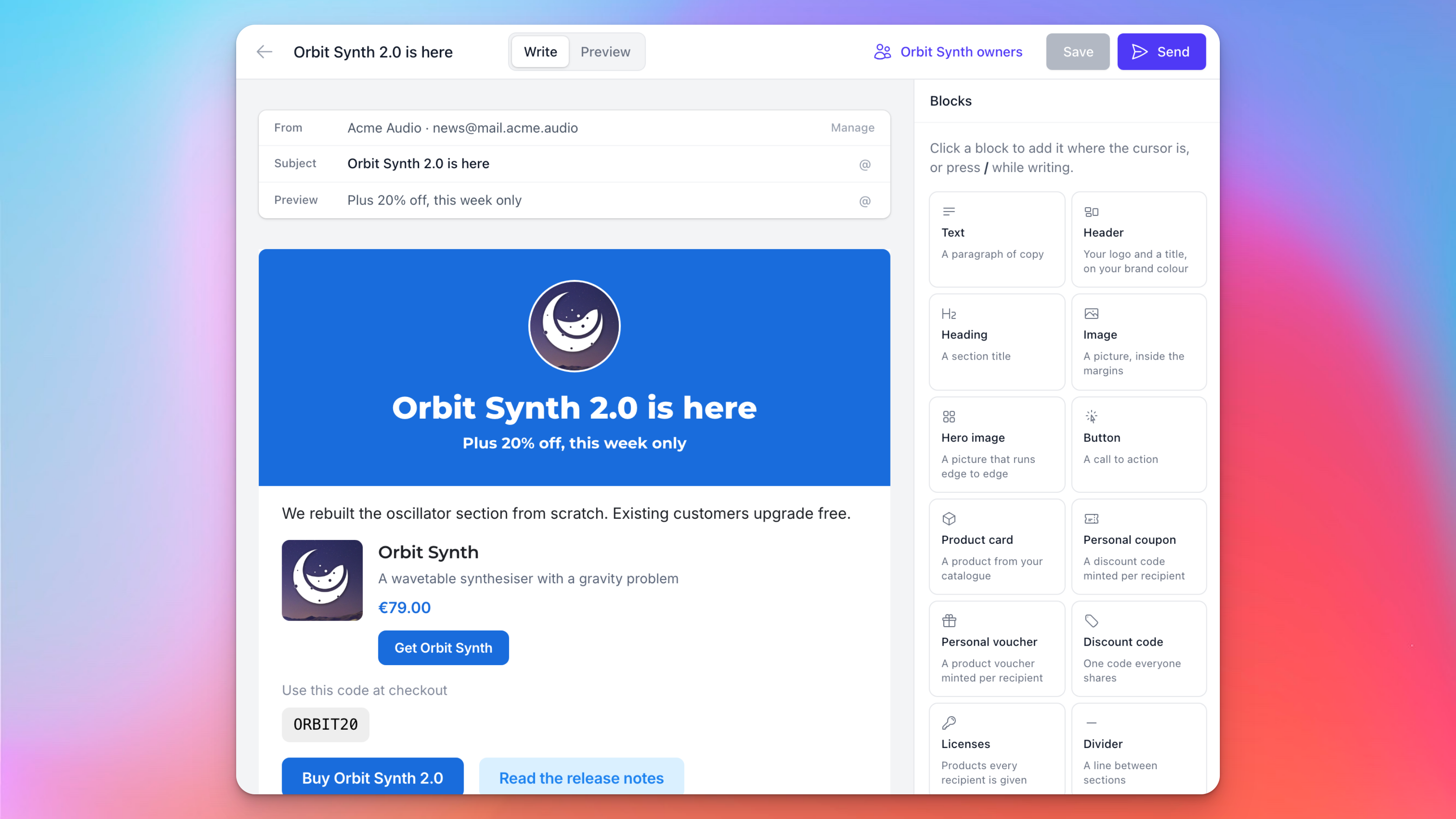
Alongside the usual text, headings, images, buttons, dividers and spacers, there are a few blocks built for selling software:
Header: your logo and a title, on your brand colour.
Product card: a product from your catalog. Its name, price and description are read when the campaign is sent, so they are always up to date. Any discounts exclusive to the recipient will also be shown.
Discount code: one code that everyone shares. Create it under Coupons first.
Personal coupon: a code of their own for every recipient, created as the campaign sends, from a coupon you pick.
Personal voucher: a voucher code of their own for every recipient, which they redeem from your redeem page. Nothing is granted until they redeem it, which makes this the block to use for products licensed with key codes or iLok. See Vouchers.
Licenses: products every recipient is given. By the time they read the email they already own them, and the email lists what they got. This works for products that use Moonbase for licensing.
Conditional: one version of a section for recipients who match a rule, and another for everyone else. For example, an upgrade offer for owners of the old version, and a regular purchase link for everyone else.
The Licenses block gives every recipient the products, whether they asked for them or not. Double-check the audience before you send a campaign with one.
Personalising the email
Type @ to insert a variable, like the customer's first name, their country, a custom property you have stored on them, or details from your own account. Not every customer has a name, so give personal variables a fallback: {{ customer.first_name | "there" }} reads "Hi there" when the name is missing.
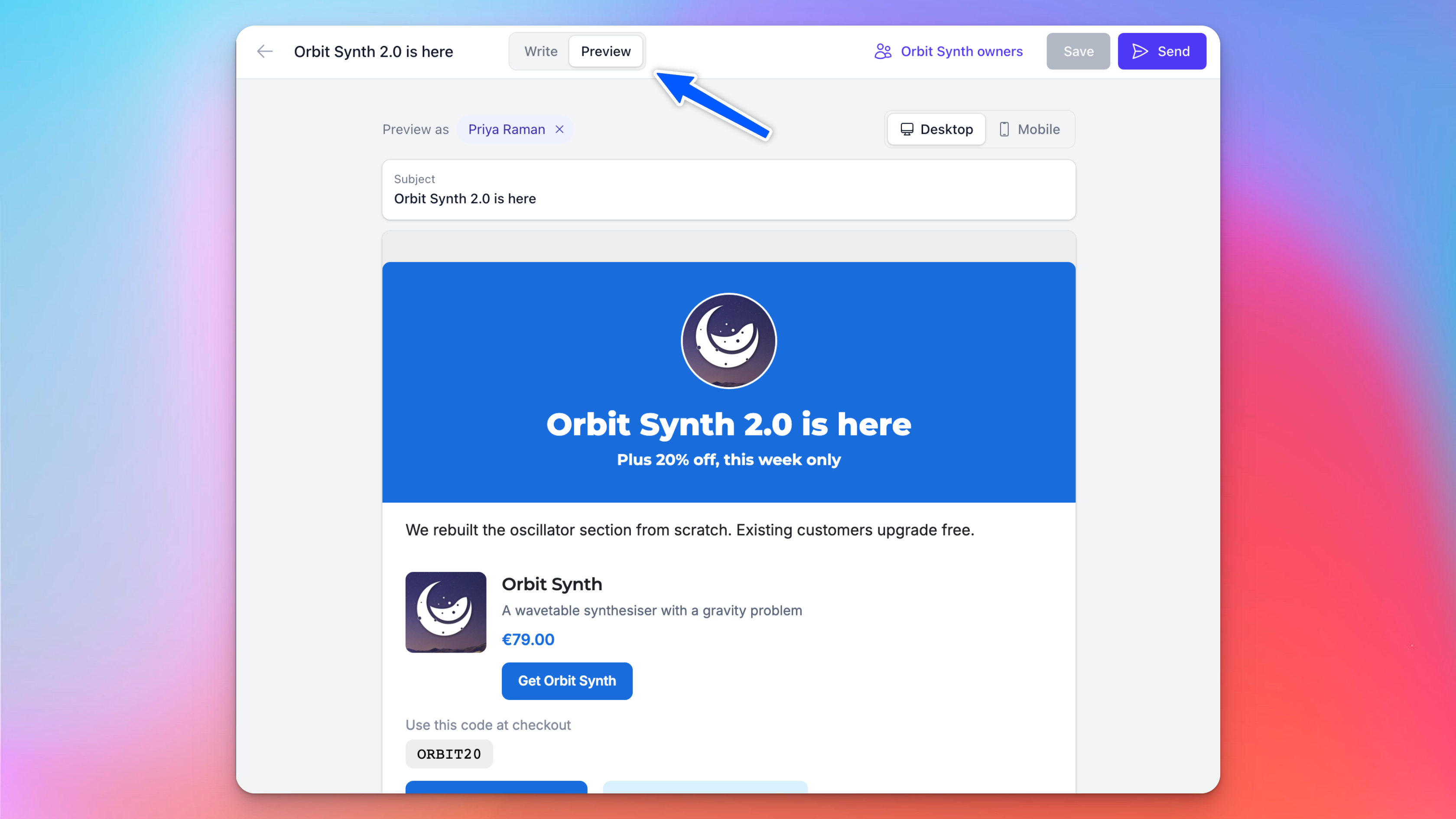
Switch from Write to Preview to see the email as it will be sent. With Preview as, you can render it for one of your actual customers, using their name and the prices they would see.
Matching your brand
Campaigns use the logo, business name and colours you have set up in Theme, so they look like the rest of your emails. Every campaign ends with a footer carrying your business name and postal address, and an unsubscribe link.
Missing options to make your Moonbase theme look like your brand? Please let us know!
Sending the campaign
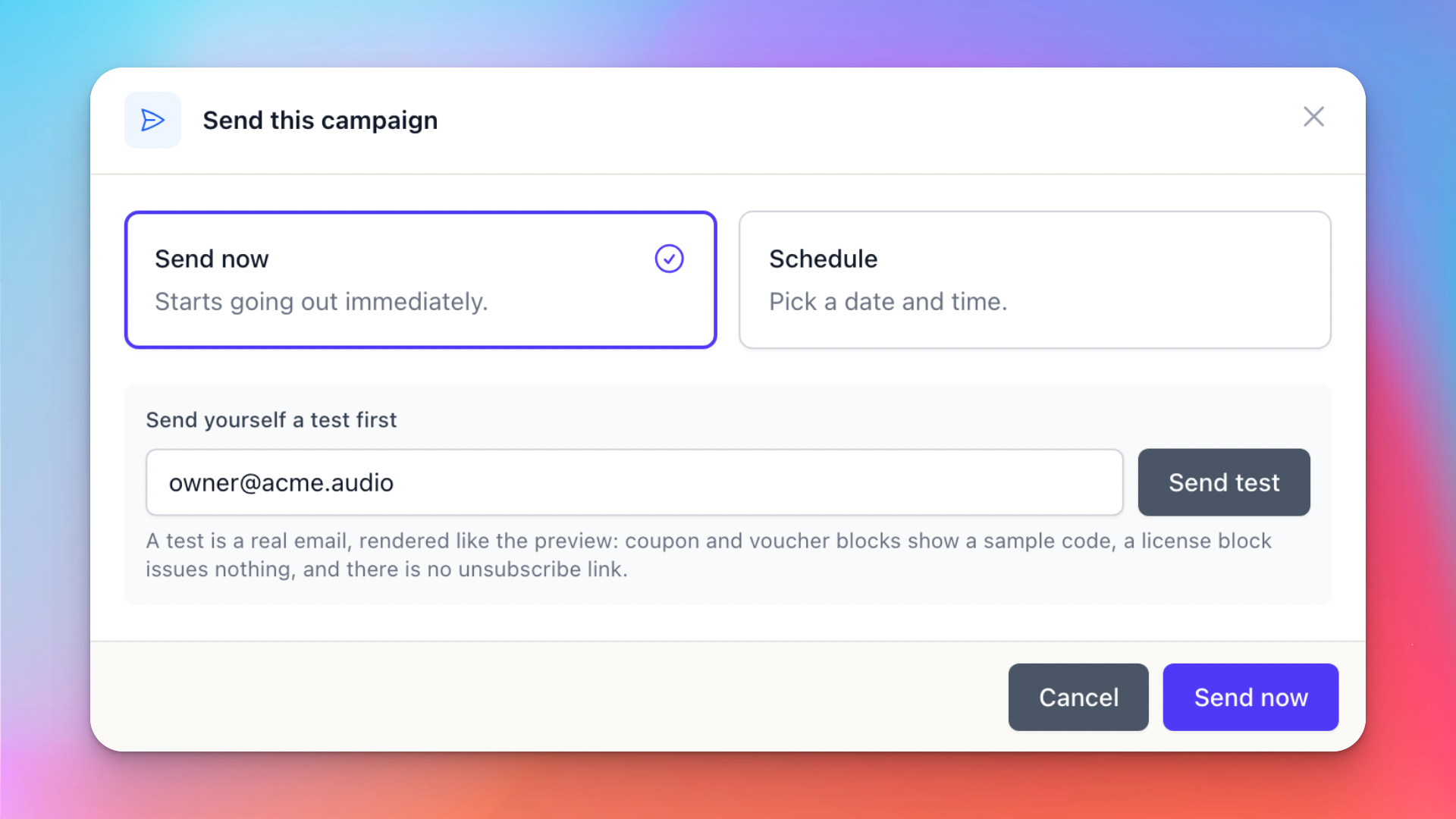
When you are happy with the email, click Send. It's a good idea to send yourself a test first: it is a real email, rendered just like the preview, but coupon and voucher blocks show a sample code, a license block grants nothing, and there is no unsubscribe link.
Then choose to Send now, or Schedule the campaign for later.
Once a campaign is scheduled or sending, its content is locked. To change a scheduled campaign, Unschedule it first. While a campaign is sending, you can Pause it and Resume it later, or stop it for good with Cancel campaign in the menu.
Sending limits
To protect your sending reputation, and your customers' inboxes, a few limits apply:
Daily limit: you can send as many emails as you have customers on your account. A campaign that reaches the limit pauses with "Paused for today's sending limit", and picks up again by itself the next day (UTC). Do you need higher limits? Get in touch.
Spam protection: once a campaign has sent at least 100 emails, it pauses itself if more than 0.5% of recipients mark it as spam. It then shows "Paused to protect your sending reputation". Have a look at the content and the audience before you resume it.
How did the campaign do?
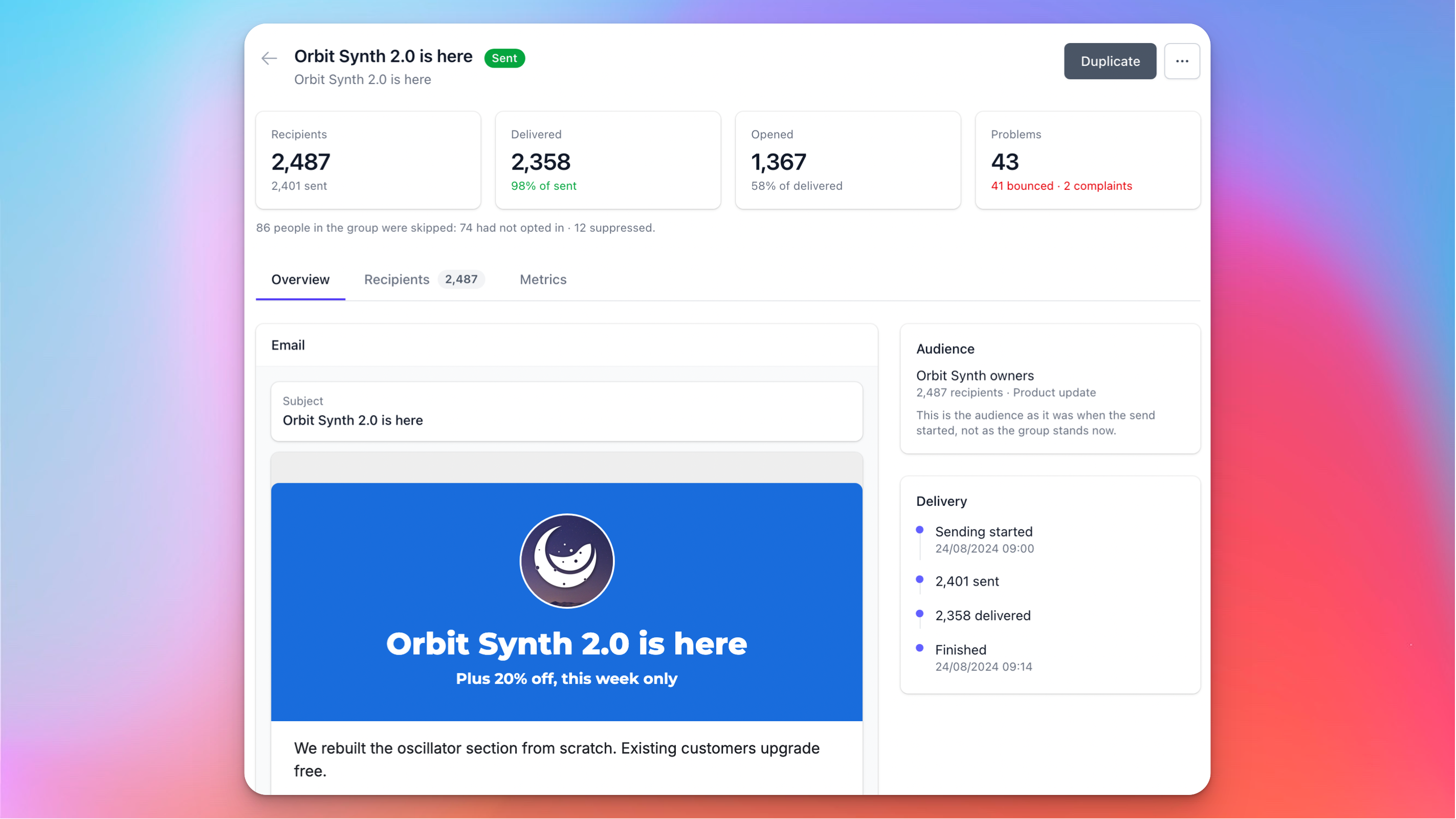
Every campaign gets a report, split into three tabs:
Overview: the email as it was sent, the audience as it was when sending started, and the headline numbers: recipients, delivered, opened, and any problems.
Recipients: everyone the campaign was for, with what happened to their email. Customers who were skipped show why, for example that they hadn't opted in or that their address is blocked.
Metrics: engagement over time, which mailbox providers the emails landed in, which links were clicked, and the details on any bounces or spam complaints.
Sales from a campaign
Every link in a campaign is tagged with UTM parameters: utm_source=mb-campaign, utm_medium=email, utm_campaign set from the campaign's name, and utm_content set to newsletter or product-updates. When a reader follows a link to your Moonbase storefront and buys, the sale carries those parameters, so you can find it in your sales analytics under UTM. Links where you set your own UTM parameters keep yours.
That also means a campaign can carry a sale that only its readers get: create a Promotions targeted at the campaign's UTM parameters, and link to it from the email.
Managing your campaigns
Only drafts can be edited, but you can Duplicate any campaign to start a new one from it, which is handy for a monthly newsletter. Campaigns you no longer need can be removed with Delete campaign in the menu, as long as they aren't in the middle of sending.
Frequently asked questions
Why did my campaign reach fewer people than are in the group?
Only customers who opted in to the campaign's type receive it, and never addresses that are blocked after a bounce or spam complaint. If your account requires customers to confirm their email address, customers who haven't confirmed it are skipped too. The Recipients tab shows who was skipped, and why.
Can I send automated emails, like a welcome series?
Campaigns are one-off sends. Moonbase-powered automations and drip-campaigns are on the way, see Marketing Automations
Why can't I send my campaign?
Check that your account is live, and that you have a sending address with the Marketing purpose on a verified domain. The send dialog tells you which of these is missing.
Still need help? Ask the team