Customer segments
Group customers by what they own, spend and do, kept up to date for you, or hand-pick lists of your own
Written By Tobias Lønnerød Madsen
Not every sale, download or email is meant for everyone. Sometimes it is for the customers who own last year's version but never upgraded, the ones who have spent more than 500 EUR with you, or the beta testers you picked by hand. That's what customer groups are for: you decide who belongs, and every part of Moonbase that takes a group can use it.
There are two kinds of groups you can create yourself:
Segments, where you write a rule and we work out who matches it, keeping the members up to date as your customers buy, download and use your software.
Curated lists, where you add and remove customers yourself.
Next to these, Moonbase keeps a set of product groups for you, such as "Helios Owners", "Helios Trials" and "Helios Subscribers", so you never have to build those yourself.
Where to find your groups
Every group lives on the Customers page, where you’ll find both the default groups as well as your own lists and segments. Selecting a group shows its members, and the + next to Customer Groups creates a new one:
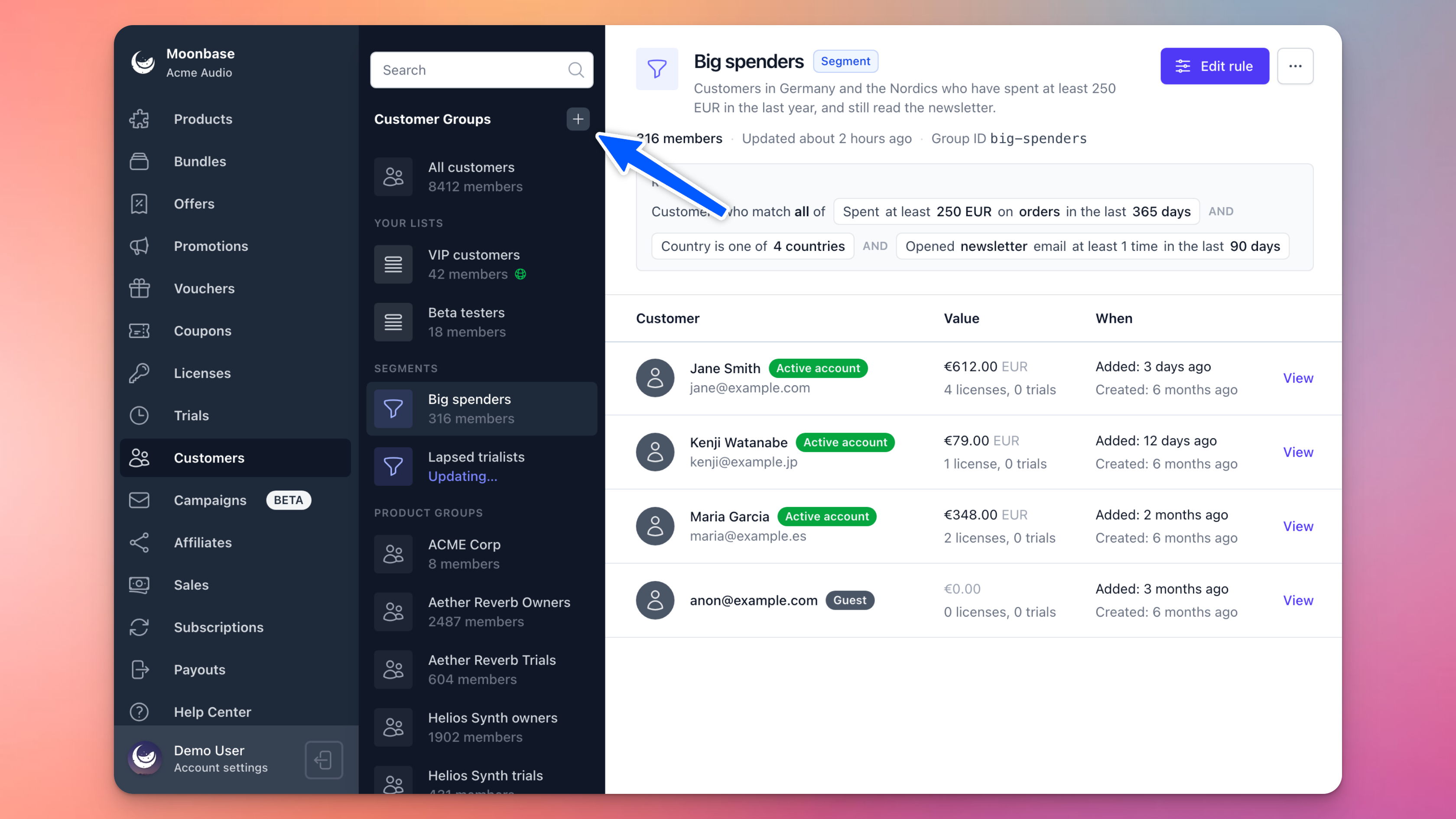
Creating a segment
Click + next to Customer Groups and give your group a name. We suggest an ID from the name, which is how the API, your storefront and your integrations refer to the group, so it can't be changed once the group is created. Choose Segment under Members, and click Continue to rule:
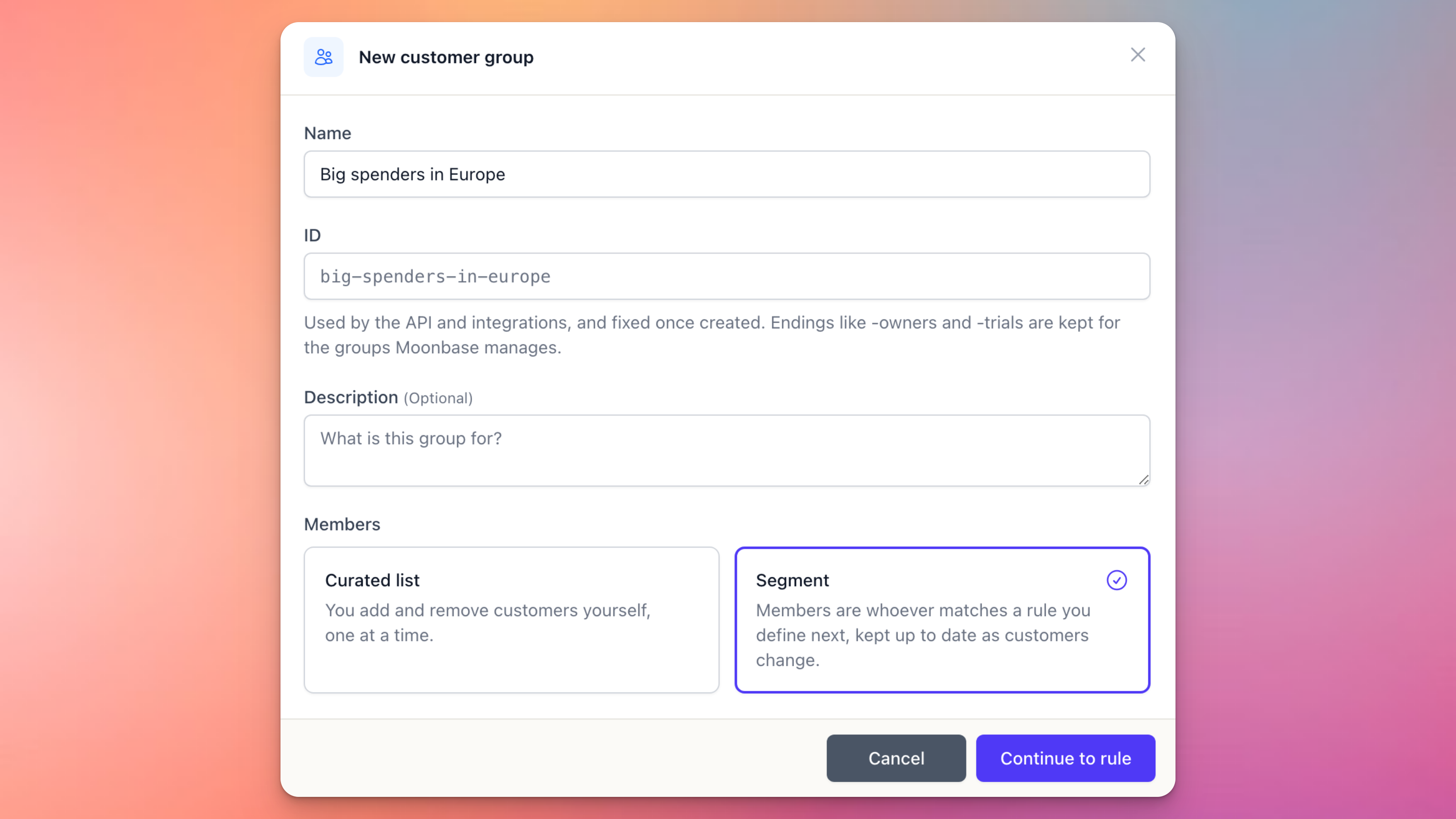
Writing the rule
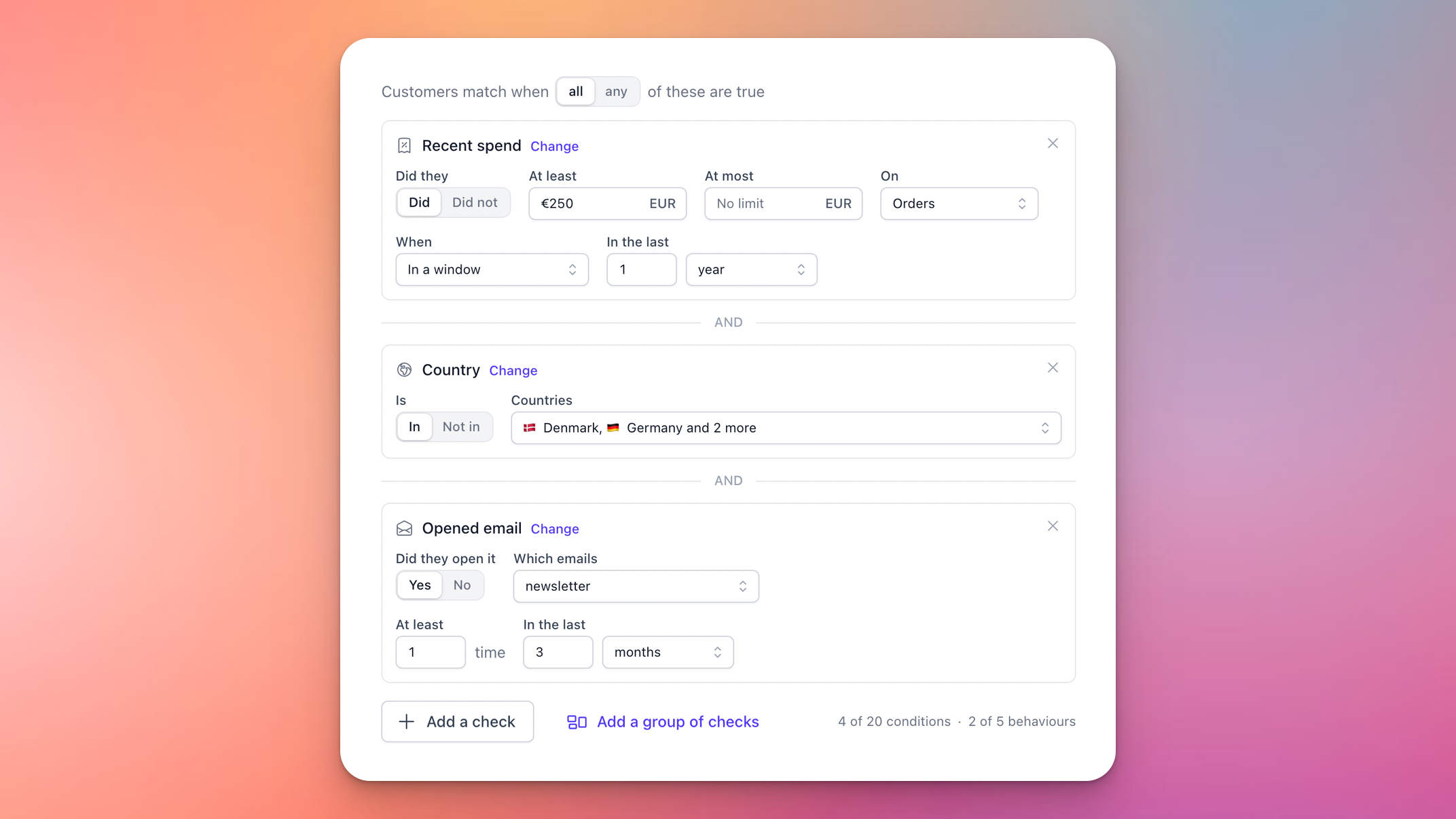
A rule is made up of checks, where each check is one condition a customer has to meet. At the top of the rule, you choose whether customers match when all of the checks are true, or when any of them are:
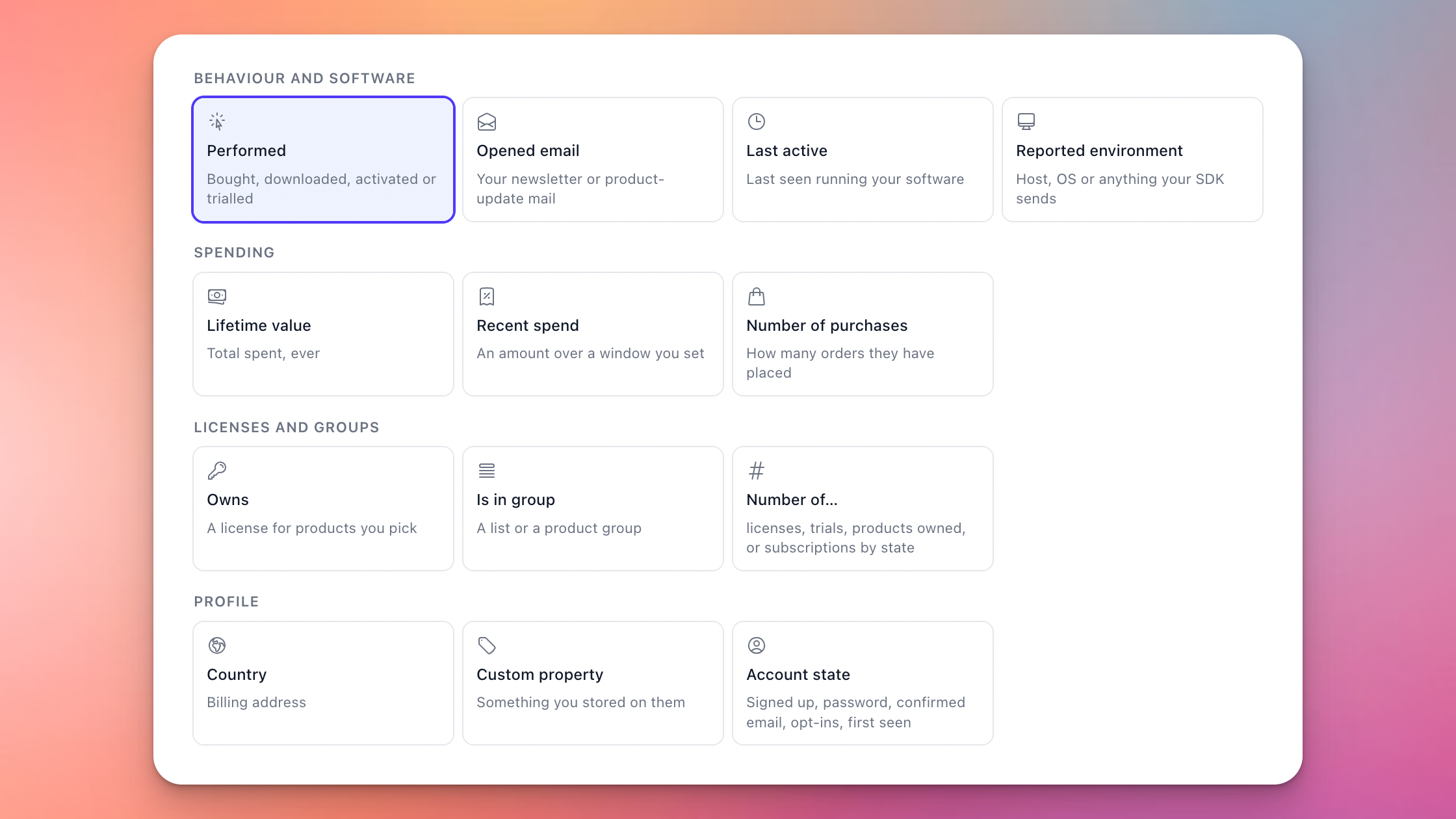
Click Add a check to pick a condition. Conditions are sorted into four sections, and the search box finds any of them by name:
Behaviour and software: something a customer did inside a window you set, like buying a product, downloading it, activating a license, starting a trial or cancelling a subscription. You can also look at whether they opened your newsletter or product-update emails, when they last ran your software, or a value your SDK reports, such as the host or operating system.
Spending: their lifetime value, what they spent over a window you set, and how many purchases they have made.
Licenses and groups: the products or bundles they own, the lists or product groups they are in, and how many licenses, trials, products or subscriptions they have.
Profile: their billing country, custom properties you have stored on them, and the state of their account, like whether they have signed up, confirmed their email, or subscribed to your newsletter.
Every check can be turned around, so "Bought" becomes "Did not buy" and "In group" becomes "Not in group". This is how you find, for example, everyone who owns version 1 of a plugin but not version 2. To swap a check for a different condition, click Change on it.
For anything more involved, Add a group of checks nests a group with its own all/any choice. Say you want customers in Germany who have either spent more than 500 EUR or own your bundle: the country is one check, and the other two go in a group set to match any.
Previewing who matches
While you edit, the preview next to the rule shows how many customers match right now, together with a sample of them. It updates as you go, so you can tune the rule until the numbers look right before you save:

On a large account, the preview may stop counting partway and show a number like "1,200+". Saving the segment works out the exact count.
Limits
A rule can hold up to 20 conditions, and up to 5 of them can be behaviours: the checks that look back over a window of time, like purchases, downloads, email opens or recent spend. Every part of the rule counts towards the 20, including the all/any choice and each group of checks, and the counters under the rule show how much room is left.
You can have up to 200 lists and segments in total, and up to 50 of those can be segments.
How segments stay up to date
When you save a segment, it starts working out its members, and shows "Updating now" while it does. From then on, we keep it current for you:
Changes to a customer's profile, like confirming their email or subscribing to your newsletter, are picked up within seconds.
Behaviour, like a purchase, a download or an email being opened, is picked up within a few minutes.
Time windows move on their own. A customer who matches "has not bought anything in the last 90 days" joins the segment on day 91, without having to do anything at all.
Since the rule decides who is in a segment, members can't be added or removed by hand. If someone should be in it but isn't, adjust the rule, or use a curated list instead.
A segment can't be built on top of another segment. The "Is in group" check offers your curated lists and product groups, but not your other segments.
Curated lists
A curated list is for the people you pick yourself: beta testers, press contacts, or the customers you met at a trade show. Create one just like a segment, but choose Curated list under Members. You can then add customers with Add customers on the list, up to 100 at a time, or from a customer's own page, using Add to a list in their Groups card:

Letting customers join a list
A list can be Open to sign-ups, which lets your storefront add people to it as they register, subscribe to your newsletter, or check out. This makes it easy to run a beta sign-up or a waiting list from your own website. You name the lists to join in your storefront setup, or per link, for example ?mb_intent=sign_up&mb_groups=beta-testers. Read more about this in our documentation on the Moonbase Embedded Storefront.
Lists that aren't open to sign-ups can only be changed by you, so customers can never add themselves to them. Segments can't be opened to sign-ups at all, since their rule decides who is in.
Using your groups
Once you have a group, you can pick it anywhere Moonbase asks for one:
Discounts and promotions: make a Product Discounts or a Promotions exclusive to a group, and its members get the price automatically, with no code to type.
Downloads: set a release to require group membership, so only members can download it, which is perfect for beta builds. See Downloads / Releases.
Email campaigns: send a campaign to a group, or show a section of an email only to some of its readers. See Email campaigns.
Integrations: if you have connected an email tool like Klaviyo or Mailchimp, the groups a customer belongs to are synced along with them, segments included, so you can put them to use there too.
To get the members of a group out of Moonbase, open the ... menu on the group and choose Export customers.
Editing and deleting groups
On a segment, Edit rule takes you back to its rule, and saving it works out the members again. The ... menu on any of your groups has Edit details for the name, the description and, on a list, whether it is open to sign-ups, and Delete group to remove it. The group's ID stays the same for as long as the group exists.
Product groups are kept by Moonbase, so they can't be renamed, edited or deleted.
Still need help? Ask the team