Payout configuration
Choose where Moonbase sends your money; pick a default account, and learn how to reset things if you need to change banks.
Written By Tobias Lønnerød Madsen
This page is where you tell Moonbase how to pay you. You find it under Account settings > Account > Payout configuration. You configure a payout account that all proceeds settle into. For more information about the payout process, read our article on Getting Paid.
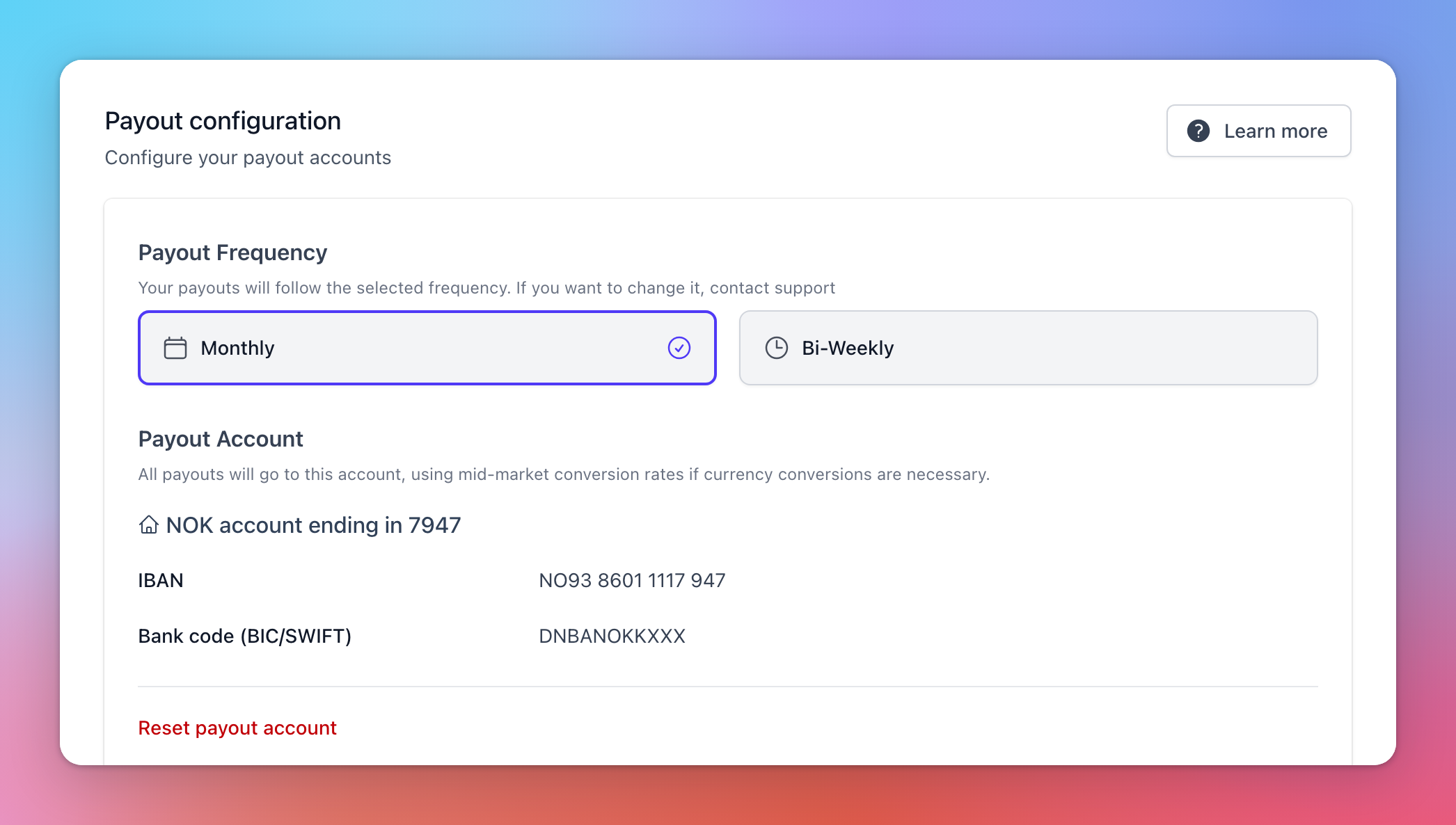
Payout frequency
Payouts run on a fixed schedule. Please contact support if you need to switch from monthly to bi-weekly.
Payout account
Your default payout account receives every payout. Sales that settle in a different currency are converted to your account's currency at the mid-market rate before the payout is sent. Read more about our currency support in our article on Currencies.
Moonbase pays out through Wise, our payout partner, so you don't need a Wise account yourself. Click Set up account, pick the Account currency (it starts on the currency of your address country), and fill in the bank details asked for. They depend on the country and currency, so the form may look different for you.
While your account is being verified, you add the payout account on the Verification page instead, in your legal name, and this section shows Set up on the Verification page. Every new account goes live through verification.
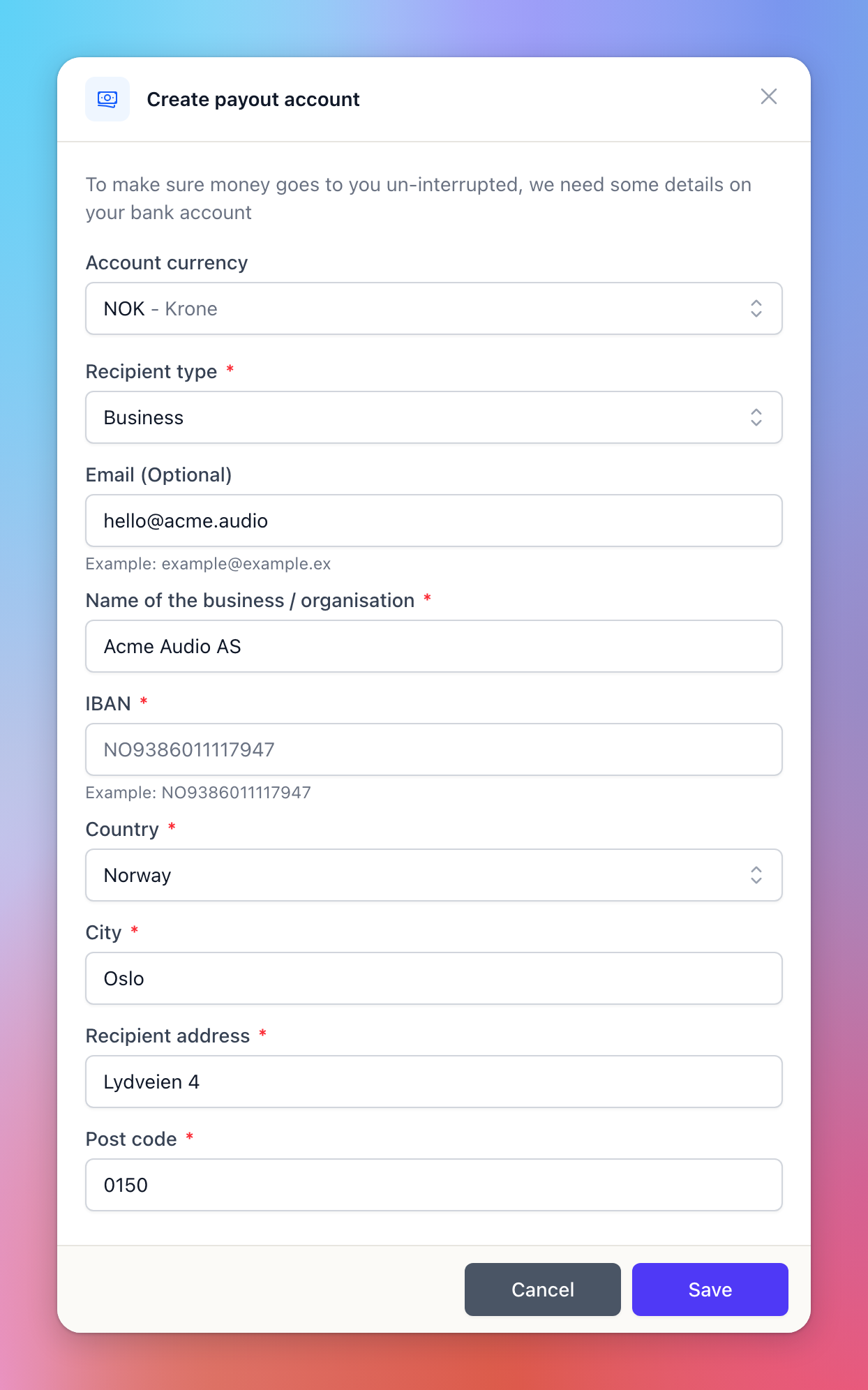
Note: your business address must be filled in (on the Account Information form) before you can set up a payout account.
Resetting a payout account
If you need to change banks or correct a mistake, the account owner (marked Owner under Account settings > Access) can click Reset payout account, then Send email, and confirm the reset from the email within a day. This clears the configuration so a new account can be set up. Only the owner sees this button, and only when an account is currently configured.
For a verified account, the confirmation link takes you to the Verification page to add the new account, and payouts wait until Moonbase has checked it.
Frequently Asked Questions
Why can't I edit the form?
Why can't I edit the form?
To update your payout account, you must reset your account details entirely to enter new account details. Only the account owner can do this, and they confirm it from an email.
What FX rate do you use?
What FX rate do you use?
The mid-market rate, with no markup from Moonbase. Each payout still carries the flat fee per payout in your Pricing Plan, our transfer provider's fee applies to the amount sent, and your bank may charge you to receive it.
Was this helpful?
Still need help? Ask the team