Brevo
Keep newsletter subscribers in sync between Moonbase and Brevo, organize them into lists, and import your Brevo contacts
Written By Tobias Lønnerød Madsen
There are two big reasons for why you might want to connect Moonbase with your Brevo account for improved marketing campaigns:
To synchronize new subscribers coming in through Moonbase
To organize Brevo subscribers into relevant lists automatically
Our Brevo integration is built to do both seamlessly, and will upon activation in the Moonbase App create subscriber lists that will match the customer groups you have in Moonbase, in your Brevo account.
Getting started
This integration is using an API key to integrate with Brevo, so start by creating an API key for Moonbase in your Brevo account settings:
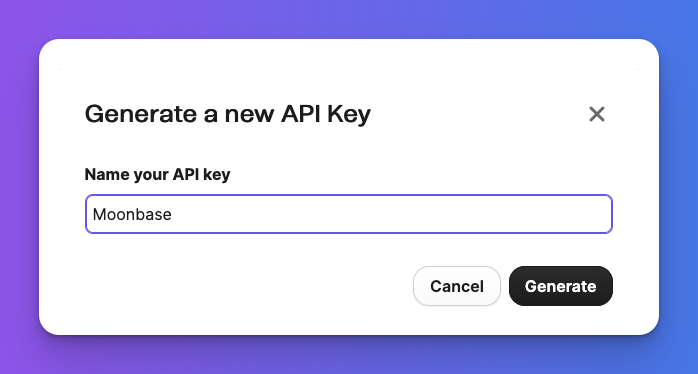
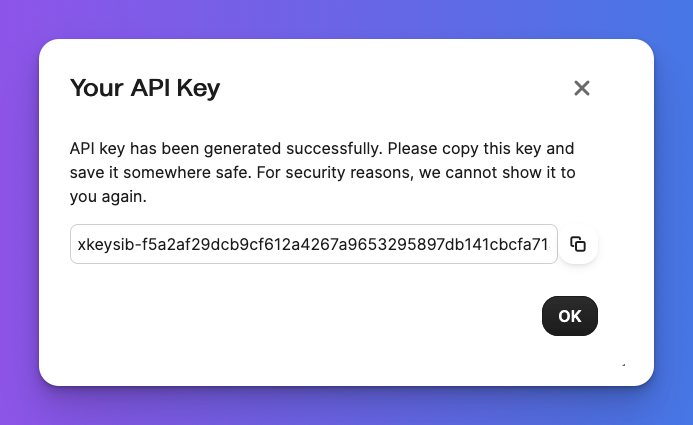
After clicking "Generate", you will be able to copy the generated key:
Once you have your API key, go to Account settings > Integrations, open the Available tab, click Set up next to Brevo, paste it into API key and click Enable:
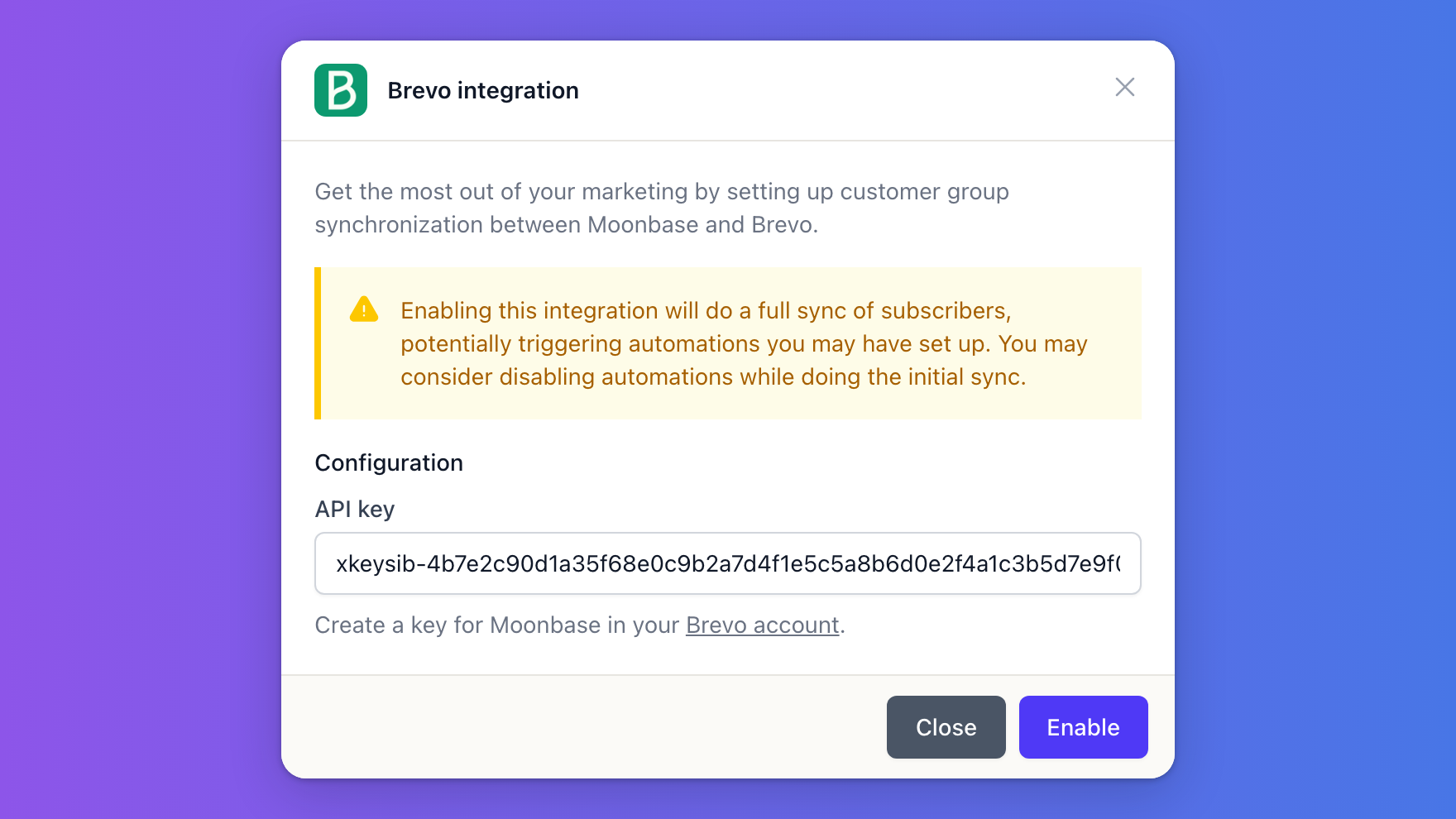
Enabling the integration does a full sync of your subscribers, which can trigger automations you have set up in Brevo. Consider pausing them during the first sync.
Once enabled, it syncs every Moonbase customer who has opted in to your newsletter, adding them to a Brevo list for each group they’re in. Moonbase keeps these lists in a folder of their own. Consent stays in sync both ways: an unsubscribe in Brevo reaches Moonbase within seconds, and the most recent change always wins.
Since Moonbase automatically keeps track of which customers owns which products through groups, you will have a number of subscriber lists automatically synchronized for owners of your different products. This is a powerful tool to keep marketing campaigns targeted towards the part of your audience where it can make the most impact.
Brevo IP address authorization
Since Moonbase is distributed across many data-centers, you must disable Brevo’s IP address authorization for API keys:
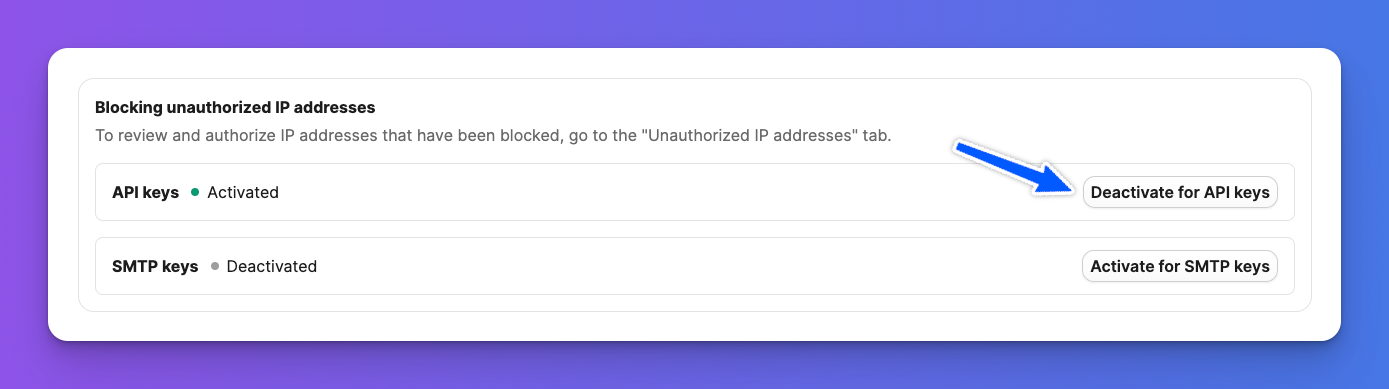
If you don’t do this, you may get an error when enabling the integration, or later on, if Brevo decides to block the IP address Moonbase is calling from.
Importing your Brevo contacts
If you send campaigns from Moonbase, you can bring your Brevo contacts in: open Brevo under Account settings > Integrations, go to its Settings tab, turn on Import Brevo subscribers as contacts under Import contacts and click Save. Everyone Brevo may email is added as a guest, with nothing sent to them, and new contacts added to your lists follow within seconds. Because Brevo can’t tell Moonbase when someone subscribed, an import only opts in customers who haven’t already decided either way in Moonbase. Re-sync contacts reads everyone again. See Import newsletter subscribers.
Was this helpful?
Still need help? Ask the team