Import newsletter subscribers
Move a mailing list into Moonbase as newsletter contacts for future email campaigns, from a CSV file or straight from your email tool.
Written By Tobias Lønnerød Madsen
Moving a mailing list to Moonbase? You can import your subscribers from a CSV file as newsletter contacts. A newsletter contact is on your mailing list but doesn't have a customer account yet. If your list is in Klaviyo, Mailchimp, Brevo, MailerLite or Mailjet, Moonbase can also bring it in straight from there: see Import from your email tool below.
Nobody is emailed during the import, and nobody is handed an account they didn't ask for. When a subscriber wants an account, for example to buy from you or download a product, they sign up with the same email address and Moonbase connects the account to their existing contact.
Before you start
Only import people who agreed to hear from you. The import records their consent as it is in your file. It doesn't send a confirmation email, even if your newsletter sign-up form uses double opt-in.
Leave out anyone who unsubscribed. If someone in your file is already a customer in Moonbase and has unsubscribed, a
yesin the file subscribes them again.
Prepare your CSV file
Put one subscriber on each row, with column headers in the first row. Exports from most newsletter tools work as they are: Moonbase recognises common header names such as Email Address, Newsletter and Signup Date, and you can map any other column yourself during the import.
For example:
email,name,newsletter,created_at
alice@example.com,Alice Johnson,yes,2024-06-15
bob@example.com,,yes,2023-11-02
Tip: If your export has separate first and last name columns, you can map the first name column to Name during the import, or combine the two into one column before you import.
Import your subscribers
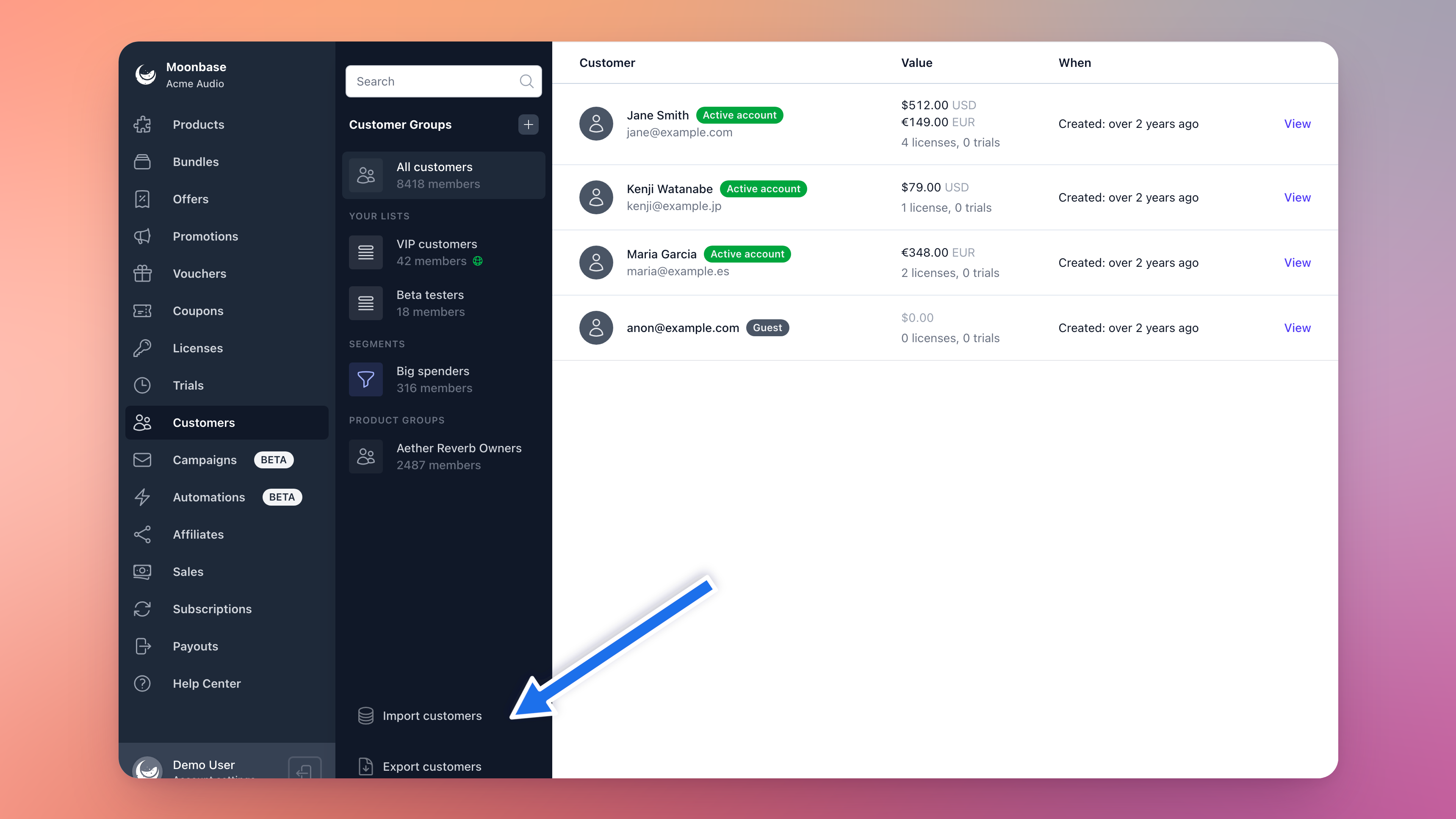
Go to Customers and choose Import customers at the bottom of the list on the left. You can also get there from Account settings → Migration → Customers.
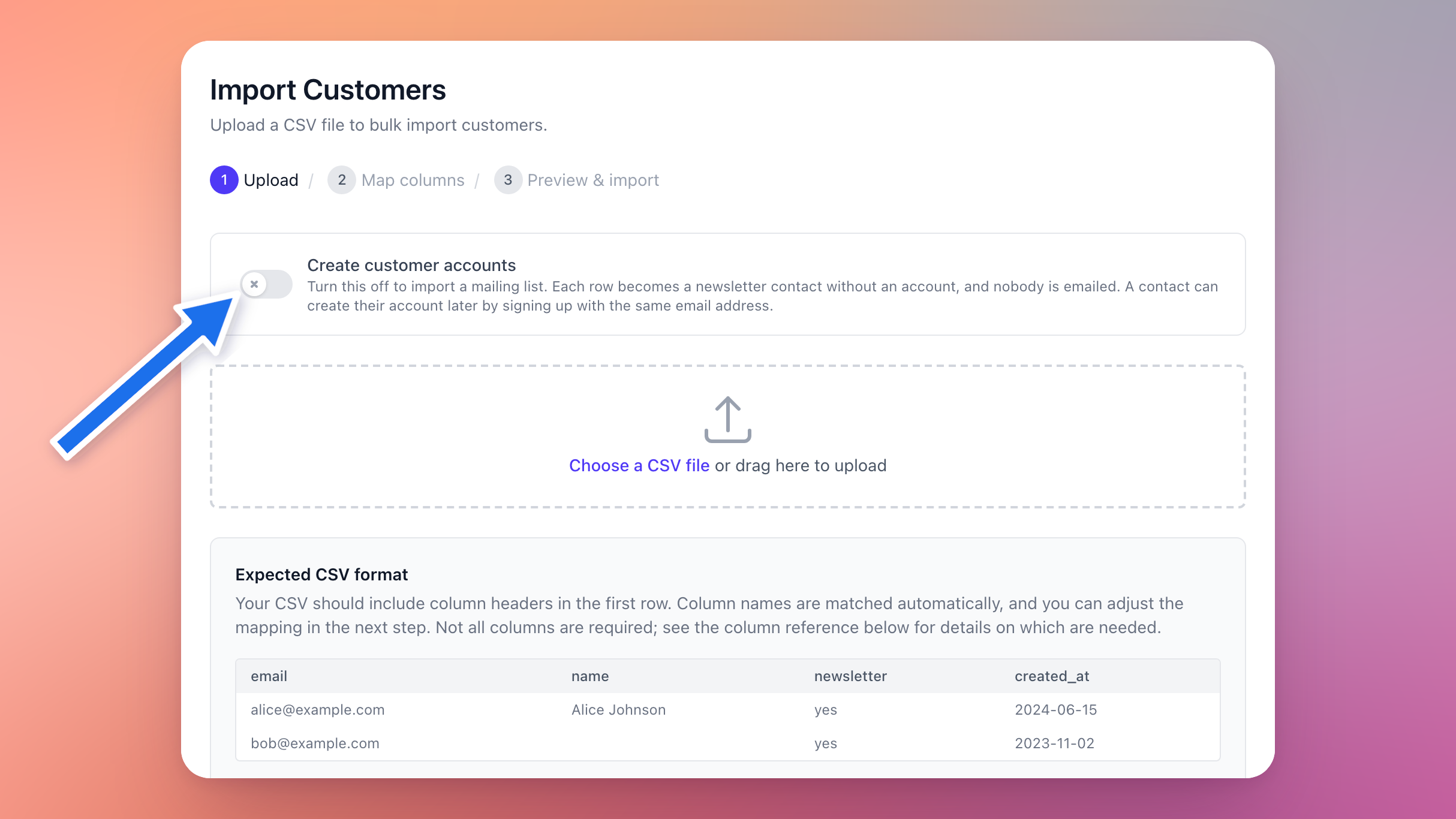
Turn off Create customer accounts. Do this before you choose your file, because it decides which columns there are to map.
Choose a CSV file, or drag your file onto the page.
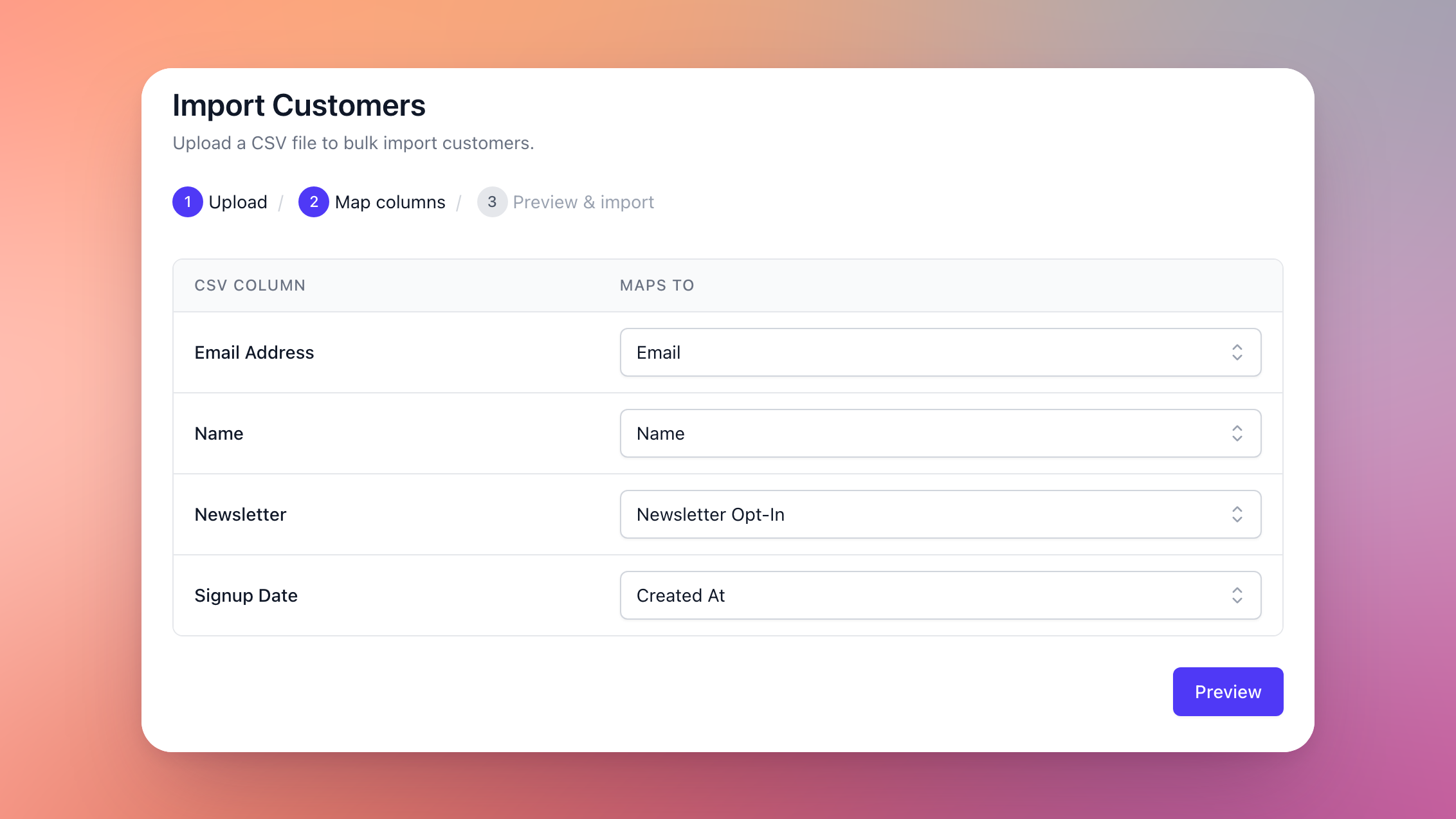
Check how your columns are mapped. Email is the only column that has to be mapped. Then choose Preview.
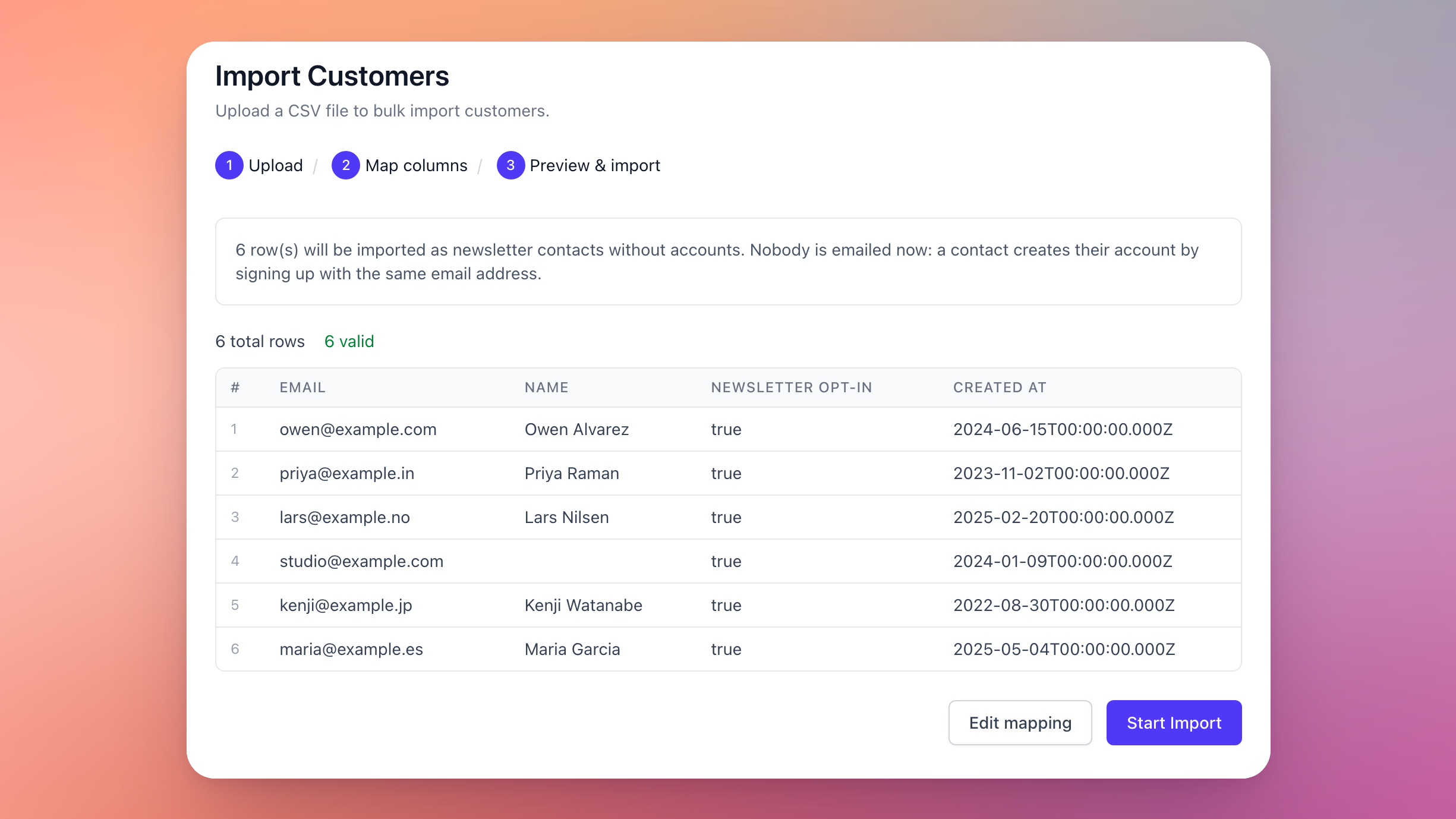
Check the preview. It tells you how many rows will be imported as newsletter contacts. It also warns you if some rows aren't opted in to newsletters or product updates, because those contacts would get no marketing email. This usually means the newsletter column isn't mapped.
Choose Start Import.
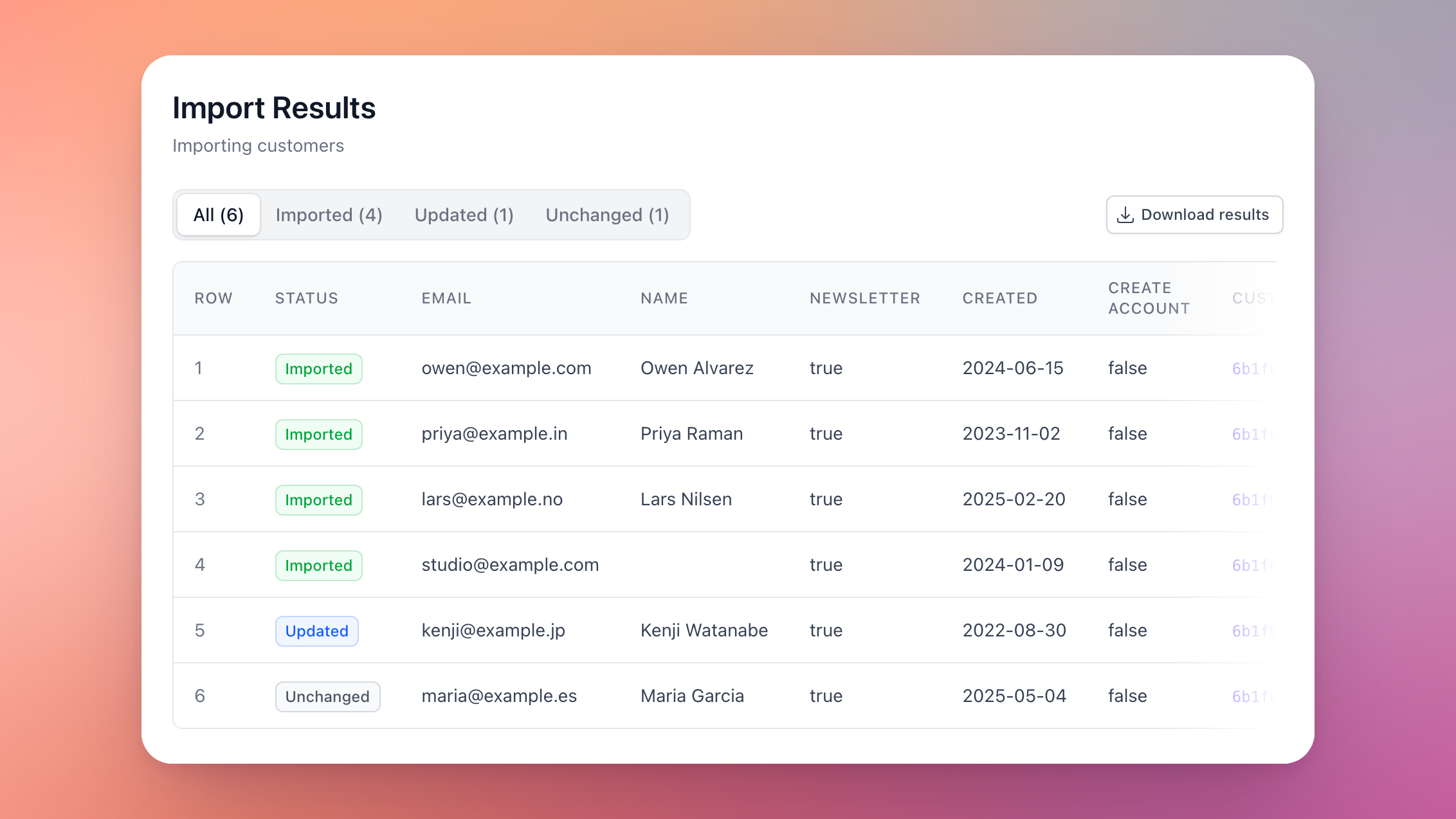
The import runs in the background, so you can leave the page and come back later. When it's done, the Import Results page shows each row as Imported, Updated, Unchanged or Error, and Download results gives you the same list as a CSV file.
Import from your email tool
If your mailing list lives in Klaviyo, Mailchimp, Brevo, MailerLite or Mailjet, you can skip the CSV file. Once the tool is connected to Moonbase, it can bring its subscribers in as newsletter contacts, and keep bringing in new ones as they subscribe.
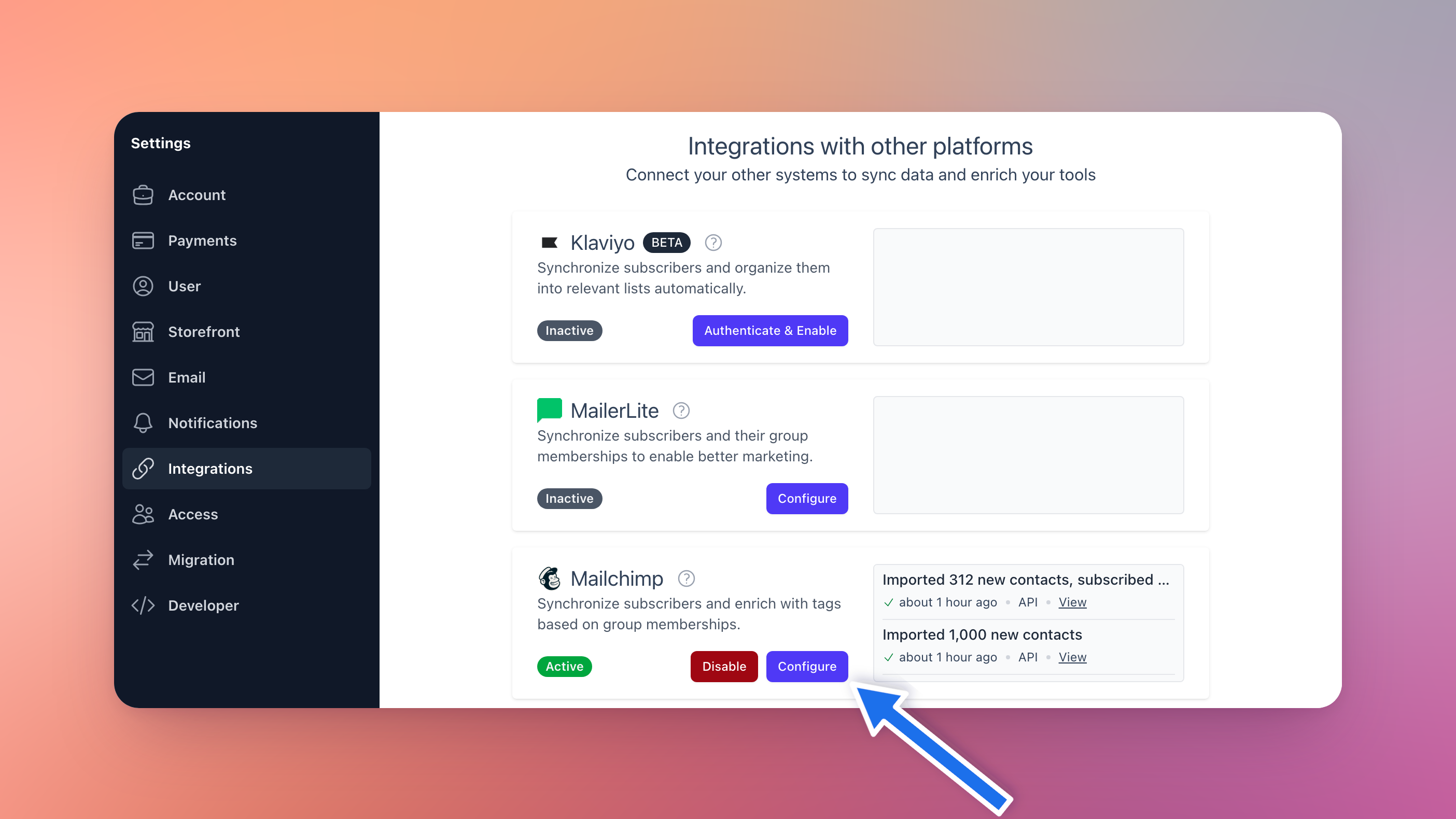
Go to Account settings → Integrations and connect your email tool, if you haven't already.
Choose Configure on the tool.
Under Import contacts, turn on the switch to import the tool's subscribers as contacts, for example Import Mailchimp subscribers as contacts, and choose Save.
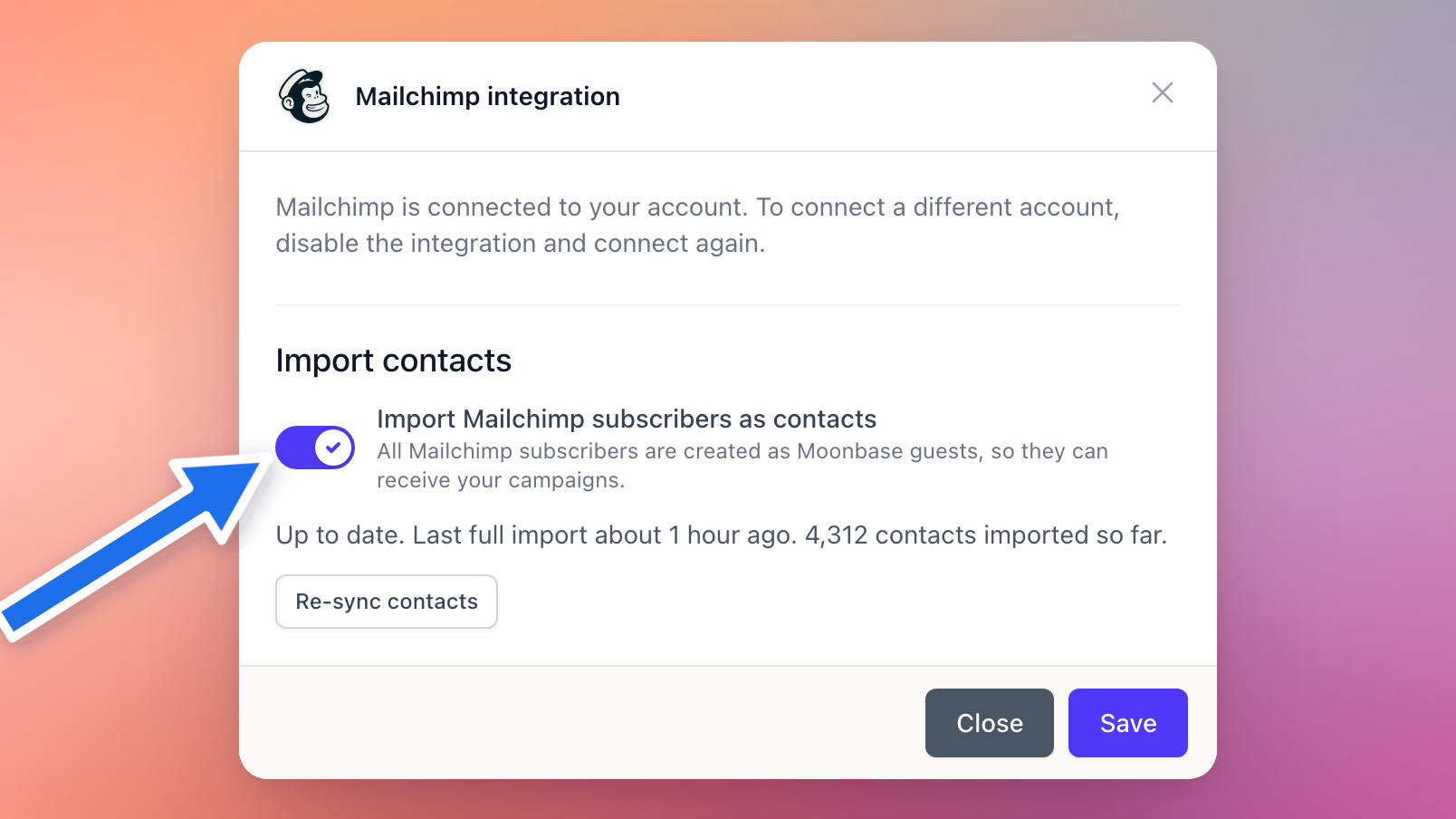
Moonbase then reads every subscriber in the tool once. While it does, the section says Importing now., and once it's done, Up to date, with when the last full import ran and how many contacts the tool has brought in so far. Nobody is emailed, and nothing is written back to the tool.
The Import contacts section is there on accounts that have email campaigns, since campaigns are what the contacts are for. You can turn it on for more than one tool: someone on several of your lists is still one contact.
Who comes in: only subscribers the tool is allowed to email. Anyone who unsubscribed, bounced, was marked as spam or hasn't confirmed a double opt-in yet is left out. In Klaviyo, profiles that never subscribed to email marketing are left out too, such as shoppers synced from a store.
How they arrive: the same as from a CSV file. They're newsletter contacts marked Guest, opted in to newsletters and product updates, with their name if the tool has one.
Customers you already have are matched by email address, so nobody is added twice, and the name and details you have in Moonbase are kept. Whether they're subscribed follows whichever decision is newer, yours or the tool's: someone who unsubscribed in the tool after subscribing with you is unsubscribed in Moonbase too. That's different from a CSV import, which never unsubscribes anyone. Brevo and Mailjet don't say when someone subscribed, so from those two, Moonbase only subscribes customers who never decided either way with you.
New subscribers reach Moonbase within seconds of joining your list in the tool, and so do unsubscribes. Mailjet is the exception: it doesn't tell Moonbase about new subscribers, so new Mailjet subscribers come in when you choose Re-sync contacts. Unsubscribes in Mailjet still arrive straight away.
Re-sync contacts reads every subscriber in the tool again, straight away. It also puts back Moonbase's webhook if it was deleted in the tool, so it's the fix whenever subscribers seem to be missing. Nobody is imported twice.
Turning it off stops the import, and the contacts already imported stay. Disabling the integration pauses the import, and enabling the integration again runs a full import to catch up on what changed in the meantime.
Imported contacts count towards your customers, and campaign emails to them are charged like any other campaign email (see Fees & Costs).
After the import
Your subscribers appear under Customers marked Guest, which means they don't have an account yet. On a subscriber's page, Account says Guest and Newsletter says Subscribed.
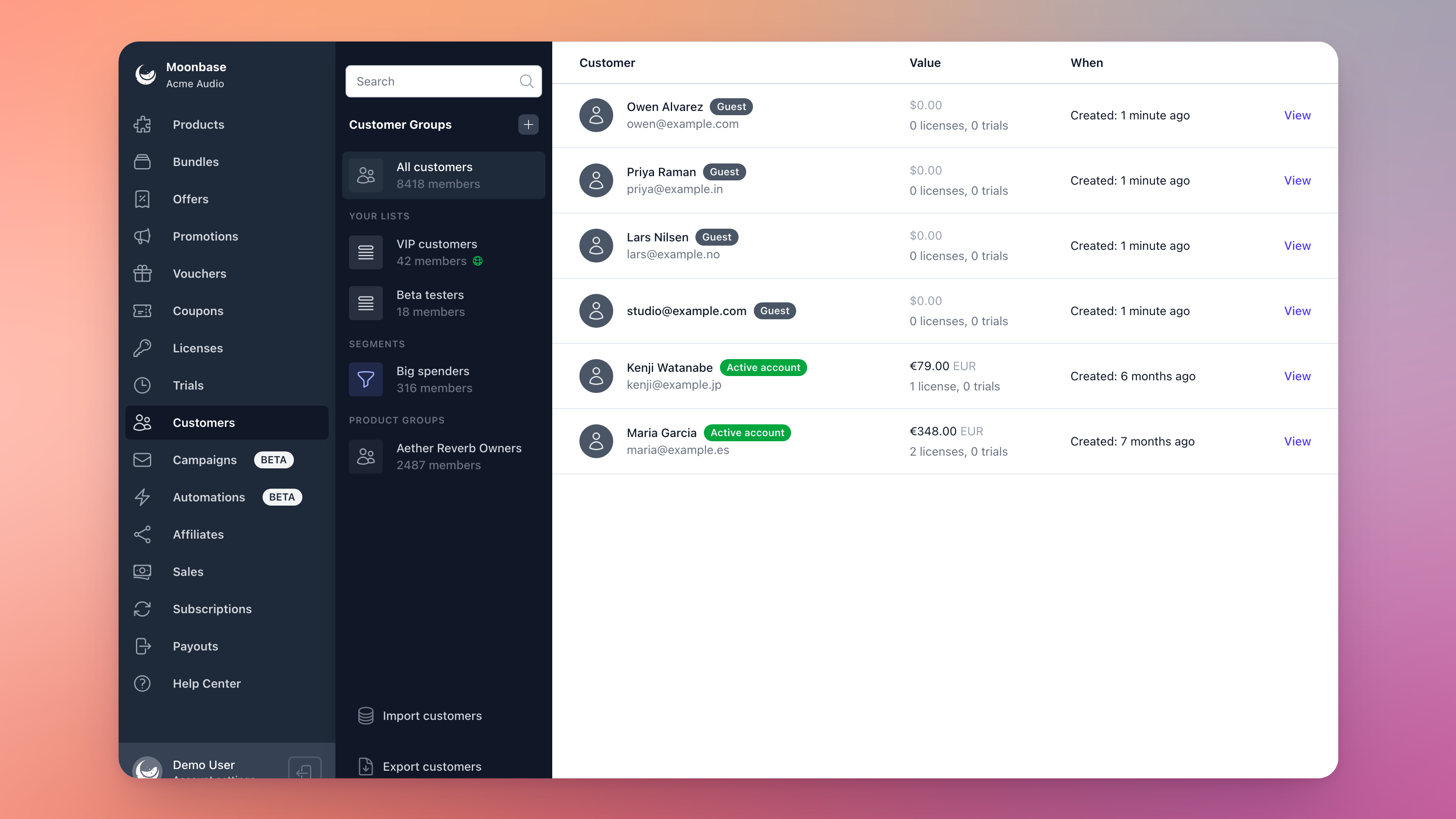
They'll now receive the newsletters and product updates you send from Moonbase. Every one of those emails includes an unsubscribe link, and it works without an account.
To get a list of your subscribers, use Export customers. The export includes each customer's newsletter and product update opt-ins.
If you use customer groups, you can create a group with the Account state rule where Newsletter subscriber is yes and Signed up is no. That gives you everyone who is subscribed but hasn't created an account.
How subscribers create their account
Subscribers don't need to do anything to stay on your mailing list. When one of them wants an account, they sign up with the same email address:
They open the sign-up form. On your customer portal (your store's
moonbase.shaddress or your own domain), they choose Create account on the sign-in screen. If your website embeds the Moonbase storefront, they can use your site's sign-up button. You can also link straight to the form by adding?mb_intent=sign_upto the address of any page that has the storefront embedded.They fill it in. They enter their Full name, Email address and a Password, then choose Sign up.
They confirm their email address. Moonbase emails them a link to prove the address is theirs. The subject is "Finish creating your [your store name] account", and the email has an Activate account button. The link works for 24 hours. If it expires, they can simply sign up again to get a new one.
They're in. Clicking the link creates their account and signs them in.
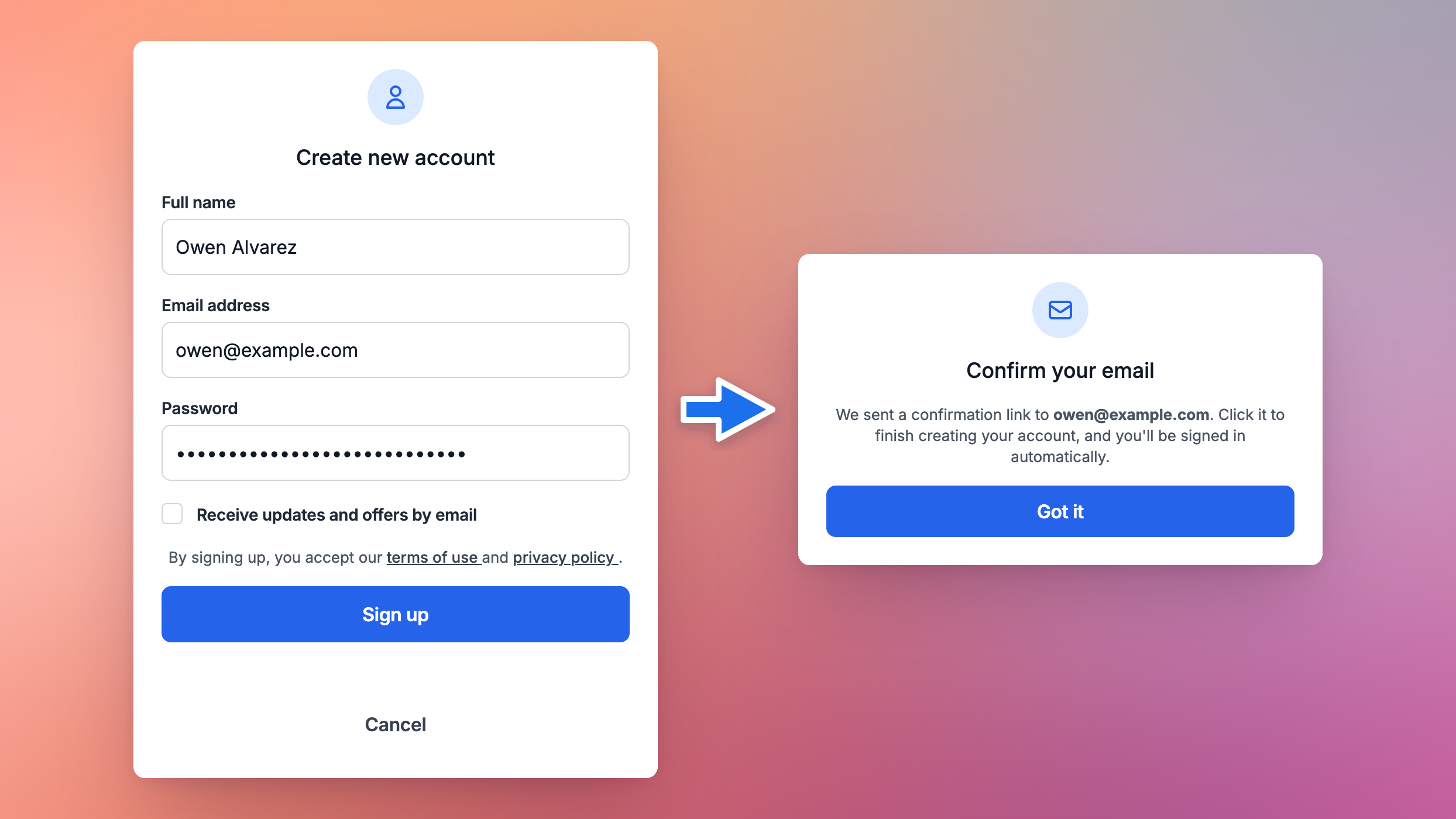
The account is added to the same customer record as their newsletter contact. They stay subscribed, and anything they've bought stays theirs. In Moonbase, the customer is now marked Active account instead of Guest.
Sign in and Forgot password don't work until they have an account. Until a subscriber signs up or buys something, both treat their email address as unknown and say that no such user exists. This is on purpose: it means nobody can find out whether an email address is on your mailing list by trying it. If a subscriber gets this message, point them to Create account.
If a subscriber buys before signing up
They can check out as a guest using the same email address. Buying gives them an account, just like any first-time buyer: the order is added to their existing customer record, which now has an account but no password yet. In Moonbase they're marked Invited instead of Guest.
To choose a password, they can use the Create Account button on their receipt. From then on Sign in and Forgot password work for them too: signing in before they've chosen a password emails them a link to set one.
Inviting subscribers to create an account
To encourage subscribers to sign up, send them an email with a link to your sign-up page. Re-send invitation on a customer's page isn't available for newsletter contacts: it's for customers who already have an account but haven't set a password yet.
Importing again, and existing customers
Rows are matched to existing customers by email address, so importing the same file twice doesn't create duplicates. Rows with nothing new are reported as Unchanged.
Someone who already has an account keeps it. The import only adds their newsletter opt-in.
An import never unsubscribes anyone. A
noor a blank cell leaves a customer's current settings as they are.Passwords aren't imported for newsletter contacts. They choose their own password when they sign up.
Troubleshooting
"Required fields not yet mapped: Name", or "Name is required" in the preview
Create customer accounts is still on. Go back to the first step, turn it off and choose your file again.
"row(s) opt in to neither newsletters nor product updates"
Check that your newsletter column is mapped to Newsletter Opt-In, and that it says yes for the people who subscribed.
"Password ignored" on the results page
A row had a password but was imported as a newsletter contact, or it matched someone who is already a newsletter contact. The rest of the row was imported, and there's nothing you need to do.
A subscriber in your email tool isn't in Moonbase
Check that the import is turned on under the tool's Configure, and that they're subscribed in the tool, not unsubscribed, bounced or still unconfirmed. New Mailjet subscribers only come in with Re-sync contacts. If none of that explains it, choose Re-sync contacts: it reads everyone again and puts back Moonbase's webhook if it was deleted in the tool.
"The last import stopped" under Import contacts
The tool refused a request or couldn't be reached, or the import made no progress for an hour. Moonbase doesn't try again on its own: choose Re-sync contacts to start over. If the tool rejected Moonbase's credentials, the whole integration is switched off, so fix the connection and enable it again.
A subscriber can't sign in
If they're marked Guest, they haven't created their account yet. Ask them to choose Create account and sign up with the same email address. If they're marked Invited, they have an account from a purchase but no password yet: signing in emails them a link to set one.
A subscriber's activation link has expired
Ask them to sign up again. They'll get a new link, valid for 24 hours.
Was this helpful?
Still need help? Ask the team