Selling add-ons with sub-products
Most products eventually pick up add-ons — a pro tier, an expansion pack, a workspace upgrade, an optional module on top of the baseline offering. The building block for that in Moonbase is a sub-product.
Written By Tobias Lønnerød Madsen
This guide walks through what a sub-product is, when to reach for one, how to set one up in the dashboard, and how your product can tell which sub-products a customer owns so it can enable the right features.
What is a sub-product?
A sub-product is a regular Moonbase product that sits underneath a parent product. Its product ID uses a dotted format: parent-id.child-id. For example, a product called acme-studio might have these sub-products:
acme-studio.pro-toolsacme-studio.cloud-syncacme-studio.extra-workspace
Each sub-product is a first-class product. It has its own name, description, pricing, currencies, and visibility settings. A customer can own any combination of them: buying pro-tools doesn't require buying cloud-sync, and vice versa. The parent product is what your integration authenticates against; the sub-products ride along with the parent's license as flags that tell your product which extras the customer has access to.
Sub-products vs. pricing variations vs. bundles
Three concepts get mixed up a lot. Quick rule of thumb:
Sub-product — A separately purchasable add-on that extends a parent product. Use this for expansion packs, pro tiers, feature unlocks, optional modules, premium content. This article is about these.
Pricing variation — A different way to buy the same product (one-time vs. subscription, Standard vs. Pro tier on a single SKU, monthly vs. yearly). Use variations when the thing being sold is the same, but the terms differ.
Bundle — A grouping of multiple independent products sold together at a combined price. Use a bundle when you want to package, say, three separate products into one purchase.
If your customer is buying more of the same product, that's a variation. If they're buying an extension to a product you already sell them, that's a sub-product. If they're buying several different products in one go, that's a bundle.
Walkthrough: create a sub-product
Step 1 — Open the new-product form
In the merchant dashboard, go to Products and click Create new product. The form is the same one you used for your parent product, with one extra field you'll use here: Parent product.
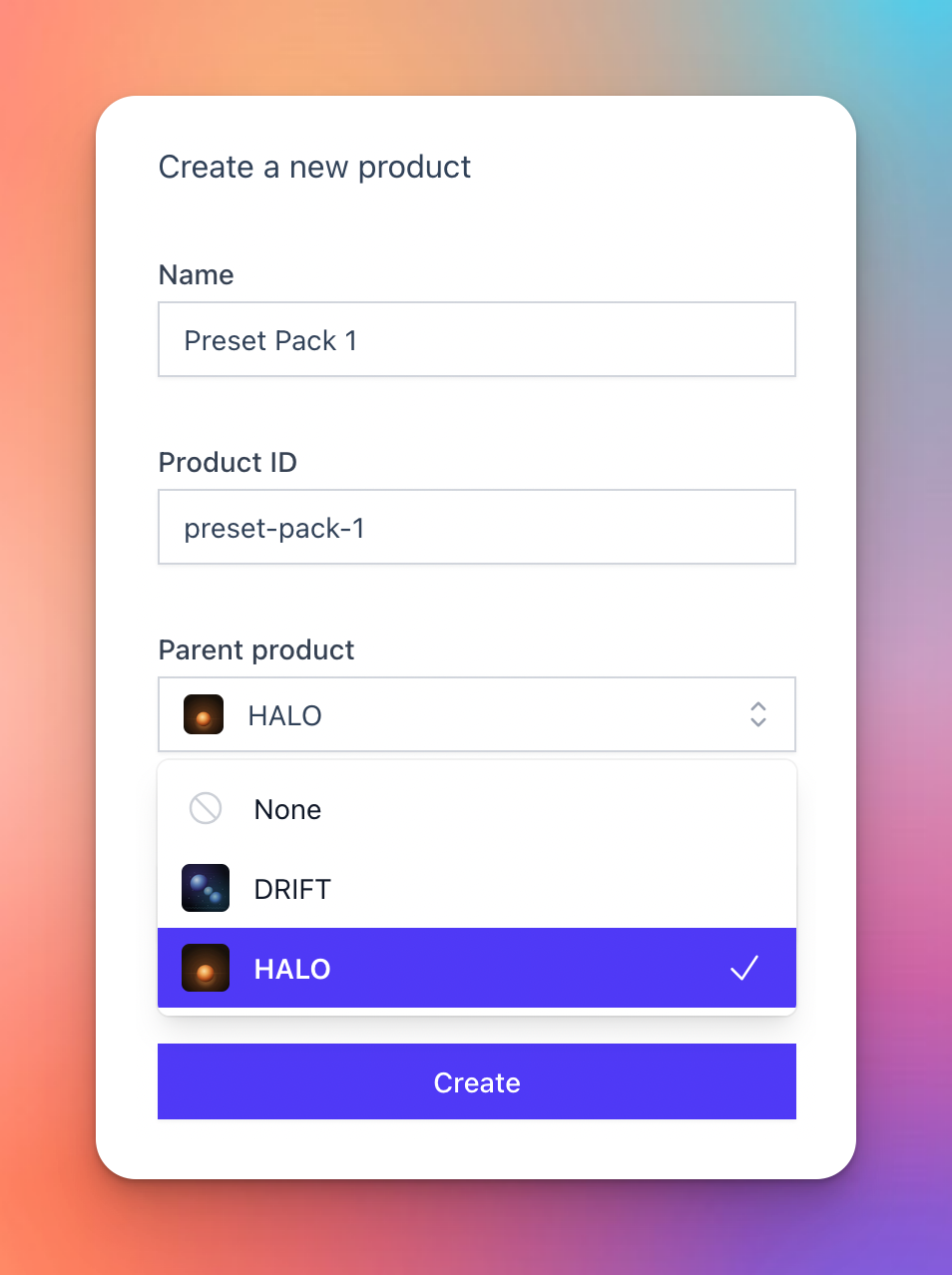
Step 2 — Fill in the details
Name — What customers will see. Treat it like a real product name: "Pro Tools", "Extra Workspace", "Cloud Sync".
Product ID — Lowercase, dashes allowed, no spaces. You only type the child portion (e.g.
pro-tools). Moonbase combines it with the parent ID for you, so the final ID becomes something likeacme-studio.pro-tools.Parent product — Pick the parent product from the dropdown. Only top-level products show up here; sub-products can't be nested under other sub-products.
Tagline and Description — Same as any product. Worth writing proper copy here even if the sub-product is invisible to the customer outside your product, because these may be shown on the storefront, in the cart, and in receipts.
Click Create.
Step 3 — Configure pricing and visibility
After creation you'll land on the sub-product's own edit page. From here it behaves exactly like a normal product:
Add a pricing variation under Pricing with a price in each currency you sell in.
Set Customer visibility to fit the add-on:
Default visibility is fine for most sub-products customers should clearly see in their account (e.g. an add-on they purchased).
Choose Never if the sub-product should only manifest through your product and shouldn't show up as a standalone item in the customer's inventory. Handy for pure feature flags.
Step 4 — Publish and test
Once pricing is in place, the sub-product is purchasable. Run a test purchase the same way you'd test any product, then re-validate the parent product's license in your integration — you should see the new sub-product appear in the license token (see below).
How customers buy a sub-product
Sub-products are sold through your storefront like any other product. There are a few common entry points:
Direct purchase link —
https://{your-account}.moonbase.sh/buy/{parent-id.child-id}drops the customer straight onto a checkout for the sub-product.Embedded storefront — If you've added the embedded storefront to your marketing site or to your product itself, sub-products show up in product listings just like top-level products, and the same cart and checkout intents work.
In-product upsell — Many merchants drop a "Buy" button next to a locked feature that fires the embedded storefront's checkout intent for the relevant sub-product. The customer never has to leave your product.
Tip: If your parent product isn't itself for sale — for example, the baseline app is free and only the sub-products are paid — turn on auto-provisioning on the parent product. That way every customer automatically gets a parent-product license seat to activate against, so the sub-products they buy actually have a token to ride along in. Without a parent license, there's nothing to carry the sub-product list.
Vouchers and manual provisioning also work for sub-products if you need to grant access outside a normal purchase flow — see the relevant help articles for those.
What your product sees
This is the part that makes sub-products genuinely useful: you don't have to validate a separate license for every sub-product. Your product keeps authenticating against the parent product's license, and any sub-products the customer owns come along for the ride.
When a customer activates their parent-product license, the license token includes a list of every sub-product they own under that parent:
In JWT-format licenses, the claim is named
sp:owned, a comma-joined string of child IDs.
These contain only the child portion of the ID. So for a customer who owns acme-studio.pro-tools and acme-studio.cloud-sync, the value will be pro-tools,cloud-sync, not the full dotted IDs.
Your product validates the parent license as normal, reads that list, and toggles features on accordingly. If you're using any of the official SDKs, it's already parsed for you under SubProductsOwned as a string[]. For other languages or direct API usage, decode the license token the same way you read any license claim, the official SDK documentation covers the details for each runtime.
Tip: Make sure your integration can re-validate the license token on demand, not only on startup. When a customer buys a sub-product while your product is already running, the license they have in hand doesn't yet know about the new purchase. A "Refresh license" control or an automatic re-validation right after a successful checkout lets the new sub-product take effect immediately, without requiring a restart or sign-out.
Adding new sub-products later
You can create more sub-products under the same parent at any time. The next time an existing customer's license is re-validated online, the token will include any new sub-products they've since purchased. No migration, no product update required beyond knowing what to do when a new child ID appears.
Gotchas
The sub-product list only appears on the parent's license token. If you activate a sub-product on its own, that sub-product's token won't list other sub-products the customer owns. Authenticate against the parent to get the full picture.
Customers don't need to own the parent first. A customer can buy just a sub-product. They will, however, need to activate the parent product in your integration for the sub-product list to show up in a token so make sure your activation flow targets the parent, not individual sub-products.
Next steps
Create your first sub-product and run a test purchase end-to-end.
Check the SDK reference (or the generic license-validation docs for other languages) to see exactly how the sub-product list is exposed in your integration's code, and add on-demand license re-validation if you don't have it already.
If your parent product is meant to be free for everyone rather than a paid product, turn on auto-provisioning on the parent so customers always have a license seat to validate against.
If you'd rather grant sub-products via codes or admin actions, see the help articles on vouchers and manual provisioning.
Was this helpful?
Still need help? Ask the team