Two-factor authentication and passkeys
Add a second step to signing in to Moonbase with an authenticator app or a passkey, and keep recovery codes for the day you need them
Written By Tobias Lønnerød Madsen
Your Moonbase account holds your sales, your customers and your payouts, so a password on its own is a thin line of defence. Two-factor authentication adds a second step when you sign in: a code from an authenticator app, or a passkey on your phone or computer. Someone who learns your password still can't get in.
Two-factor authentication belongs to you, not to the account. You turn it on for yourself, and it then applies to every Moonbase account you can reach. It stays off until you set it up.
Turning it on
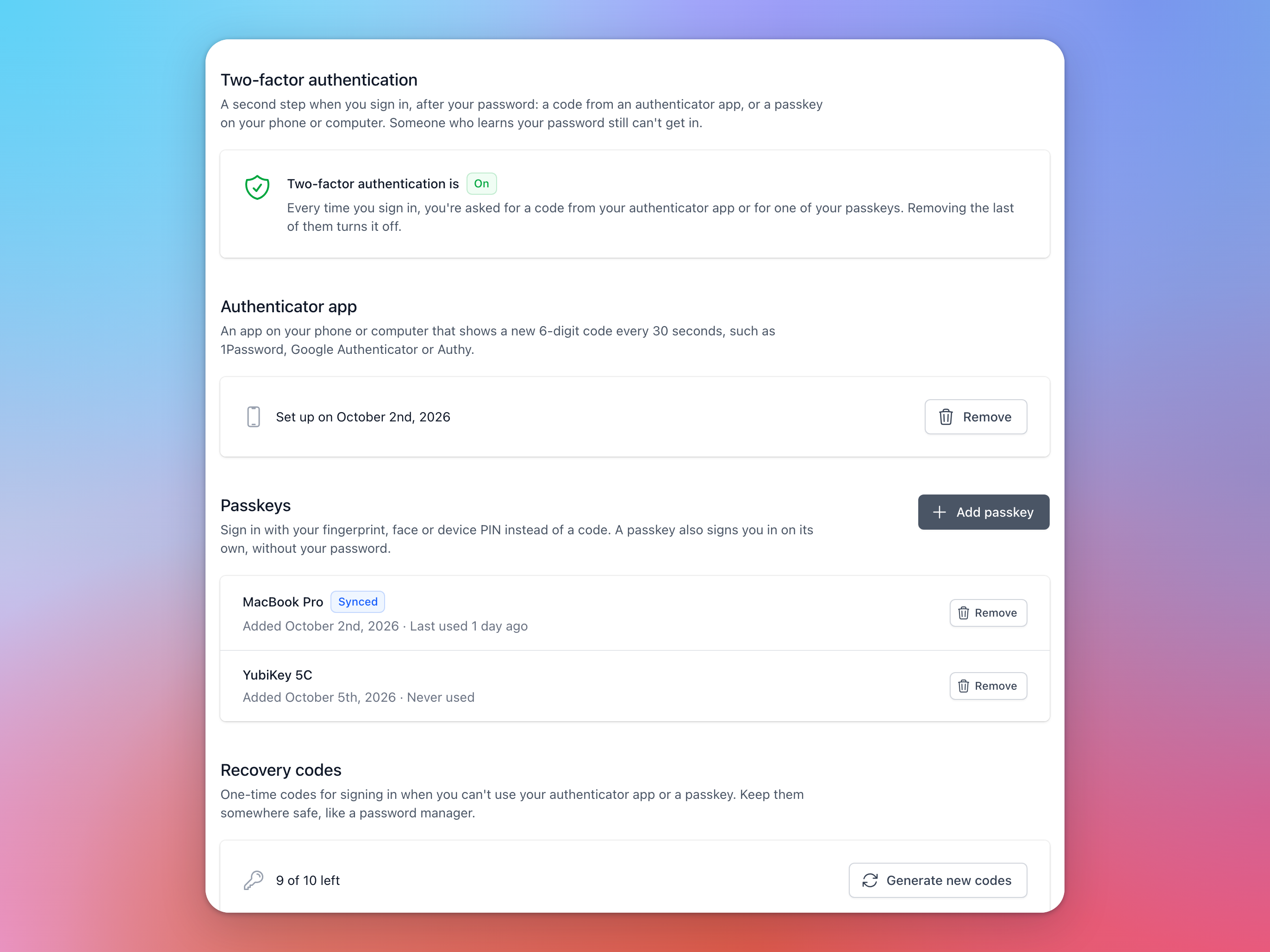
Go to Account settings > User. Under Two-factor authentication, set up an authenticator app, add a passkey, or both. It's on as soon as you have one of them:
An authenticator app
Any app that shows a new 6-digit code every 30 seconds works, such as 1Password, Google Authenticator or Authy. Click Set up under Authenticator app, confirm your current password, and scan the QR code with the app. If you can't scan it, the dialog shows a key you can type in instead. Enter the code the app shows, and click Turn on. You can have one authenticator app at a time.
Passkeys
A passkey signs you in with your fingerprint, face or device PIN instead of a code. Click Add passkey, give it a name you'll recognise, like "MacBook Pro", confirm your current password, and follow your browser's prompt. A security key, such as a YubiKey, works too.
Passkeys saved in iCloud Keychain, Google Password Manager or a password manager are marked Synced, and work on your other devices as well. You can have up to 20.
Recovery codes
The first time you turn two-factor authentication on, Moonbase gives you ten recovery codes. Each one signs you in once, in place of a code or a passkey, for the day your phone is lost or out of battery. They are only shown this once, so Copy or Download them, and keep them somewhere safe, like your password manager, before you click I've saved them:
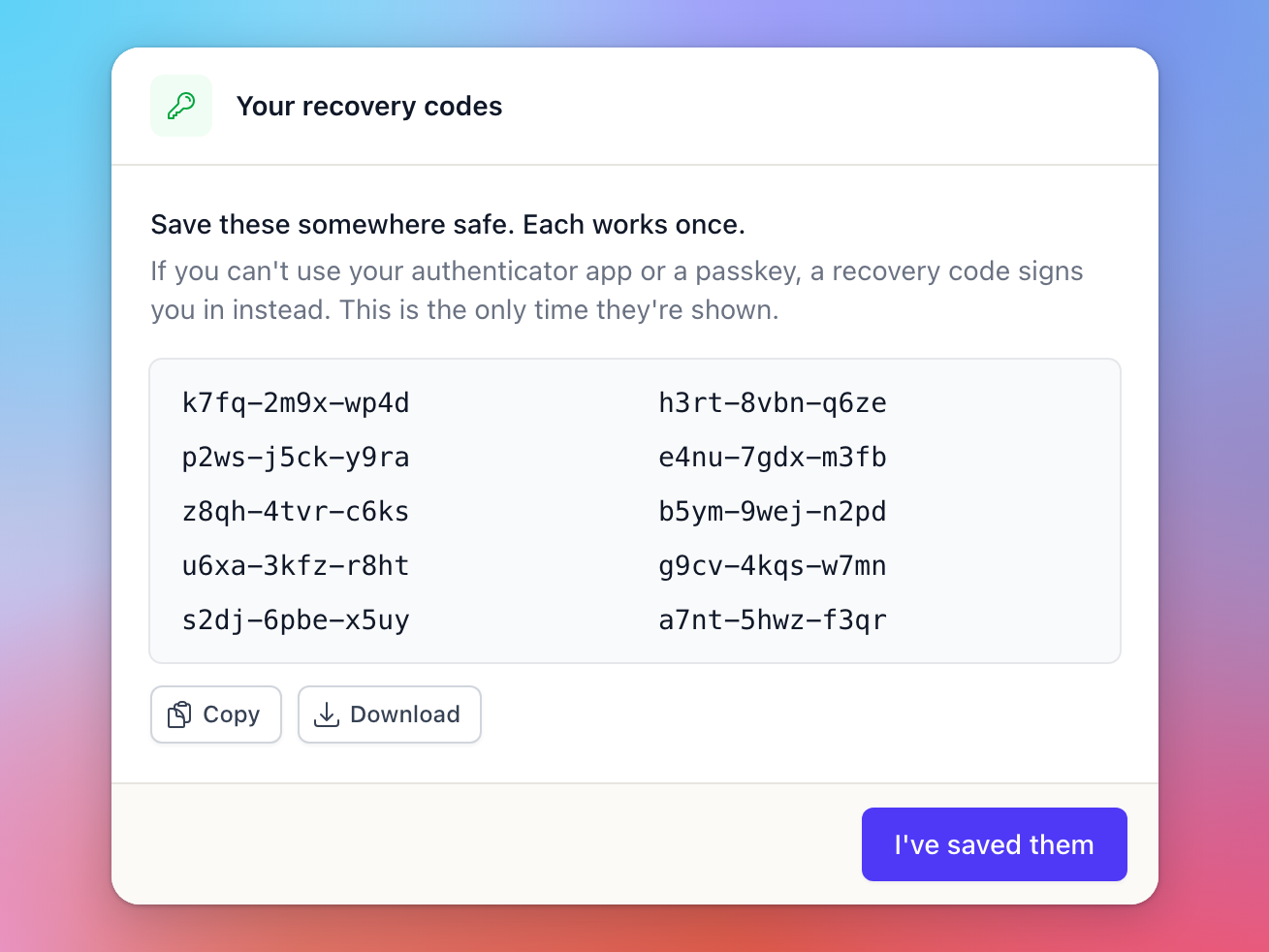
Account settings > User shows how many codes you have left. Generate new codes gives you a fresh set of ten, and the old ones stop working.
Turning two-factor authentication on signs you out of every other browser, so you'll need to sign in there again. Every change asks for your current password, and we email you about each change, and every time a recovery code is used to sign in.
When you set your first password
New accounts and newly invited team members are offered two-factor authentication straight away. Right after you choose your first password, Moonbase asks you to Protect your account:
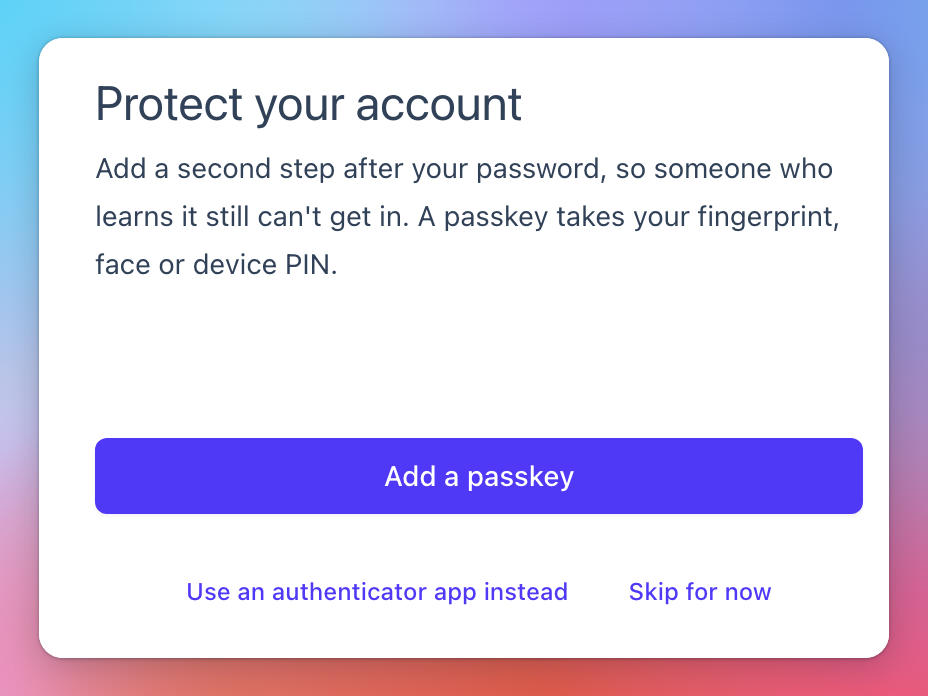
Add a passkey makes one there and then (in a browser that can't make passkeys, the button is Set up an authenticator app instead), and Use an authenticator app instead shows the same QR code as Account settings. Your recovery codes come next. Skip for now takes you straight into Moonbase with two-factor authentication off, and you can turn it on later under Account settings > User.
Signing in with two-factor authentication
After your password, Moonbase asks for the code from your authenticator app. Enter it and click Verify. To use a passkey instead, or if you don't have your phone to hand, choose Use a passkey instead or Use a recovery code:
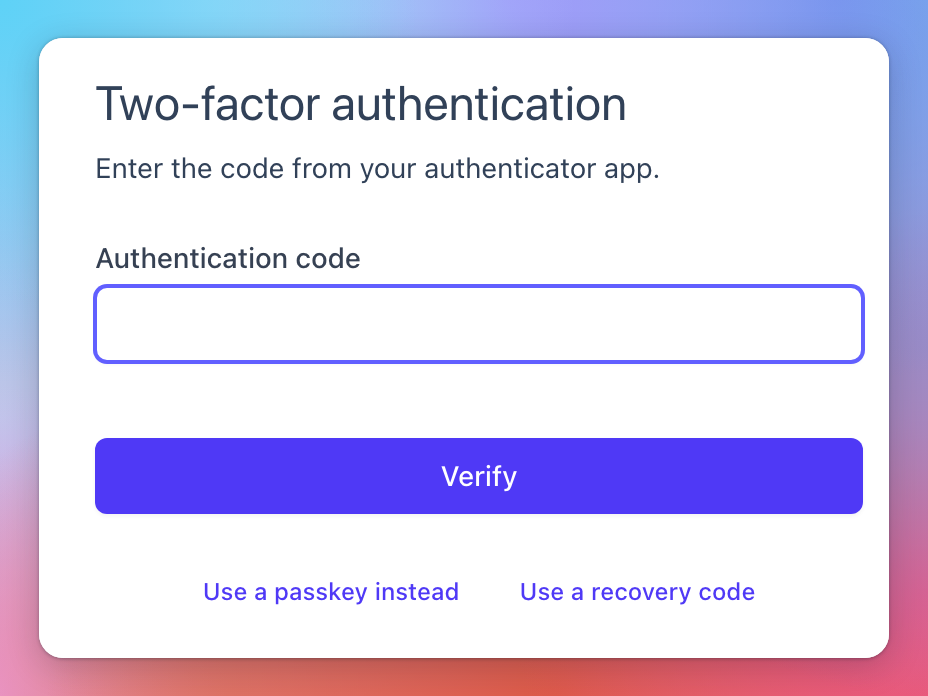
You have 10 minutes to finish the second step. After that, signing in starts again from your password.
Signing in with just a passkey
A passkey can also sign you in on its own, without your email address or password. Click into the Email address field on the log in page, and your browser lists the passkeys saved on that device among its suggestions. Pick yours, and you're in.
Sign in with a passkey, under the form, is for a passkey on your phone or a security key, and for browsers that don't list passkeys in the field. It shows in a browser where the last person to sign in has a passkey. Anywhere else, sign in with your password once and use the passkey as your second step, and the button is there from then on.
Too many wrong codes
After five wrong codes in a row, codes stop working for 15 minutes, and Moonbase says "Too many wrong codes". A passkey still works in the meantime.
If your codes are always rejected, check that your phone sets its clock automatically, since the codes depend on the time. Each code also works only once, so if you've just used one, wait for the next.
If you lose your phone
Sign in with Use a recovery code, or with a passkey on another device if you have one. Once you're in, go to Account settings > User, Remove the old authenticator app and set it up again on your new phone. If you've used several recovery codes, generate new ones too.
Lost everything: your phone, your passkeys and your recovery codes? Contact Moonbase support. We can turn two-factor authentication off for you, but only once we've confirmed the request really comes from you, so expect a few questions first. Resetting your password doesn't turn it off.
Turning it off
Two-factor authentication turns off when you remove your last authenticator app or passkey, which also cancels your recovery codes. Moonbase tells you before you confirm, so it never happens by surprise.
Seeing who on your team has it
Under Account settings > Access, a green shield next to someone's name means they have two-factor authentication on, and everyone on the team can see it. Each person turns it on for themselves: an owner or an Admin can't turn it on or off for anyone else, and it isn't required today. See Team members and roles.
Frequently asked questions
Does it apply to all my Moonbase accounts?
Yes. Two-factor authentication belongs to your login, so it covers every account you can reach with it.
Does this change how my customers sign in?
No. This is for you and your team signing in to Moonbase. Your customers sign in to your store as before.
There's no "Sign in with a passkey" on the log in page.
It only shows in a browser where the last person to sign in has a passkey. Sign in with your password once, using the passkey as your second step, and the button is there next time.
My passkey isn't offered on this computer.
It was probably made on a device that doesn't sync it. Use that device, or click Sign in with a passkey and choose the phone option in your browser's prompt, or sign in with your password.
What happens if I click Skip for now?
You go straight into Moonbase with two-factor authentication off. You can turn it on at any time under Account settings > User.
Was this helpful?
Still need help? Ask the team