Team members and roles
Invite your team to Moonbase, and choose what each person can do with roles
Written By Tobias Lønnerød Madsen
Running a software business is rarely a one-person job, but not everyone who helps out needs the keys to everything. With roles, you can give your accountant the payouts, your support person the customers and the developer building your integration the API keys, without handing anyone more than they need.
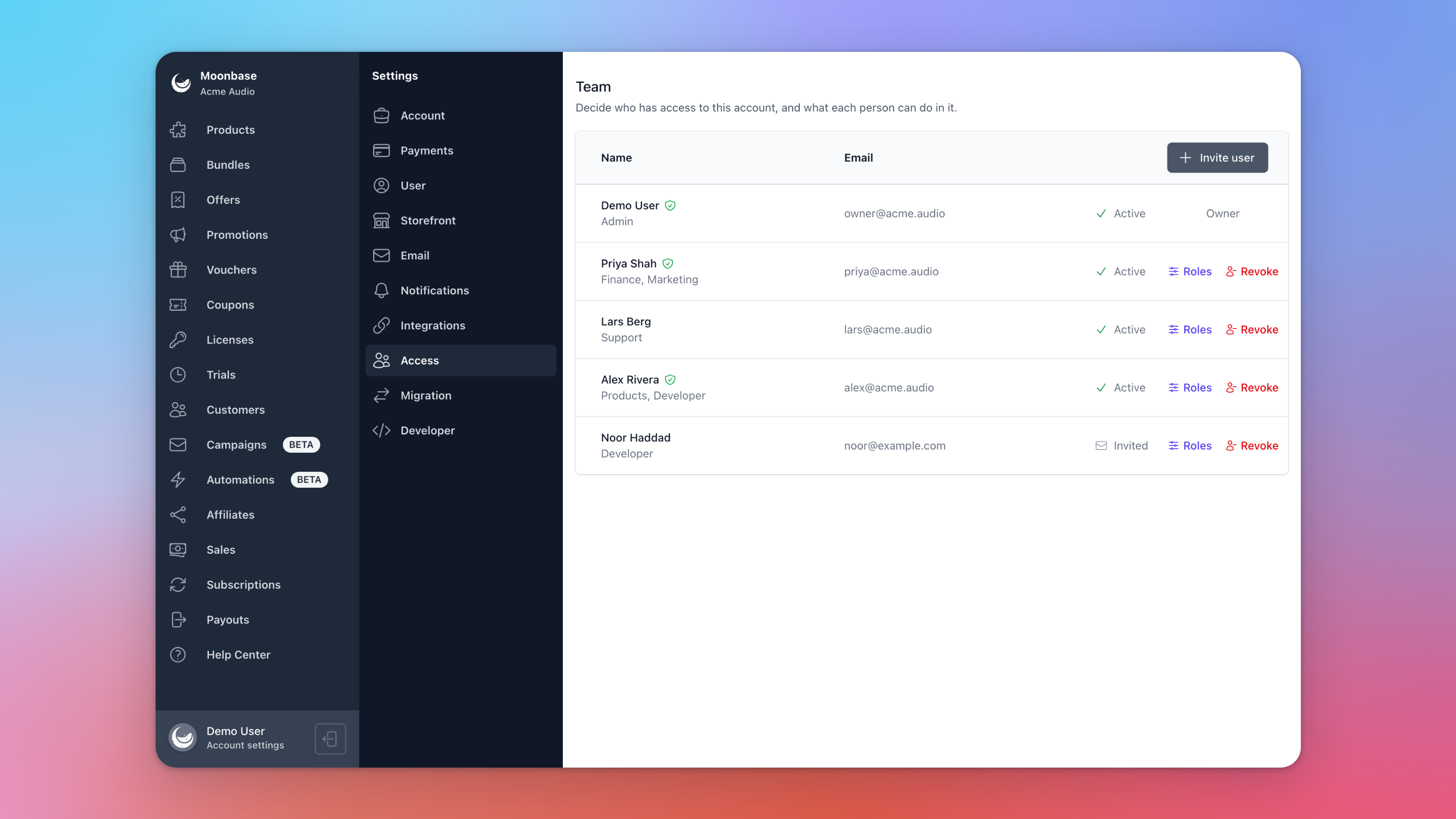
Your team lives under Account settings > Access. Everyone on the account can see who is on the team, which roles each person holds, and whether they have turned on two-factor authentication, shown by the green shield next to their name:
The six roles
Everyone on the team holds one or more roles, and can use every part of Moonbase that any of their roles opens. The sidebar and Account settings only show those parts, so nobody runs into pages they can't use.
Admin: everything, including the team, all of Account settings (business details, branding, the payout account, payments, storefront, email, notifications and migration) and developer access.
Finance: sales and refunds, subscriptions, payouts and the dashboard.
Marketing: campaigns, automations, offers, promotions, coupons, vouchers, affiliates and the dashboard.
Products: products and bundles, with their pricing, releases, licensing and key generators.
Support: customers with their licenses and trials, customer groups, sales and refunds, and subscriptions.
Developer: API keys, webhooks and integrations.
Whatever their roles, everyone can change their own name, email address, password and two-factor authentication under Account settings > User, see who is on the team, read the merchant terms and use the Help Center.
Roles also work together where it makes sense. Someone with only the Marketing role can still pick products and customer groups for a promotion or a campaign, without needing the Products or Support role too. The dashboard is shown to Admin, Finance and Marketing, and everyone else starts on the first section their roles open.
Inviting someone
Only Admins can change the team, so only they see Invite user, and Roles and Revoke on each row. To add someone, click Invite user, enter their Name and Email address, and tick at least one role. Nothing is ticked to begin with, so nobody becomes an Admin just because you forgot to change it:
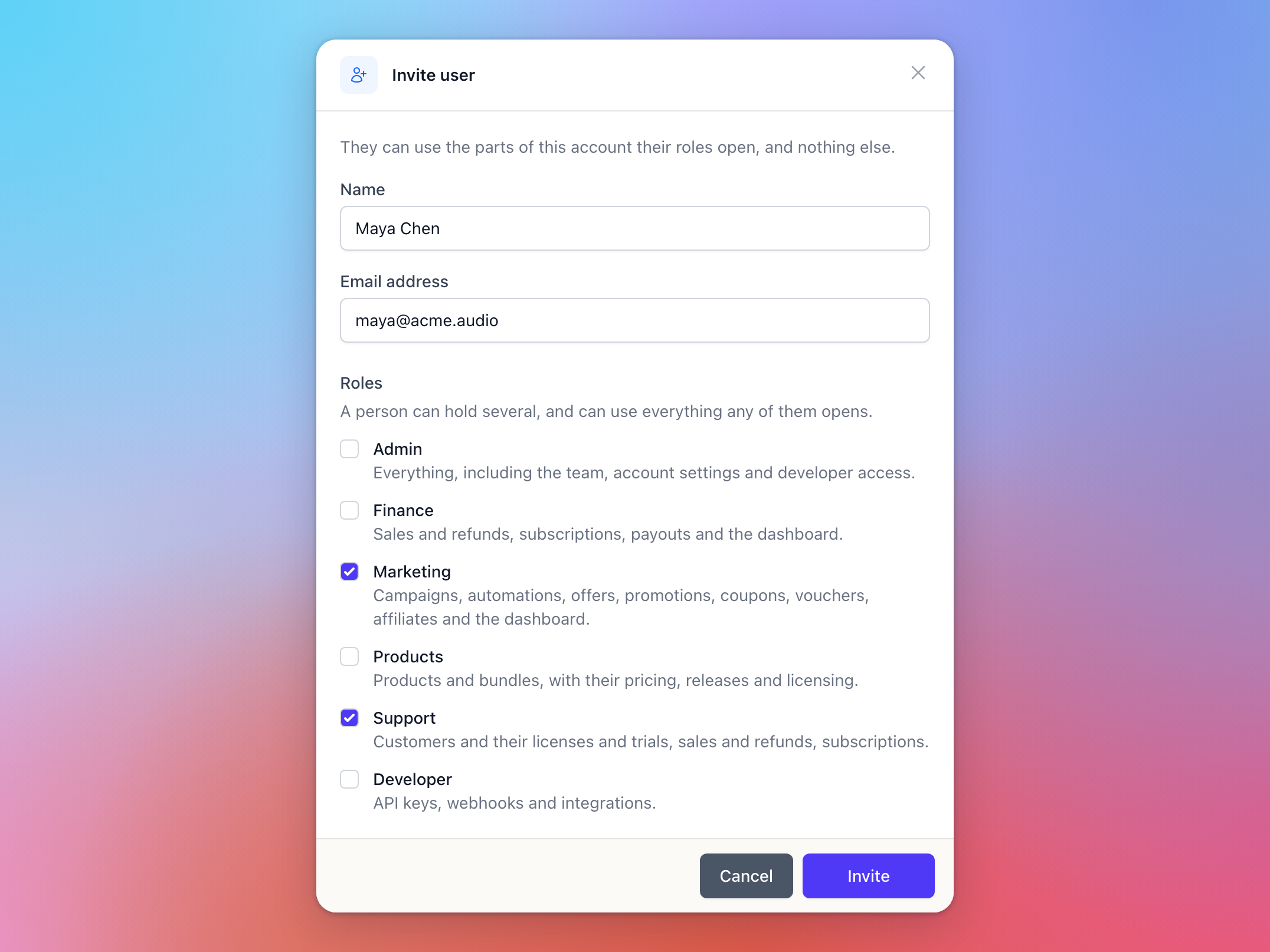
Click Invite, and they get an email inviting them to manage your account. They show as Invited until they have chosen a password, and as Active from then on. Right after choosing their password, they are offered two-factor authentication.
If they already use Moonbase for another account, the invitation simply adds yours to their login. They sign in with the password they already have, and use Switch at the top of the sidebar to move between accounts.
Admin already includes everything the other roles open, so ticking Admin greys out the rest.
Changing what someone can do
Click Roles on their row, tick the roles they should have, and click Save. The change reaches them within a minute, without them having to sign in again.
Nobody can change their own roles, so an Admin can't lock themselves out by accident: ask another Admin to do it. The owner's roles can't be changed either, since the owner is always an Admin. To take away all of someone's roles, remove them from the team instead.
Removing someone from the team
Click Revoke on their row and confirm. Within a minute, their next page load is refused, even if they are signed in at that moment. This only removes their access to your account: their Moonbase login, and any other accounts they're on, stay as they are. Nobody can revoke the owner, or themselves.
If the person leaving had access to your API keys, it's a good idea to replace the keys they used. See API keys, rate limits and webhooks.
What only the owner can do
Every account has one owner: the person who signed it up, unless Moonbase support has since made someone else the owner. The owner is always an Admin, and a few things are theirs alone, whatever roles anyone else holds:
accepting Moonbase's merchant terms for the business;
resetting the payout account (see Payout configuration);
everything on the Verification page, including adding the payout account while the account is being verified (see Going live: demo mode and verification).
Changing the owner
Nobody on the account can change the owner, the owner included. If your business needs a new owner, for example because the person who signed up has left, contact Moonbase support. We'll confirm the change with the current owner, or with the business itself if the owner is no longer around.
The new owner has to be on the team already and show as Active, so if they're new, invite them first and wait for them to accept. Once the change is made, both of them get an email. The new owner becomes an Admin, and the previous owner stays on the team as an Admin, so you can change their roles or revoke their access afterwards. Terms the account has already accepted stay accepted.
API keys and roles
Roles are for people. API keys aren't affected by anyone's roles: a key does what its own access allows, either full access or the areas you picked when you restricted it. Only people with the Developer or Admin role can see and manage your keys.
Frequently asked questions
Why is everyone on my team an Admin?
Everyone who was on your team before roles arrived kept full access as an Admin, so nobody lost access. An Admin can narrow down what each person can do with Roles.
Someone on my team can't see a page they need.
None of their roles opens it. An Admin can add the role that does with Roles on their row. If they're told "You do not have permission to perform this action.", the action is either outside their roles or one only the owner can take.
The invitation link has expired. What now?
Invitation links work for 30 days. Opening an expired one sends a fresh invitation to the same address automatically.
Can an account have more than one owner?
No, there is always exactly one. Anyone else can be an Admin, which opens everything except the few owner-only actions above.
Can I require two-factor authentication for my team?
Not today. Each person turns it on for themselves, and the green shield on the team list shows who has. See Two-factor authentication and passkeys.
Was this helpful?
Still need help? Ask the team