Writing your own customer emails
Write your own version of the receipts, license, subscription and account emails Moonbase sends your customers, in your own words, while the order details and links stay in.
Written By Tobias Lønnerød Madsen
Moonbase emails your customers for you every time they buy, get a license or set up their account. Those emails don't have to sound like us anymore: you can write your own version of most of them, with your own subject line, words and images. Moonbase still fills in what each email is there to deliver, like the order, the license keys and the links, so nothing your customers need goes missing.
Before you start
Your customers get your version only when it's sent from your own address: a sending address with the Transactional purpose on a verified sending domain (see Custom email sending domains and addresses). Until you have one, your customers' emails come from no-reply@moonbase.sh, and those are always Moonbase's own. You can write, save and preview your versions in the meantime, and send them once your address is ready.
Writing customer emails is for Admins (see Team members and roles).
The emails you can write
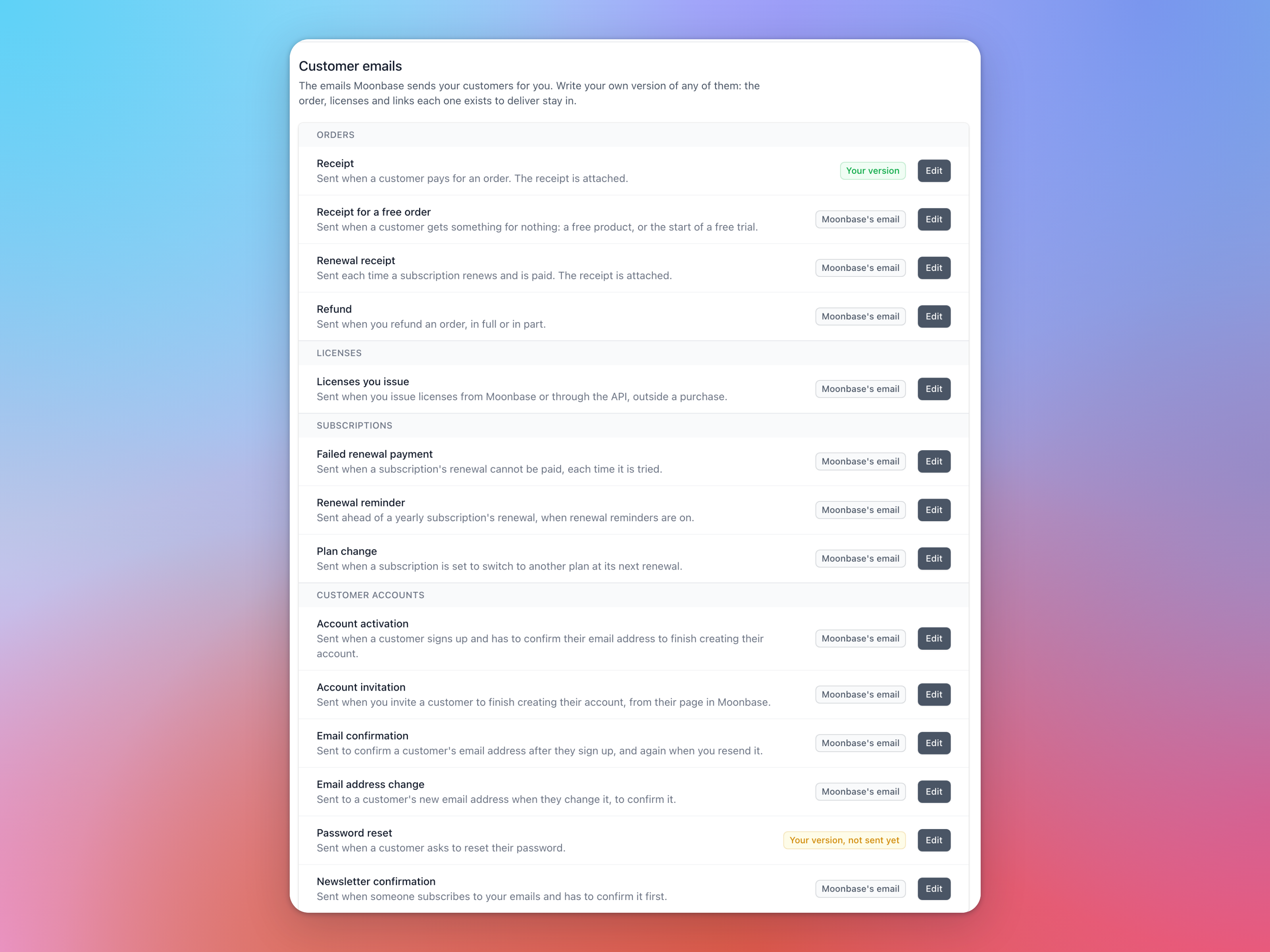
Go to Account settings > Email > Customer emails. Every email you can write your own version of is listed there:
Orders: the receipt, the receipt for a free order, the renewal receipt and the refund.
Licenses: licenses you issue, from Moonbase or through the API.
Subscriptions: the failed renewal payment, the renewal reminder and the plan change.
Customer accounts: account activation, account invitation, email confirmation, email address change, password reset and newsletter confirmation.
Each email shows whose version your customers get: Moonbase's email, Your version, not sent yet or Your version.
Writing your version
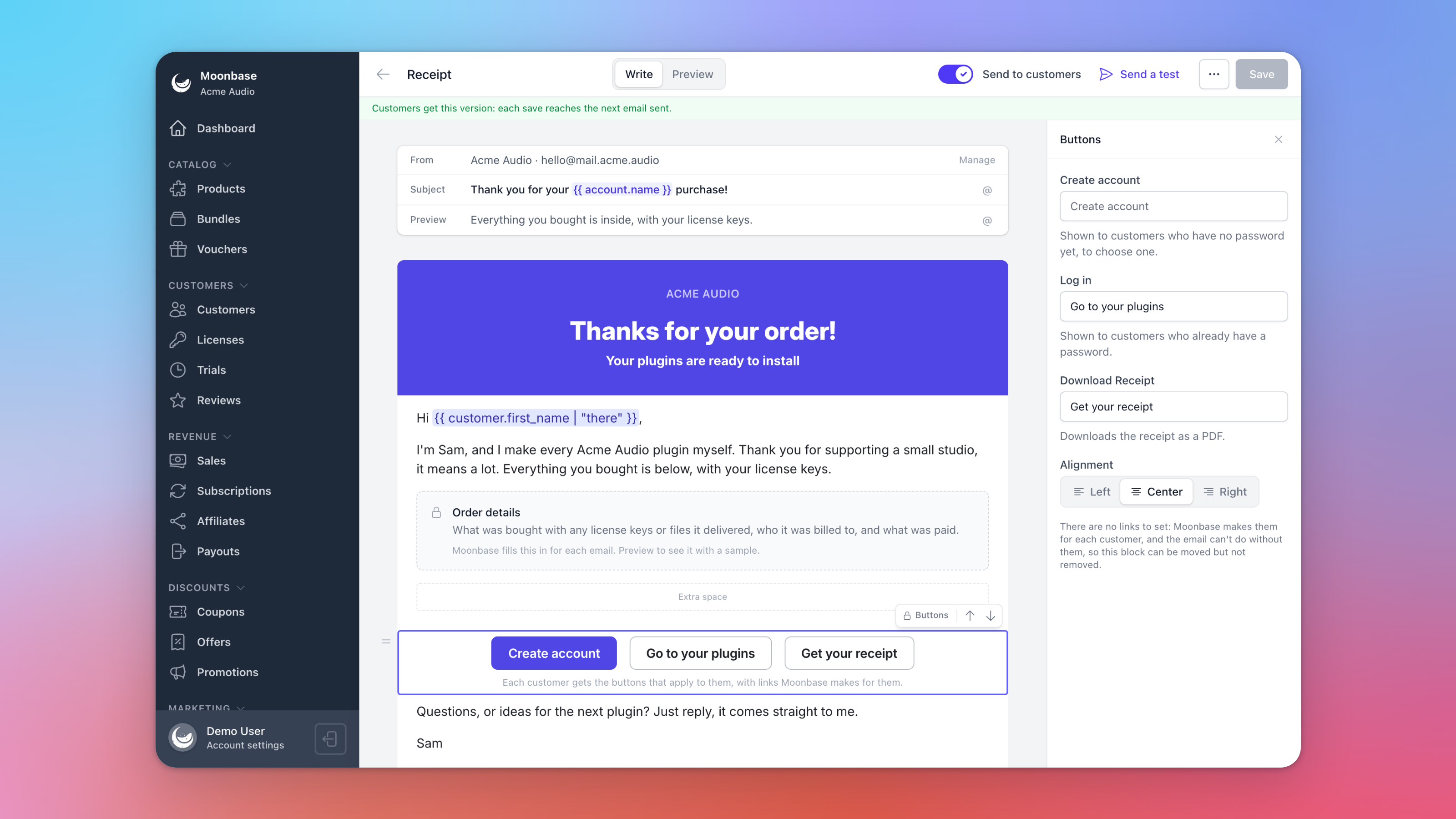
Click Edit on an email. It opens in the same editor as your campaigns, starting from Moonbase's own email laid out as blocks, so you only change what you want to. The subject line, the preview text and the blocks can all be rewritten, and you can add text, headings, headers, images, videos, buttons, dividers and spacers. Offers, product cards, discount codes and conditional sections aren't available here, because these emails go to every customer, whatever their marketing consent.
Variables fill in each customer's details as the email goes out. Besides the customer's name and your account's, each email has its own, such as the order total and items on a receipt, the amount refunded on a refund, or the subscription's name, amount and renewal date on the subscription emails.
The blocks that stay in
Every email keeps what it exists to deliver, in blocks marked with a lock. You can move them, but not remove them:
Details (named for each email, such as Order details on a receipt): what Moonbase fills in for each customer, such as what was bought, with any license keys or files, who it was billed to and the totals on a receipt, the licenses on a license email, or what will be charged, when, and how to change or cancel on a renewal reminder. The wording inside them ("Order Summary", "Billing Information") stays in English.
Buttons: the links Moonbase makes for each customer, like logging in, downloading the receipt, managing the subscription or resetting the password. Rename them in the panel on the right, or leave a label blank to keep Moonbase's. Which buttons a customer gets depends on them: someone without a password yet is asked to create an account instead of logging in.
Previewing and testing
Preview shows the email filled in with a sample order, sample licenses and links to your own store. Send a test sends the same to someone on your team, with "[Test]" before the subject. You can send up to 20 tests an hour.
Sending it to your customers
Save keeps your version, but your customers keep getting Moonbase's email until you turn on Send to customers. From then on, every save reaches the next email sent. You can turn Send to customers off again at any time, and the next customer gets Moonbase's email.
To start over, choose Reset to Moonbase's email in the ... menu. It deletes your version.
If your version can't be sent for any reason, your customer gets Moonbase's email instead, so a receipt or a password reset always arrives. The same happens if your sending address is removed or your domain stops being verified: customers get Moonbase's emails until it's fixed, with nothing to turn back on.
What stays Moonbase's
Whatever your version says, Moonbase still takes care of:
the footer, with the links you added under Email footer (see Emails your customers receive);
"[Test]" before the subject of an email about a test order;
the attachments, like the receipt PDF and license files;
when each email is sent. You can still switch the renewal reminder off, or send it earlier or later, under Renewal reminders.
A few rarer emails always stay Moonbase's own and aren't in the list: the corrected receipt after a customer adds their business details, a license that's ready after a delay, a subscription moved to a new version of its product, a subscription milestone, and emails to your affiliates. Campaigns and automations have their own editor.
Frequently asked questions
Can I write my emails in another language?
Yes. Everything you write is sent as you wrote it, and you can rename the buttons too. Only the wording inside the locked details block, like "Order Summary", stays in English for now.
Can I turn the receipt off?
No. Every customer gets a receipt, because it's also their invoice. You can write your own version of it, though.
Why do my customers still get Moonbase's email?
Check that Send to customers is on for that email, and that you have a sending address with the Transactional purpose on a verified domain under Account settings > Email. The list tells you when that address is missing.
I changed the email. Will customers who already got it get the new one?
No. Your version reaches the emails sent after you save. To send someone their receipt again, open the sale and use Resend receipt.
Was this helpful?
Still need help? Ask the team