Product reviews
Let customers who bought your products rate and review them, decide on the reviews held for you, reply, and show your reviews on your website and in your emails.
Written By Tobias Lønnerød Madsen
Nothing sells a product like the word of someone who already bought it. With product reviews, your customers can rate what they bought from 1 to 5 stars and tell others why, from their account or right on your website. Moonbase checks every review before it goes up, so you only look at the few that need you, and you can show the rest wherever you sell.
Only customers who paid for a product can review it, so every review carries a Verified owner mark.
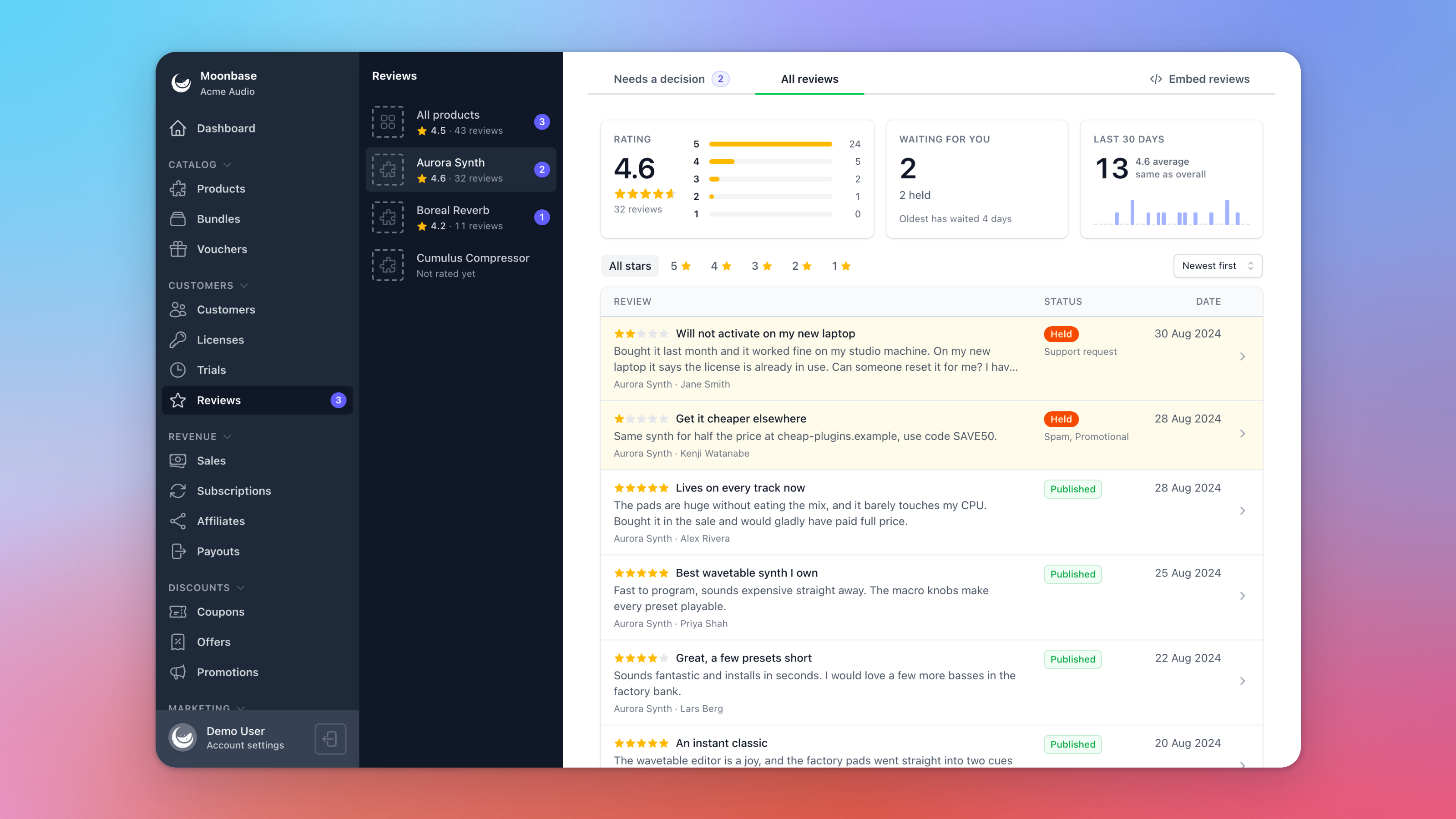
Turning on reviews
Open Reviews in the sidebar, under Customers, and click Turn on reviews. You can also use the Product reviews switch under Account settings > Storefront > Features. Only Admins can turn reviews on or off, and everyone with the Products or Marketing role can use the Reviews page (see Team members and roles).
Turning reviews off hides every review and rating from your store, without deleting them. Turn them on again and they're all back.
Who can review
Customers who paid: a customer can review a product they paid for through your Moonbase checkout, for as long as they own it or subscribe to it. Trials don't count, and neither do licenses from a voucher, a gift, a 100% discount, a sale recorded from another store, or a license you issued yourself or through a campaign or automation. Test orders from before your account went live don't count either.
One review per product: customers can rewrite their review or withdraw it later. A rewritten review is checked again before it shows.
Their name, or none: customers choose whether to show their name or just Verified owner. You always see who wrote it.
Refunds: when a customer is refunded or loses their license, their review comes off your store and out of the rating.
How reviews are checked
Every review gets an automatic check, usually within a minute. A review that is a genuine account of the product is published straight away, and that includes critical ones. A review is held for you to decide on when it looks like spam, is offensive or off topic, contains personal details like an email address or a license key, promotes something else, pretends to be someone it isn't, or says nothing about the product. When the check can't tell, it leaves the decision to you too.
Support requests: some customers write a review when they really need help, for example to get the product working or to ask for a refund. Those reviews are held, and the customer is told that reviews aren't read by support, to email your support email address (from Account settings > Account) instead, and that they can rewrite the review to share their experience.
Other languages: a review in another language gets an English translation. Customers whose browser is set to that language see the original, and everyone else sees the translation, marked as translated, with Show original to switch.
Deciding on reviews
The Reviews page has two tabs: Needs a decision, with the reviews waiting for you, and All reviews. Pick a product beside them to see only its reviews and rating. The number next to Reviews in the sidebar is how many are waiting.
Above the list, three cards sum up the product you picked: Rating, with the average and how many reviews have each number of stars, Waiting for you, and Last 30 days. Only published reviews count toward the rating.
Open a review to decide on it. A line at the top says why it was held, and the details beside it show when it was written, its language and whether you may use it in your marketing.
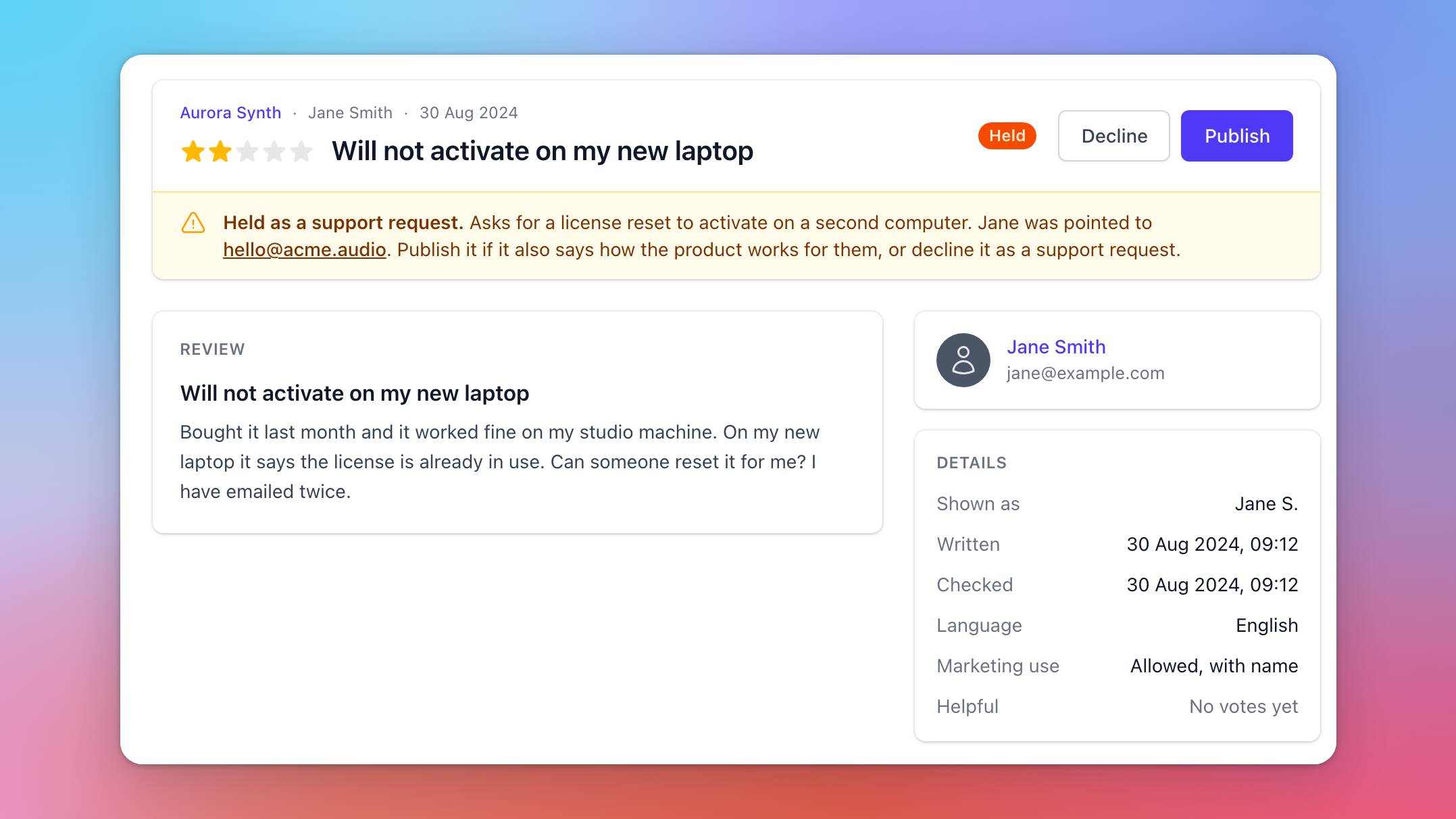
Publish puts the review on your store and adds its stars to the rating.
Decline keeps it off your store, or takes down a review that's already up. Pick a reason (Spam, Offensive, Off topic, Personal data, Promotional, Impersonation, Gibberish, Support request or Other) and add a note for your team if you like. The customer is told their review wasn't published, never the reason, and can rewrite it.
Reply adds a public answer under a published review, signed with your account name. You can edit or remove it later.
Signed-in customers can mark other customers' reviews as helpful. That decides the order of the Most helpful sort, but never changes the rating.
Where customers write reviews
In their account: each product they bought shows Write a review, or Your review once they have written one.
On your website, if it runs the storefront widget: from the product's reviews, or a Write a review button of your own.
From your emails, with a review request (see below).
Showing reviews on your website
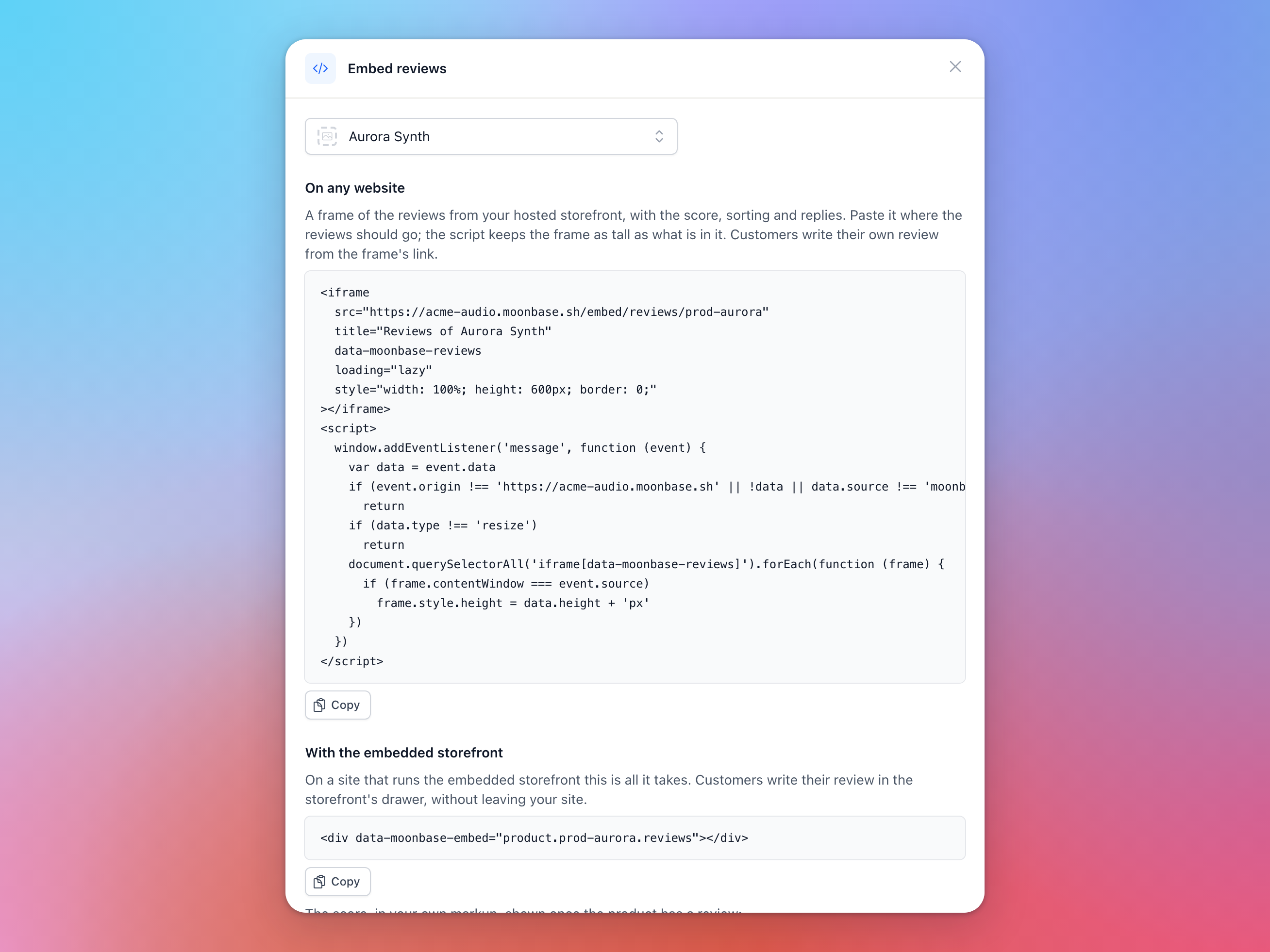
Click Embed reviews on the Reviews page and pick a product. The dialog has the code for each place, ready to copy:
On any website: a frame with the product's rating, its reviews and your replies, with sorting and a Write a review link. The short script that comes with it keeps the frame as tall as its content.
With the embedded storefront: one element shows the reviews right in your page, and customers write theirs in the storefront's drawer without leaving your site. You also get code for the score in your own markup, and for buttons that open the reviews or the customer's own review.
In your emails and automations: a link to the page where customers write or change their review.
Your developer can find more on the storefront widget in our developer documentation.
Asking for reviews by email
The best time to ask is once a customer has had a chance to use what they bought. In the email editor for Email campaigns and Automations, add a Review request block and choose what it asks about:
One product, the same for everyone;
Products they activated, the products each customer has activated, most recent first;
Products in the order, in an automation that starts when a customer buys a product or places an order.
Each product gets its own Write a review button, up to five. Only products the customer can still review are listed, and a customer with none left doesn't get the email.
The quickest start is the Ask for reviews after a purchase automation template: two weeks after each purchase, it asks the customer how it's going, with a button for every product in the order. To find the customers who have or haven't reviewed something, use the Reviewed check in a segment, a campaign's audience or an automation's condition (see Customer groups and segments).
Using reviews in your marketing
When customers post a review, they agree that you may show it, its rating and the name they chose on your store and in your marketing, such as your website, newsletters, social media and ads. If a customer later withdraws or rewrites their review, don't use the earlier text in anything new. What you already published can stay.
Getting notified
Under Account settings > Notifications, choose who gets an email when a review needs a decision, which is on unless you turn it off, and when a review is published (see Email notifications). Your developer can also have your own systems told about both with webhooks (see API keys, rate limits and webhooks).
Frequently asked questions
Why can't a customer review a product?
They didn't pay for it through your checkout (it came from a voucher, a gift, another store, a license you issued or a 100% discount), they no longer own it, or reviews are turned off for your account.
A review never showed up on my store.
It's waiting under Needs a decision, or it was declined. A rewritten review also leaves your store until it has been checked again.
Can I edit what a customer wrote?
No. You can publish a review, decline it and reply to it, but only the customer can change what it says.
Can I take down a negative review?
Decline is for reviews that break the rules above, like spam or personal details. When a review is critical but honest, a reply is the better answer: shoppers trust a rating more when it includes critical reviews, and in many countries consumer protection rules don't allow hiding reviews just because they are negative.
A product's reviews don't show on my website.
If the product is private, its reviews and rating only show to customers who own it. If the frame is cut off or blank, check that the script from Embed reviews is next to it.
The review link in my email opens a page that says receipts are delivered by email.
Customer accounts is turned off under Account settings > Storefront > Features, so customers can't sign in to write a review (see Account features). Turn it on, or ask for reviews through the storefront widget on your website.
Was this helpful?
Still need help? Ask the team