Going live: demo mode and verification
Test your store in demo mode, then verify your account to take real payments: what we ask for, step by step, and what happens after you submit
Written By Tobias Lønnerød Madsen
Every Moonbase account starts in demo mode, so you can build your products and run test orders before any real money is involved. When you're ready to sell, you verify your account: you tell us who you are and where we should pay you, and once we've approved it, your account goes live.
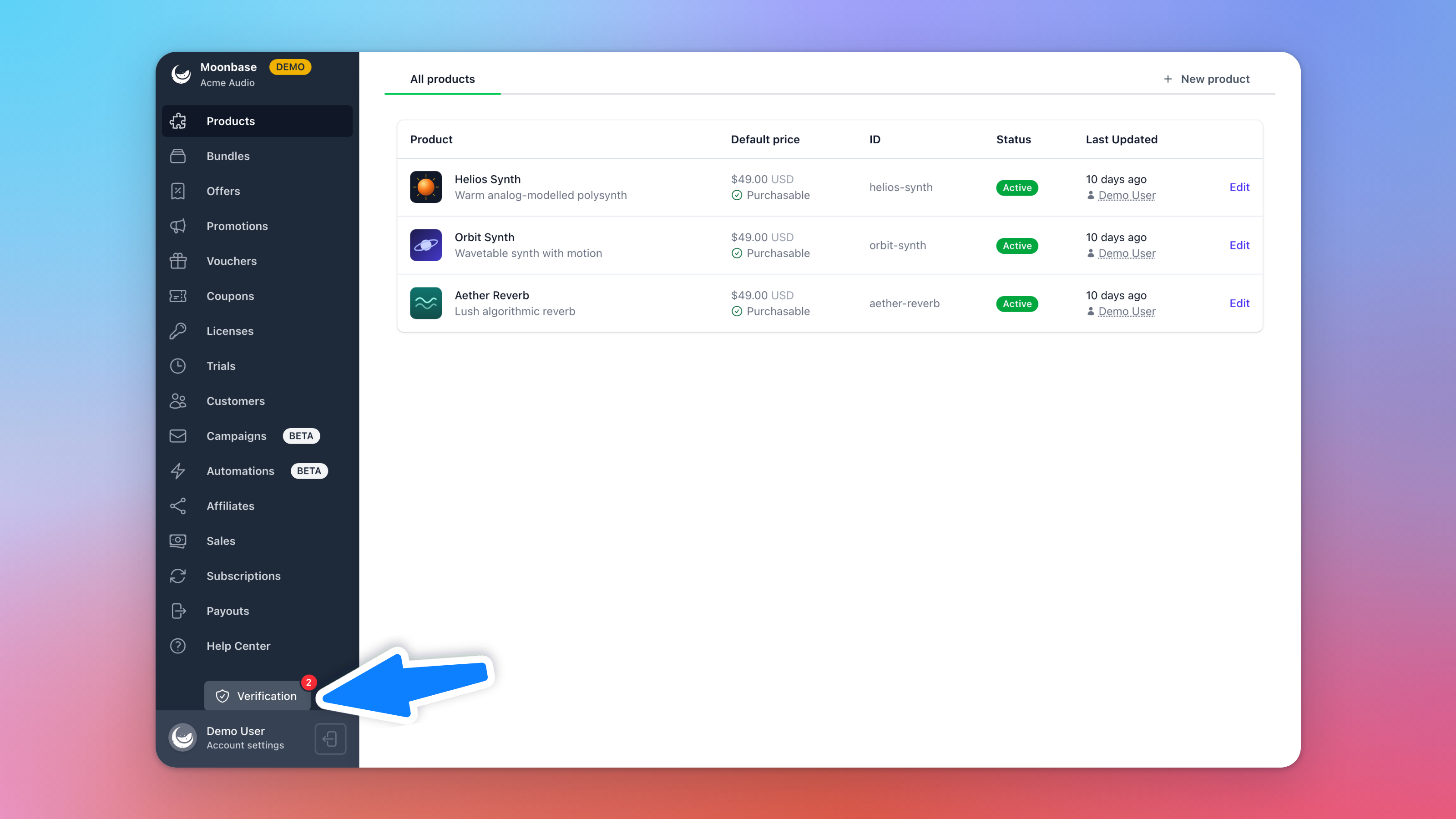
The Verification button in the sidebar takes you there, and the number on it shows how many things you still have to do:
What you can do in demo mode
Almost everything works in demo mode, so you can test your whole setup:
Checkout takes no payment. It says "No payment required!", and the order still delivers licenses and downloads like a real one.
Receipts are marked as tests. Their subject starts with "[Test]", and test orders carry a Demo pill under Sales.
Vouchers work, so your testers can redeem codes and get the products they grant.
Up to 100 licenses. A demo account can issue 100 licenses in total. After that, delivery fails with "You have reached the maximum allowed 100 licenses for a demo account."
No payouts. Test orders never reach a payout and never earn affiliates any commission, and campaigns can't be sent until you're live (see Email campaigns).
Before you launch, buy each product once with a test order, then open the receipt, download the files and activate your software. Refunding a test order revokes its licenses, just like a real refund.
Going live lifts all of these limits. A live account can't go back to demo mode, so do your testing first.
Starting verification
Click Unlock full version in the sidebar, or the "unlock full version" link on your dashboard, to open the Verification page. Once you've answered the first questions, the sidebar button becomes Verification.
Only the account owner can fill in verification. Teammates can see where it stands, but can't change anything. If someone else should be the owner, Moonbase support can change it for you (see Team members and roles). If we've updated our terms since you last accepted them, the page asks you to accept the new ones first.
The steps
1. Eligibility
First, a few questions about who is selling and what: whether you sell as An individual or A business, where you are based, what you mainly sell, your website (a work in progress is fine) and a short description in your own words. Who can sell on Moonbase explains who and what we can take on.
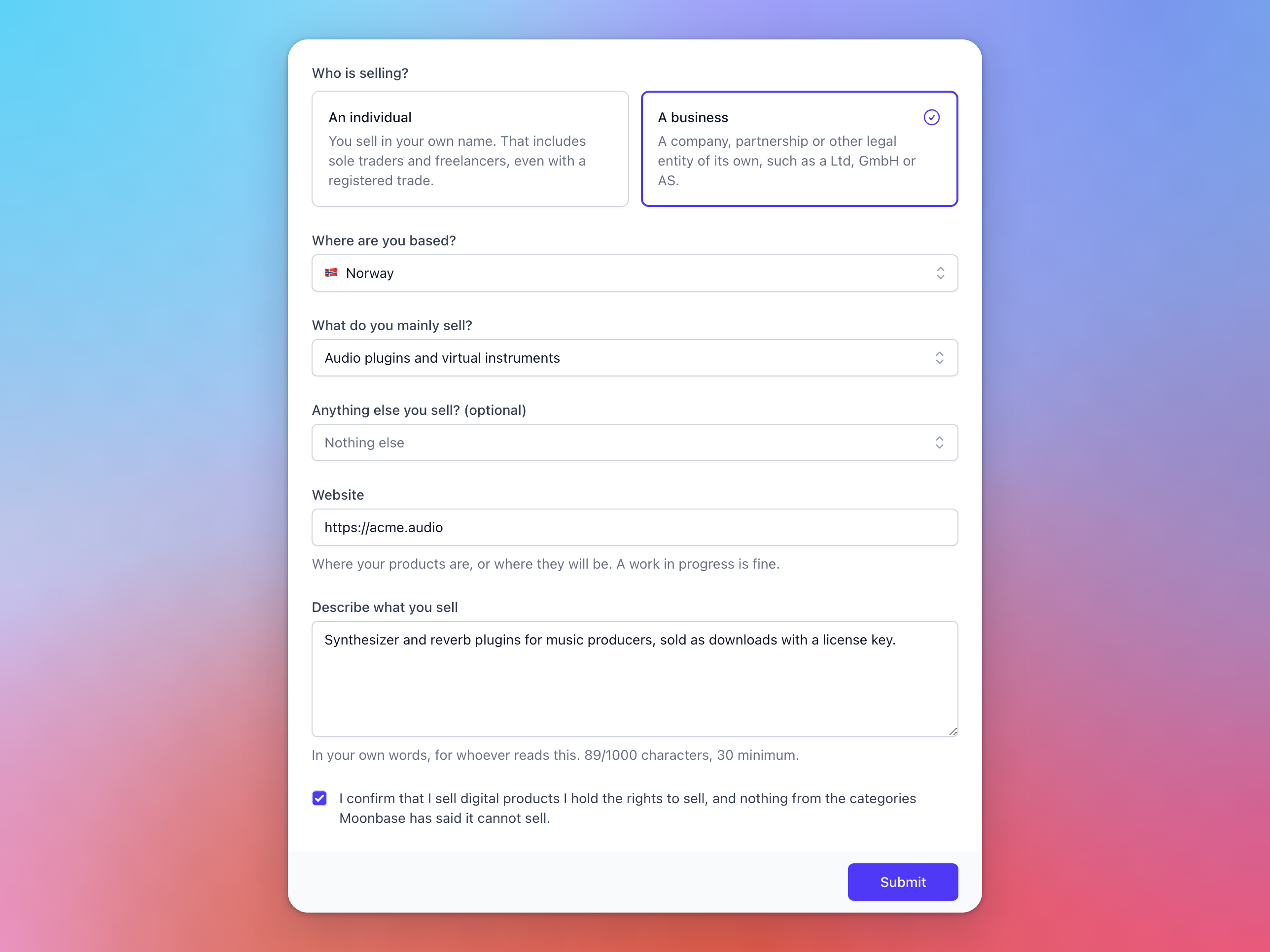
Clear answers unlock the next step straight away. Sometimes we take a quick look first: the page then says "We are taking a quick look", which usually takes a day or two, and we email you when it's done. Your demo account keeps working in the meantime.
2. Who you are, or your business
An individual gives their home address, tax number, VAT number if they have one, and roughly what they expect to sell in a year. A business gives its registered name, registration number and address, its tax numbers and what it expects to sell.
Picked the wrong kind at eligibility? Until you submit, the top of this form offers Verify as an individual instead (or Verify as a business instead).
3. Who's behind this account
As an individual, this is just you. A business adds the person acting for it first, then everyone who owns or controls 25% or more of it. If you own or control it yourself, tick that on your own row. Where nobody owns 25%, a director counts as controlling it.
Everyone listed verifies themselves with a secure ID check, using an ID document such as a passport:
Verify now starts your own check.
Send a link emails anyone else a link to do theirs on their own phone, without a Moonbase account. The link works for 14 days, and Send again replaces it with a new one.
Verify on this device, in the row's ... menu, is for someone sitting next to you.
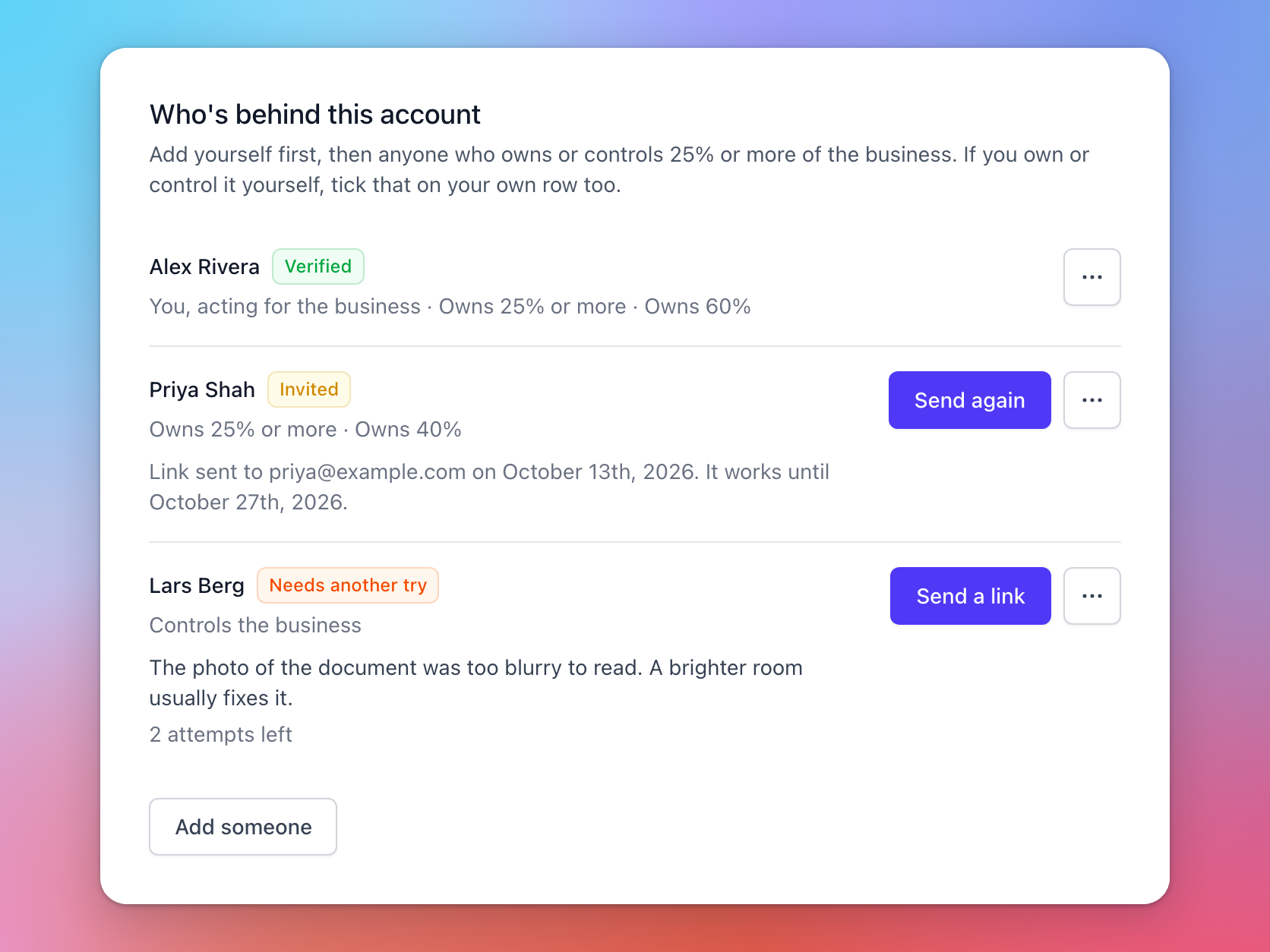
Each row shows where that person is, from Invited and Checking to Needs another try and Verified. Everyone gets three tries. If none of them work, the row says "Moonbase will take it from here", and we email you about what happens next.
4. Where we pay you
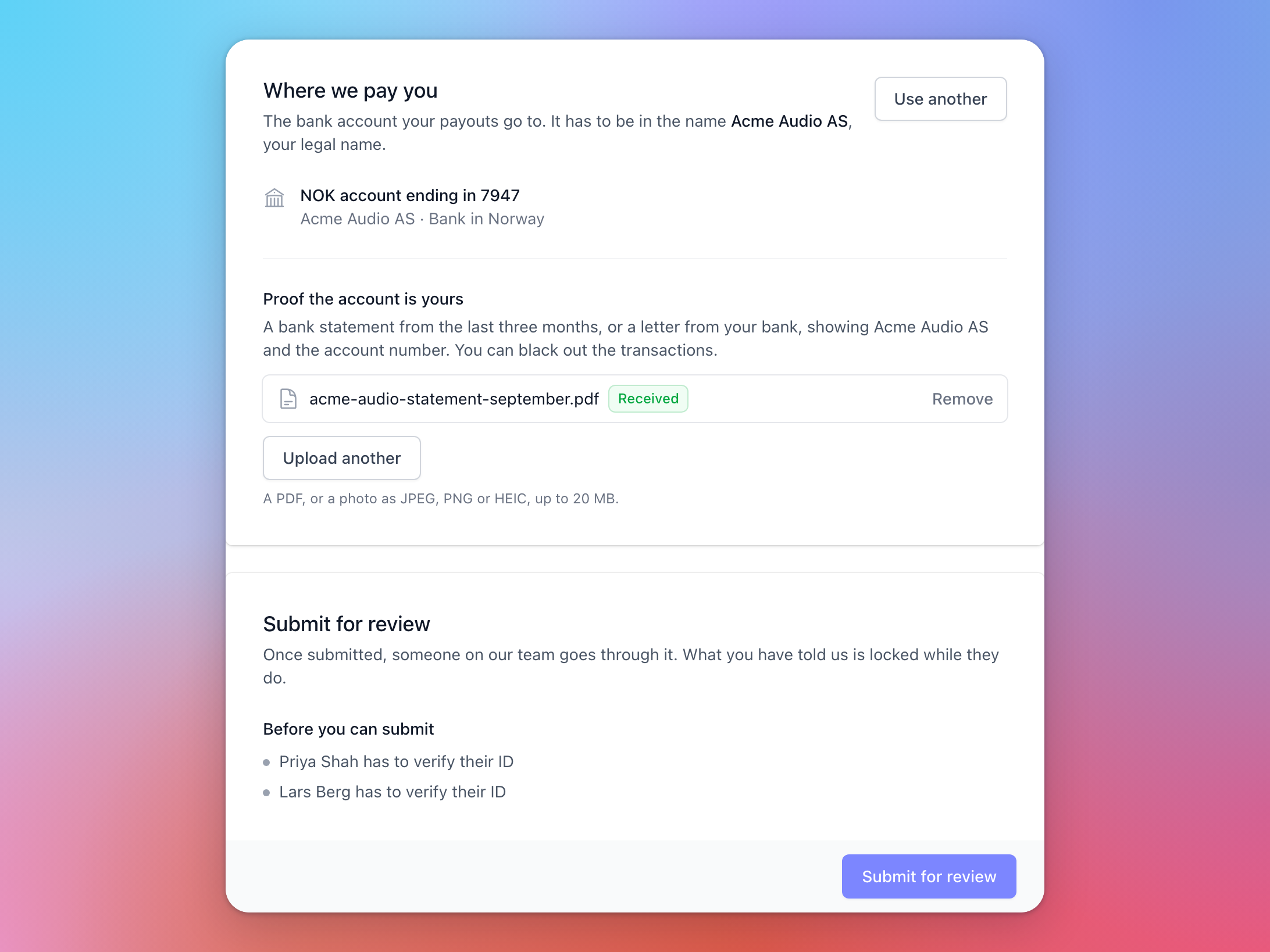
Add the bank account your payouts go to with Add bank account. It has to be in your legal name: your own name as an individual, or your business's registered name. If you set one up earlier under Account settings, Use this account puts it forward instead.
Then upload proof that it's yours: a bank statement from the last three months, or a letter from your bank, showing your legal name and the account number. You can black out the transactions. If your bank is in another country, we ask why. Multi-currency accounts, like Wise, Revolut or Payoneer, are perfectly fine.
5. Submit for review
The Submit for review card lists anything still missing under "Before you can submit". When nothing is left, confirm that what you've told us is true and complete, and click Submit for review. If an ID check or an uploaded file is still being checked, give it a minute or two.
After you submit
The page says "We are reviewing your verification", and your answers are locked while we do, but your demo account keeps working. We email you when we've decided:
Approved: your account is live. You can take real payments, the demo limits are gone, and payouts go to the account you gave us. Your legal name, address and tax ID become your account's Verified business details in Account settings, and changes to them go through Moonbase support.
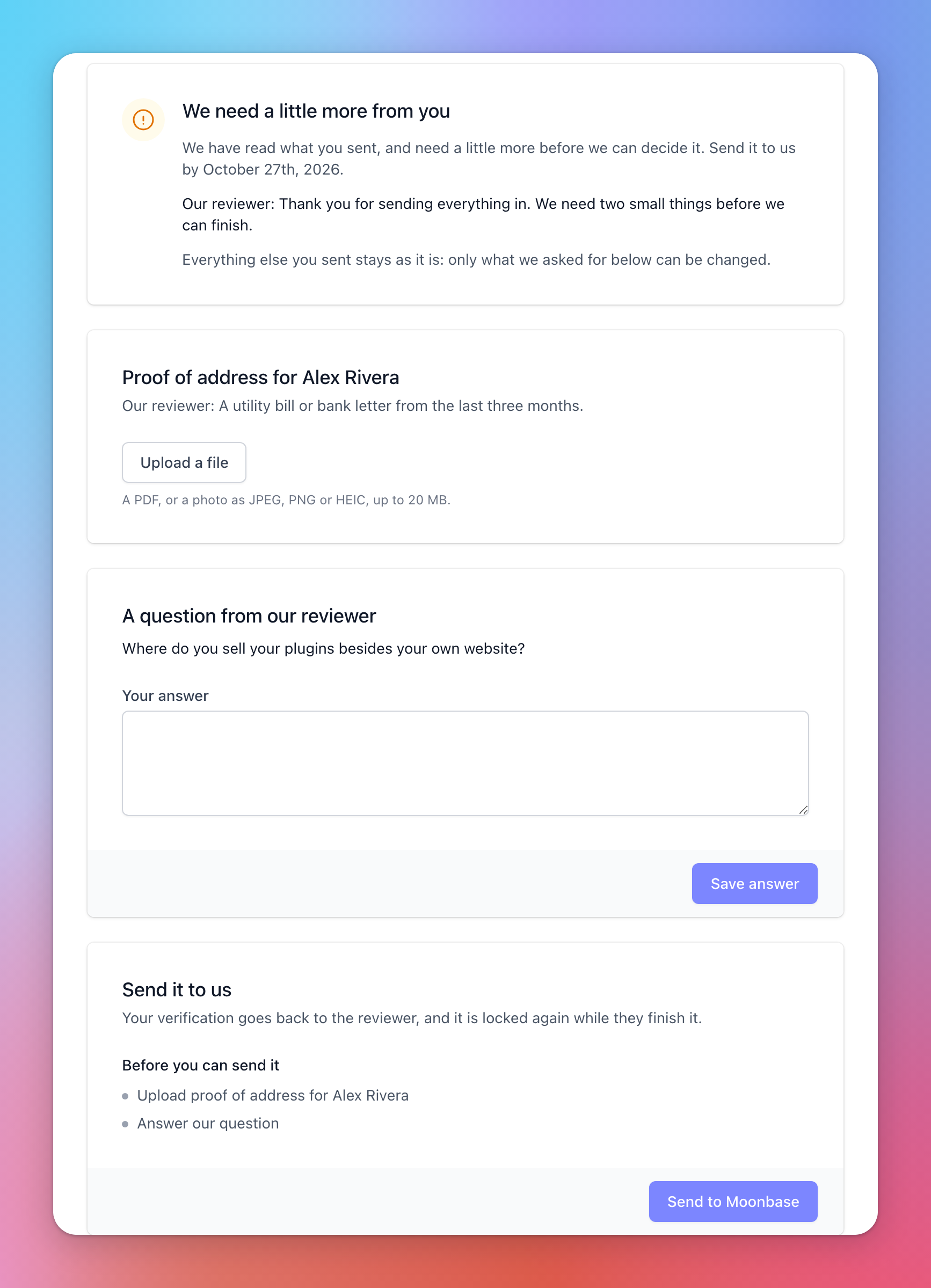
We need a little more from you: sometimes we need a document, an answer or another ID check first. The email lists what we need and the date to send it by, and the page shows a card for each. Add what we asked for and click Send to Moonbase, and we carry on where we left off.
We cannot take this any further: the account stays in demo mode. If you think that's wrong, contact us.
Changing your payout account later
Before you're live, Use another on the Verification page replaces the account. Once you're live, click Reset payout account under Account settings > Account > Payout configuration and confirm it from the email, which brings you back here to add the new account and its bank statement. We check a new account before paying into it, so payouts wait until we have, but nothing is lost. See Payout configuration.
Accounts that were already live
If your account was selling before verification started, we'll email you to ask you to verify by a date. You keep selling and payouts carry on meanwhile. The page starts from the details in your account settings, with your current payout account already on it, so you only add a bank statement for it. If verification isn't submitted by the date, payouts are held until it is.
Frequently asked questions
I'm a sole trader. Do I verify as an individual or a business?
As an individual. Sole traders and freelancers sell in their own name, even with a registered trade. A business is a legal entity of its own, such as a Ltd, GmbH or AS.
Can my accountant or co-founder fill it in for me?
No, only the account owner can. Co-owners verify their own ID through the link you send them.
Which files can I upload?
A PDF, or a photo as JPEG, PNG or HEIC, up to 20 MB. Each file shows Checking for a moment, then Received, or Could not be used if we couldn't read it.
Can my testers try the product before I'm live?
Yes, with a voucher or a free test order. Their licenses count towards the 100 a demo account can issue. See Vouchers.
Was this helpful?
Still need help? Ask the team