Changelog

Follow new updates and improvements to Moonbase.

New: Product Reviews and Your Own Customer Emails
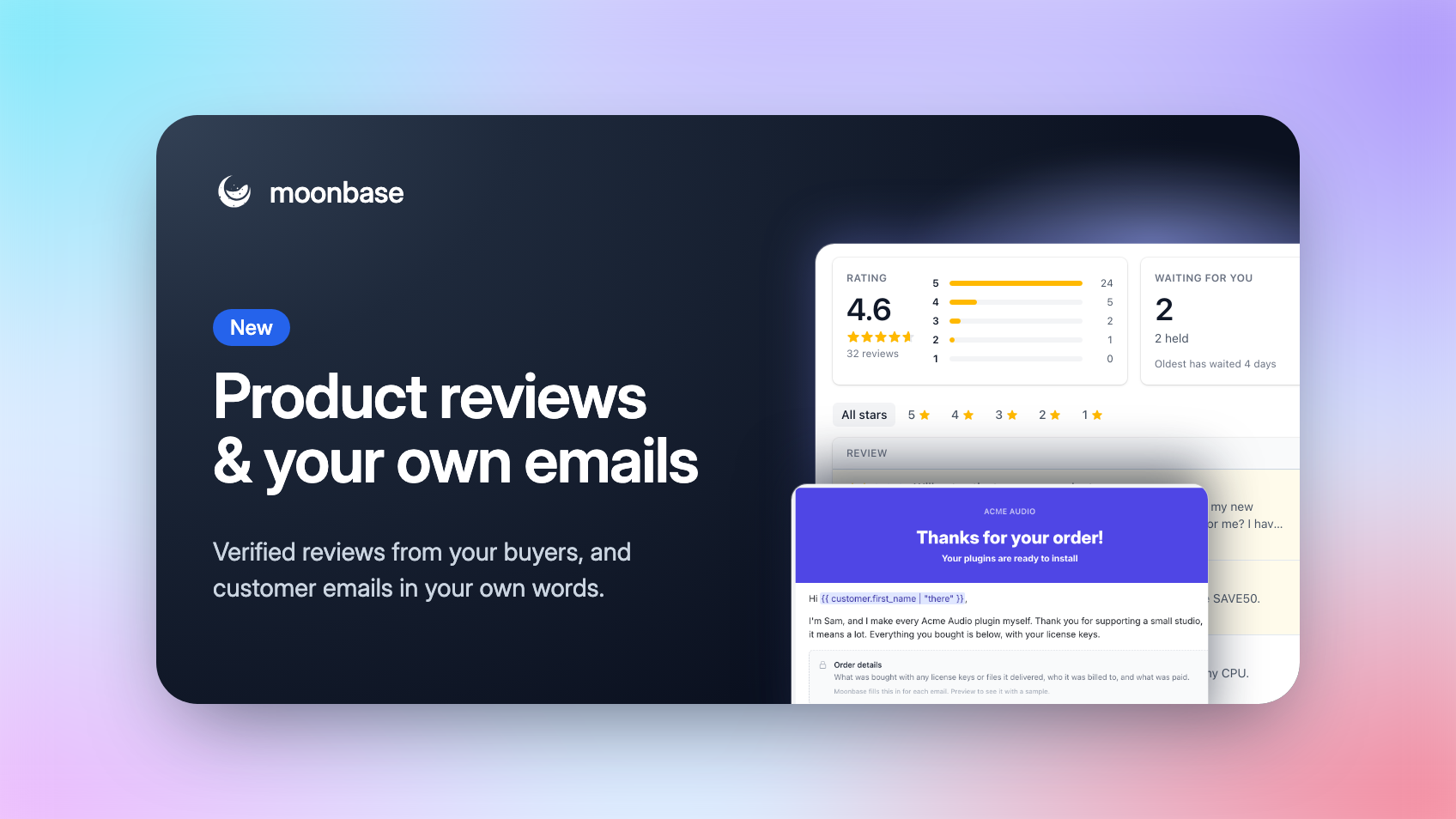
Two things you've asked us for are here! Your customers can now rate and review the products they bought, right from their account or your website, and every review comes from a verified buyer. And the receipts, license and account emails Moonbase sends for you can now be written in your own words.

Both live right next to the orders and licenses they're about, so there's nothing to connect and nothing to keep in sync.

Product reviews

Open Reviews in the sidebar and click Turn on reviews. From then on, customers who paid for a product through your checkout can rate it from 1 to 5 stars and tell others why. Every review carries a Verified owner mark, with the customer's name or without it, as they choose.
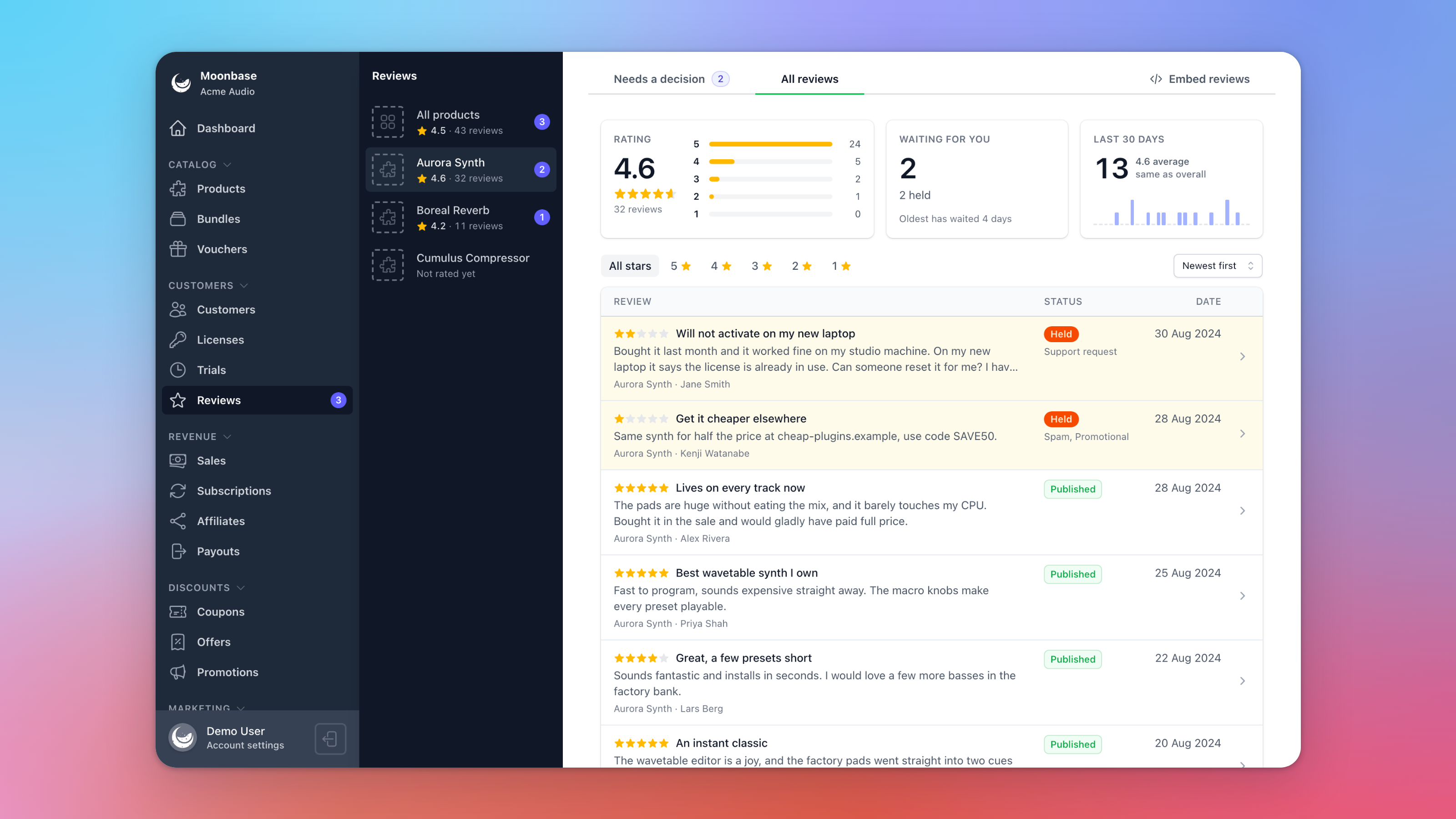
The Reviews page for Aurora Synth, with its rating, the reviews waiting for a decision and the last 30 days

Moonbase checks every review for you, usually within a minute:

  • Genuine reviews go straight up, critical ones included

  • Spam, abuse, personal details and off-topic reviews are held for you to Publish or Decline

  • Support requests are held too, and the customer is pointed to your support email instead

  • Reviews in other languages get an English translation, and customers can switch to the original

You can Reply to any published review, and Account settings > Notifications emails your team when a review needs a decision.

Show them where you sell

Embed reviews gives you the code, ready to copy: a frame for any website, or a single element for a site that runs the storefront widget, where customers write their review without leaving your page. There's also code to show the star rating in your own design.
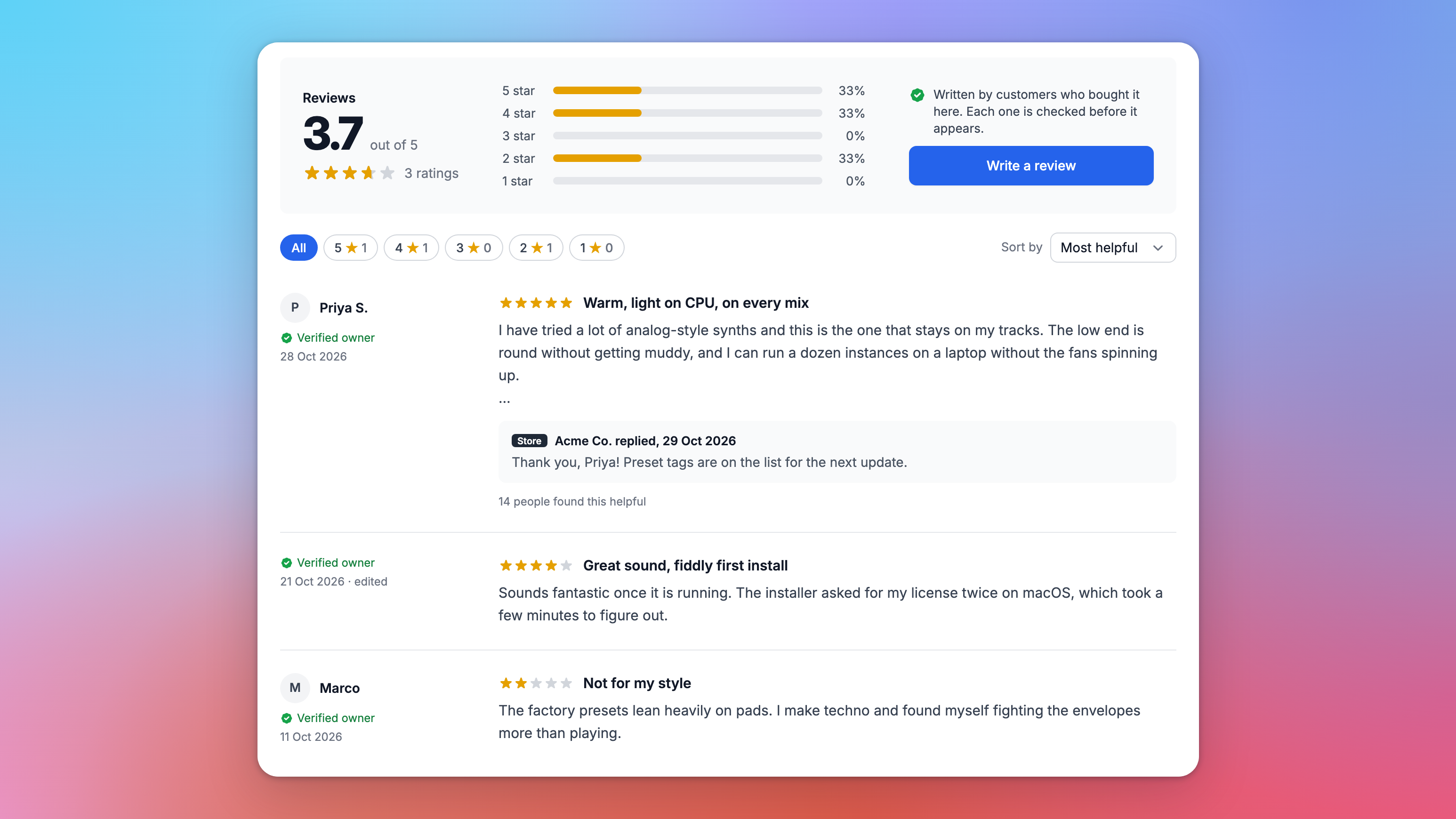
A product's reviews embedded on a website, with the rating, star filters, a reply from the store and Verified owner marks

Ask at the right moment

The new Review request block in campaigns and automations asks customers to review one product, the products they activated, or everything in their order, with a Write a review button for each. Customers who have nothing left to review are skipped. Or start from the Ask for reviews after a purchase template, which asks two weeks after every purchase. The new Reviewed check in segments finds who has and hasn't reviewed.

Your own customer emails

Under Account settings > Email > Customer emails, you can now write your own version of 14 of the emails Moonbase sends your customers: receipts, refunds, licenses you issue, renewal reminders and failed payments, account activation, password resets and more.
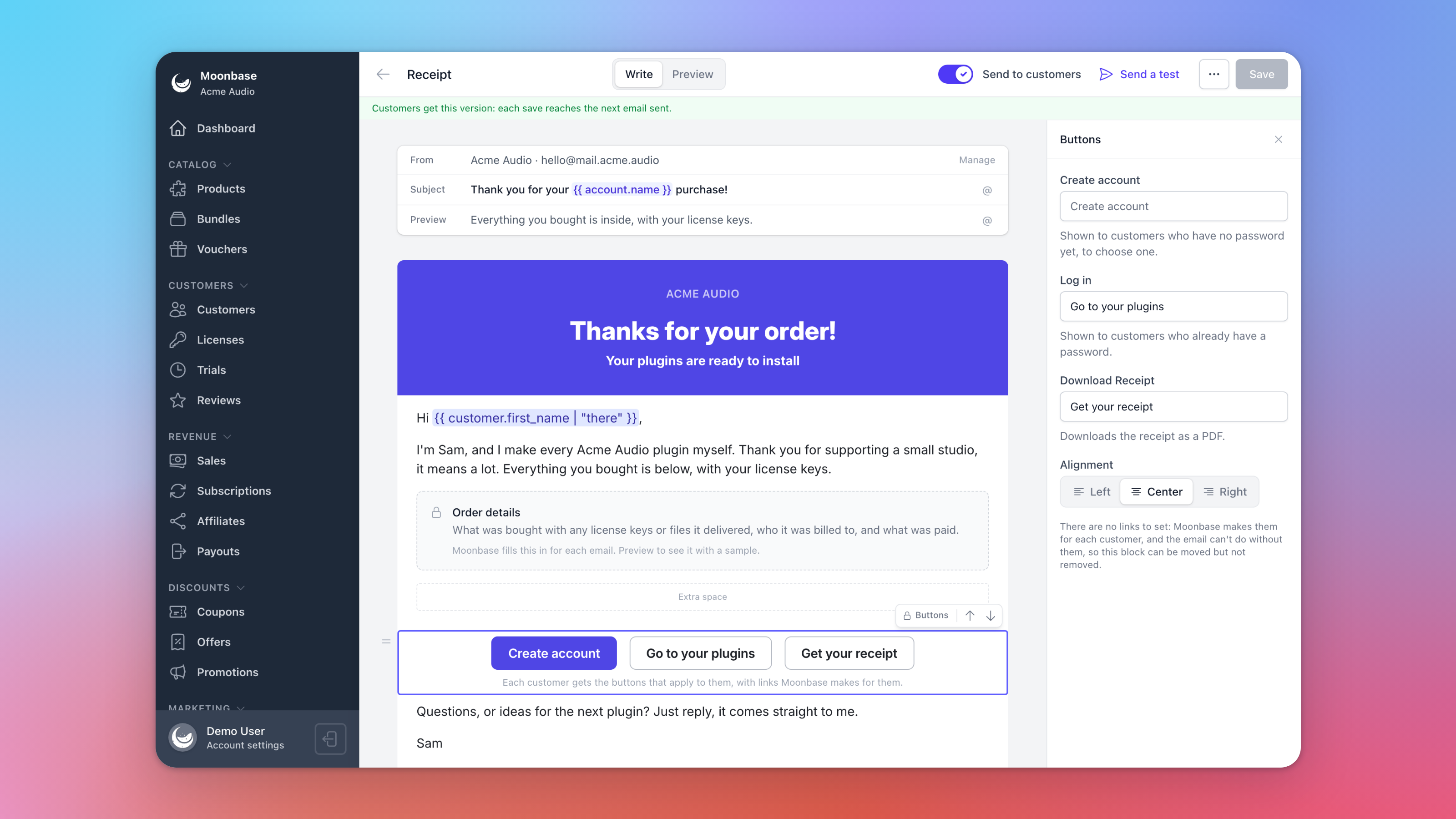
The receipt open in the email editor, with a note from the founder above the locked order details
  • Same editor as your campaigns: each email opens as Moonbase's own, laid out as blocks, so you only change what you want to, subject line included

  • The essentials stay in: the order, licenses and links each email exists to deliver sit in locked blocks that Moonbase fills in for every customer. You can rename their buttons

  • Preview and Send a test before you turn on Send to customers

  • Always delivered: if your version can't be sent for any reason, your customer gets Moonbase's email instead

Your versions go out from your own sending address, so you'll need a Transactional address on a verified domain. You can write your emails before that's set up.

Read all about it in our articles on Product reviews and Writing your own customer emails. Thank you to everyone who asked for verified product reviews and your own wording in customer emails. Is there something you'd like to see next? Let us know on the roadmap. ⭐

Enjoying Moonbase?

Then we'd love your honest review!

Sharing your experiences with the platform is a great way to support us, and inform others.

You can find us on Trustpilot. ❤️
New

New: Marketing Automations

When we launched Campaigns last month, we said Marketing Automations was next. It's here: Moonbase can now email your customers, and act for you, the moment they do something. Welcome someone as soon as they sign up, send a few tips the day after a trial starts, or remind a buyer an hour after they leave your checkout, with their cart right there in the email.

Where a campaign is one email to a group at a time you choose, an automation takes each customer through on their own schedule, so everyone gets the day-one email on their own day one.

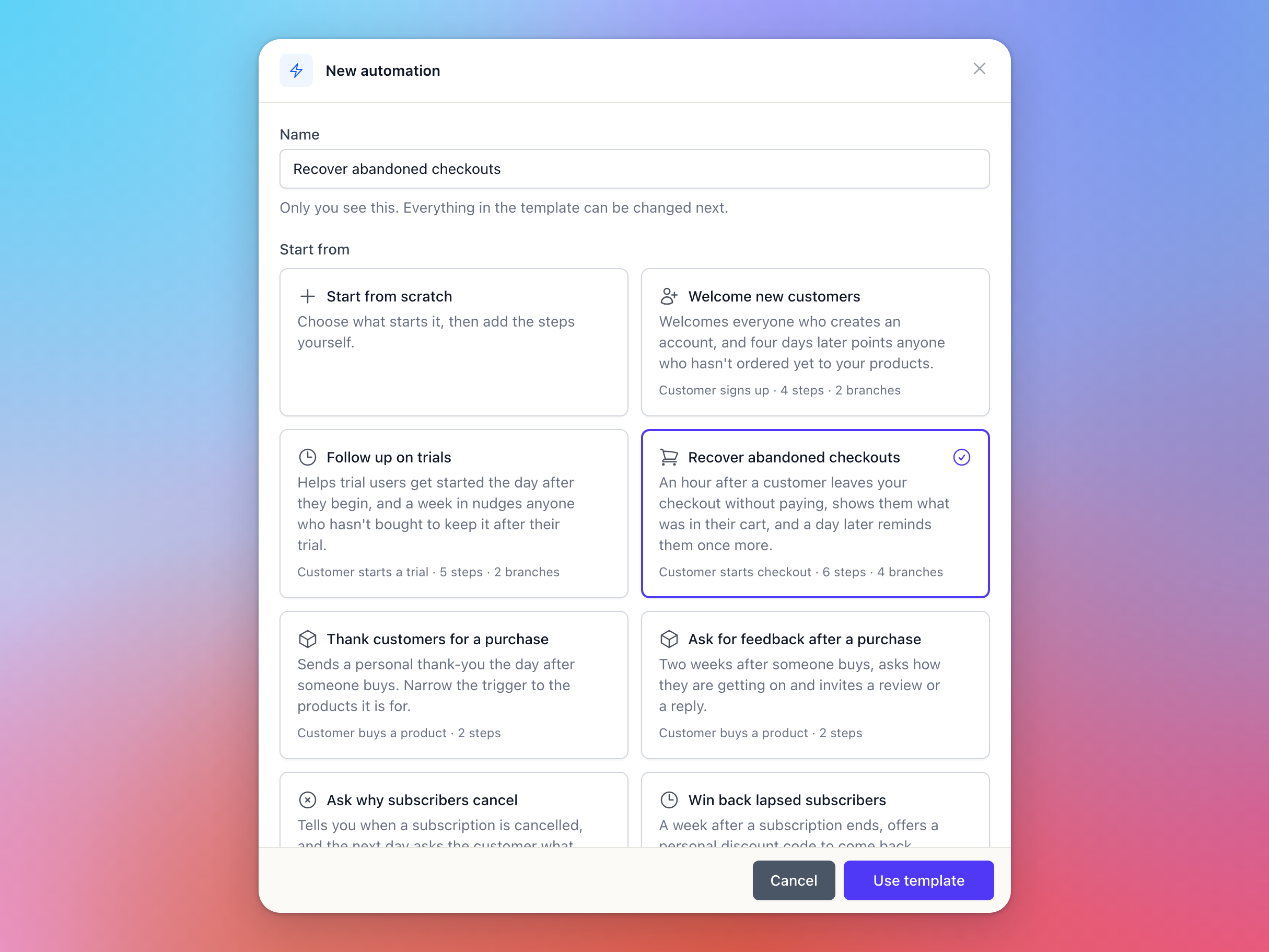
Start from a template

Open Automations in the sidebar and click New automation. Start from scratch, or pick one of seven templates with the trigger, steps and emails already written:

  • Welcome new customers: a welcome on sign-up, and a pointer to your products four days later for anyone who hasn't ordered

  • Follow up on trials: tips the day after a trial starts, and a nudge a week in for anyone who hasn't bought

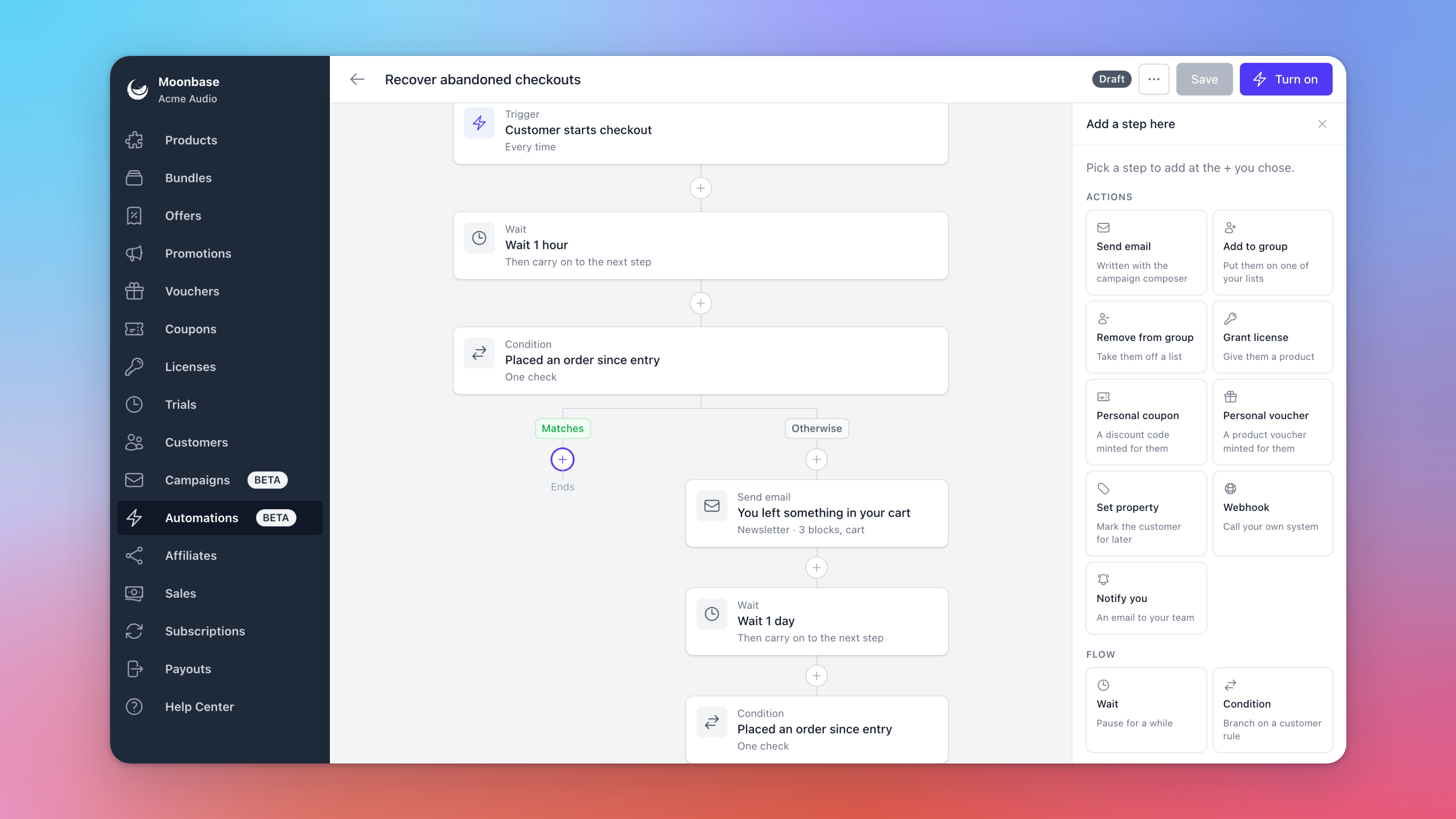
  • Recover abandoned checkouts: an email with their cart an hour after they leave your checkout, and one more reminder a day later

  • Thank customers for a purchase and Ask for feedback after a purchase

  • Ask why subscribers cancel and Win back lapsed subscribers with a personal discount code

Template emails use the theme configured on your account; your colors, fonts and vibe.

The New automation dialog with the templates, and Recover abandoned checkouts selected

Build the flow

Every automation starts with a trigger: a customer signs up, starts a trial, starts a checkout, buys a product or places an order, starts, cancels or lets a subscription expire, activates a license, joins or leaves one of your lists or segments, or opens or clicks a campaign email. Triggers about products can be narrowed to the ones you pick, and you choose whether a customer enters Once or Every time.

Then add the steps:

  • Wait for hours or days, and split the path with a Condition, such as whether they've bought since they entered

  • Send email, written with the same editor as your campaigns

  • Grant license, Personal coupon and Personal voucher to give the customer a product or a code of their own

  • Add to group, Remove from group and Set property to keep your lists and customer data up to date

  • Webhook to tell your own system, like your CRM or Zapier, that a customer got there

  • Notify you to email your team, for example when a long-time subscriber cancels

The automation builder with the Recover abandoned checkouts flow and every step you can add

Emails that know what just happened

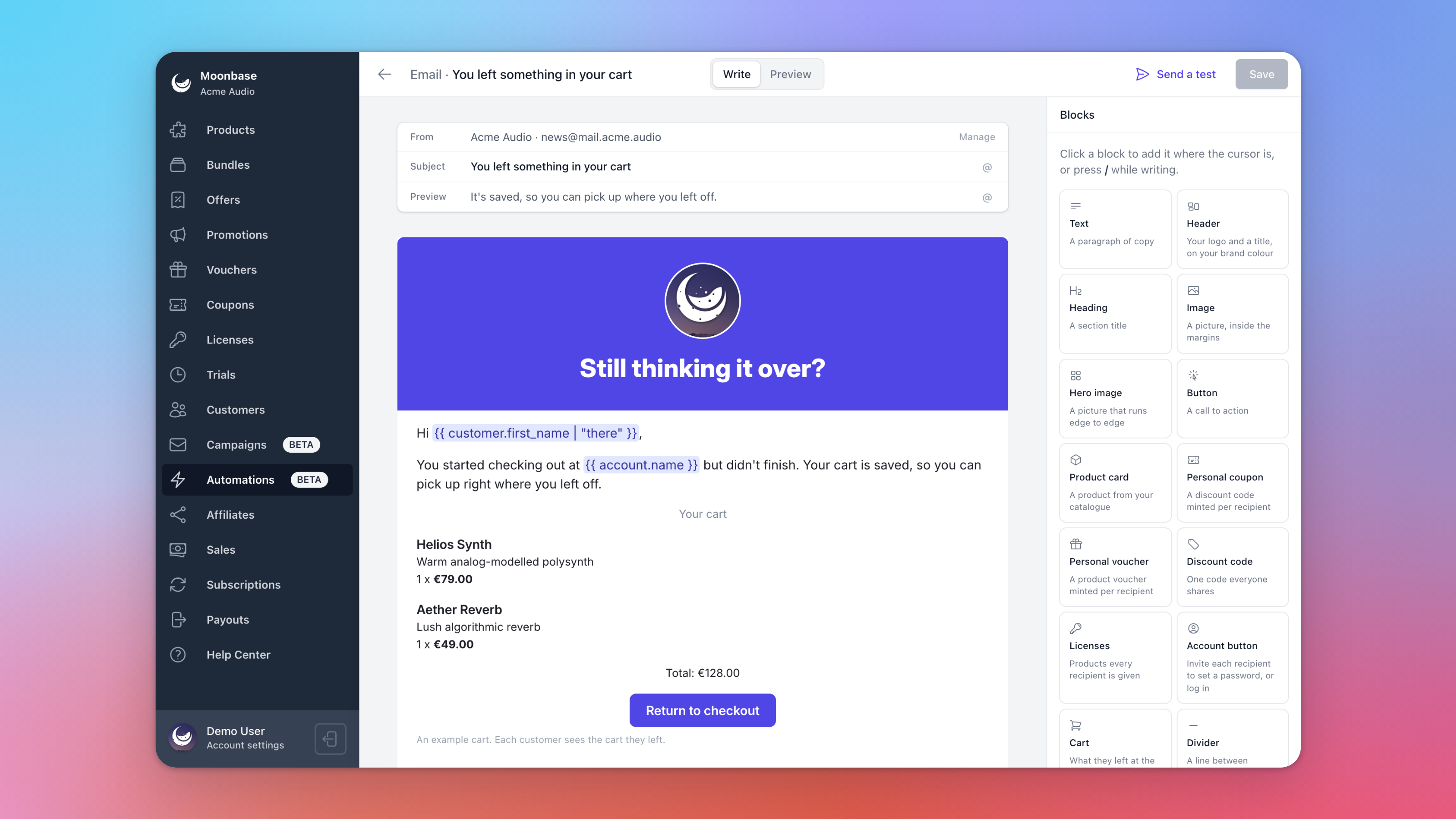
Emails can use what started the automation and what earlier steps did: the order total, the product they're trying, or the coupon code or license they were just given. In an abandoned checkout email, the Cart block shows exactly what the customer left behind, with a Return to checkout button that takes them straight back. And the new Account button invites customers without a password to choose one, while everyone else goes to the log-in page.

An abandoned checkout email with the customer's cart and a Return to checkout button

Just like campaigns, a newsletter or product update only goes to customers who opted in to it. An email that delivers what the customer asked for, like the free license they signed up for, can be sent as Transactional instead, so it reaches everyone who asked.

See what it earns

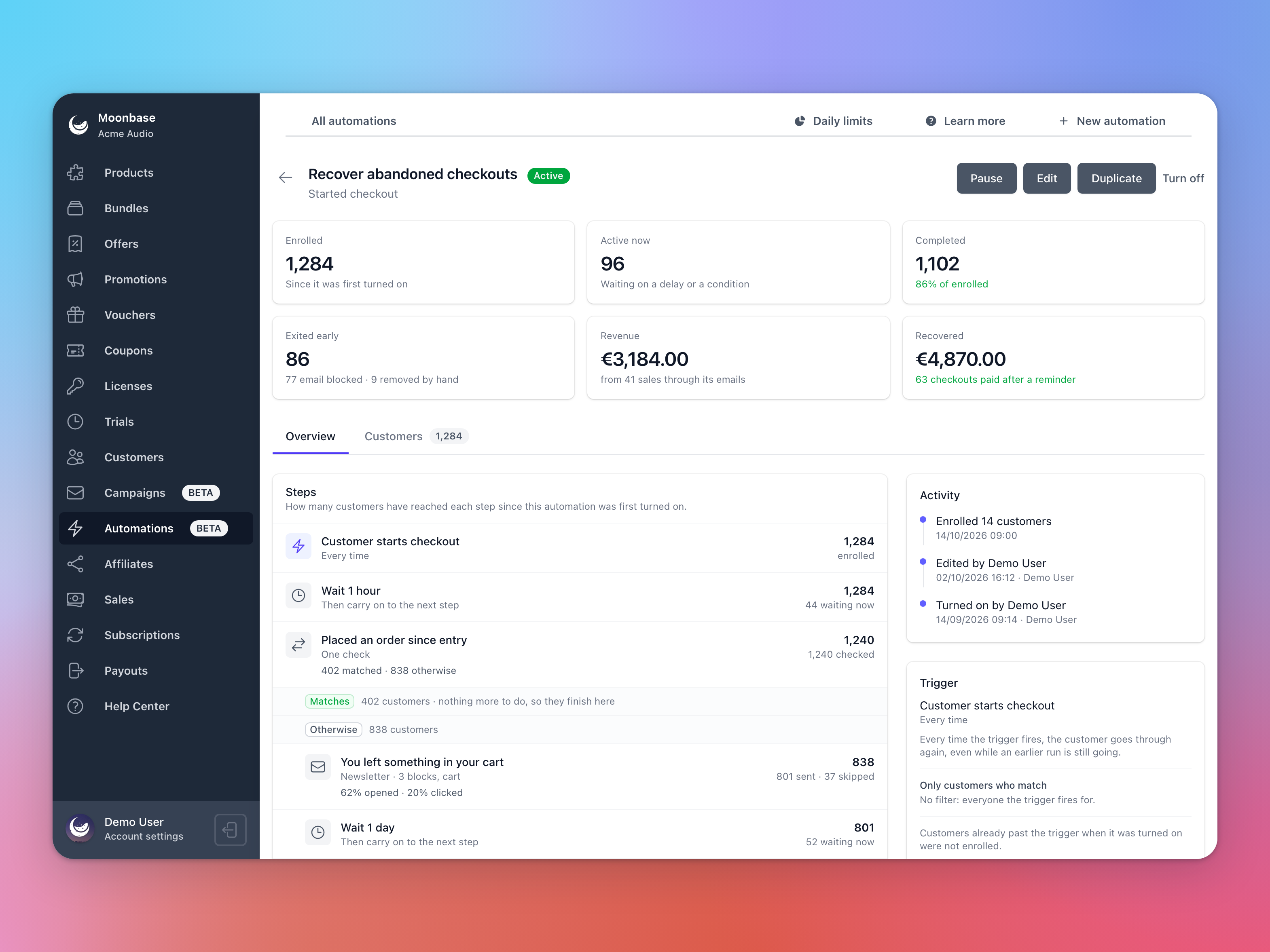
Open an automation to see how many customers entered it, where they are now, and how each email did. Revenue shows what customers bought through its emails, counted the same way as a campaign's, and abandoned checkout automations also show Recovered: every reminded checkout that was paid for, however the customer came back. Each customer's page has an Automations tab too, with every step they went through.

An automation report with its figures, revenue, recovered checkouts and every step

Moonbase also keeps an eye on things for you. A customer gets at most four automation emails a day, and if an automation suddenly takes in far more customers than usual, its emails get marked as spam, or they can't be sent, Moonbase pauses it and lets you know. Fix the cause, click Resume, and everyone carries on where they were.

Prefer to describe it? An AI assistant connected to Moonbase can draft an automation for you to look over, and the Moonbase API can build them too.

Pricing

Automations are charged per action: a step that does something for a customer, like sending an email, granting a license, creating a code or calling a webhook. Waits, conditions and entering an automation are free, and so is a step that was skipped or changed nothing. The first 1,000 actions every month are free, then it's €2.00 per 1,000 up to 25,000 and €1.00 per 1,000 above that, so 5,000 actions in a month cost €8. Actions are counted apart from campaign emails, each with its own free 1,000, and Account settings > Account > Pricing Plan shows how many you've used this month.

Already using Klaviyo or Mailchimp?

Nothing changes there: customers keep syncing to Klaviyo, Mailchimp, MailerLite, Brevo and Mailjet just like before. But you can now run your flows in Moonbase too, right next to the licenses, trials and orders they react to.

Read all about it in our article on Automations. Thank you to everyone who upvoted and commented on the request. Is there a trigger or step you'd love to see? Let us know on the roadmap. ⚡

Enjoying Moonbase?

Then we'd love your honest review!

Sharing your experiences with the platform is a great way to support us, and inform others.

You can find us on Trustpilot. ❤️
New

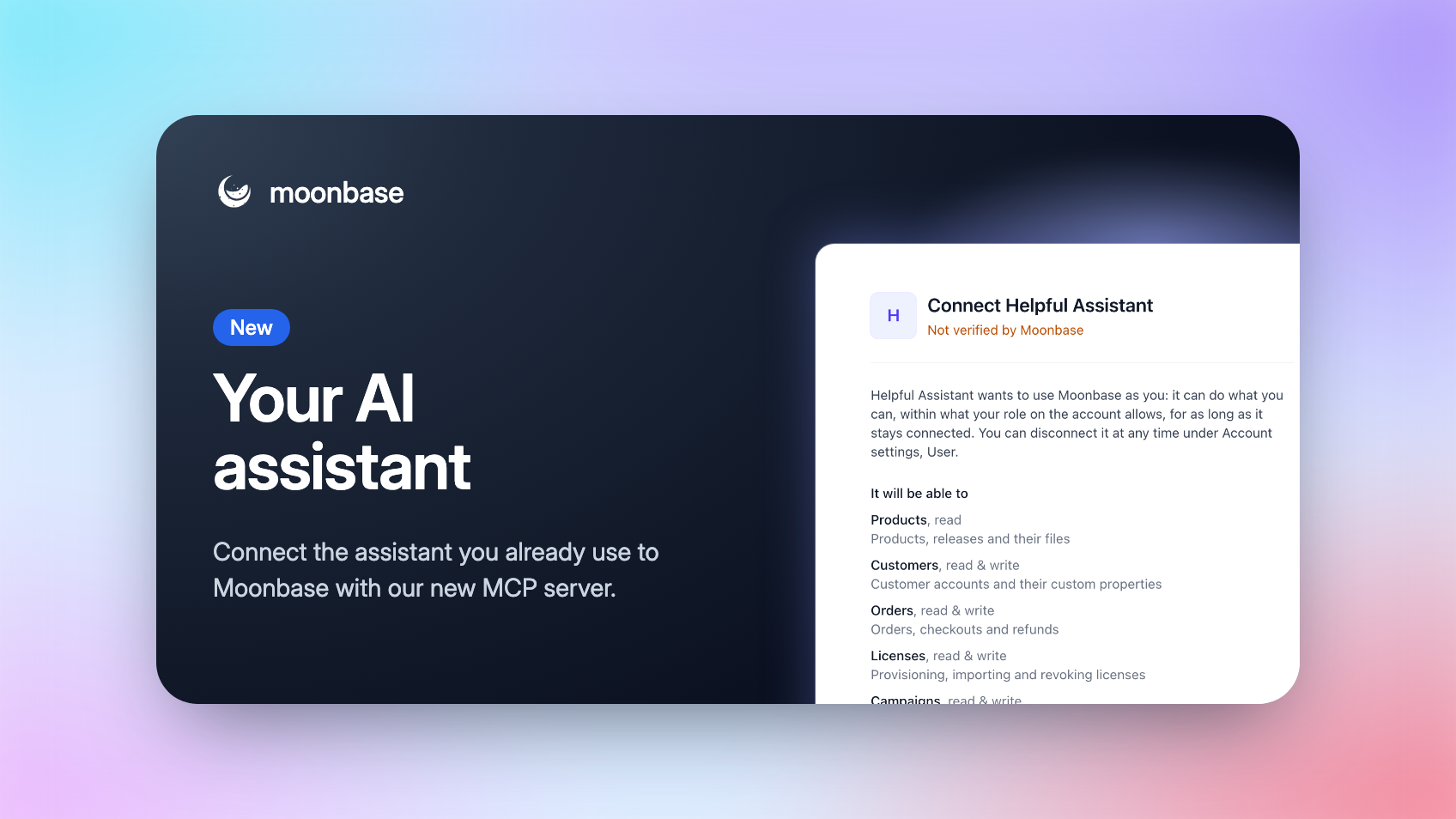
New: Connect your AI Assistant to Moonbase

With our new MCP server, you can now bring Moonbase into the AI assistant you already use. Let your assistant look things up and get work done in your Moonbase account, for example: answer a support email with the customer's licenses in front of it, pull this month's numbers without opening the dashboard, or draft next week's newsletter.

You stay in control. An assistant can only do what your role allows, you choose how far it can go when you connect it, and it can't refund, send or revoke anything unless you allowed that too.

Connect in a minute

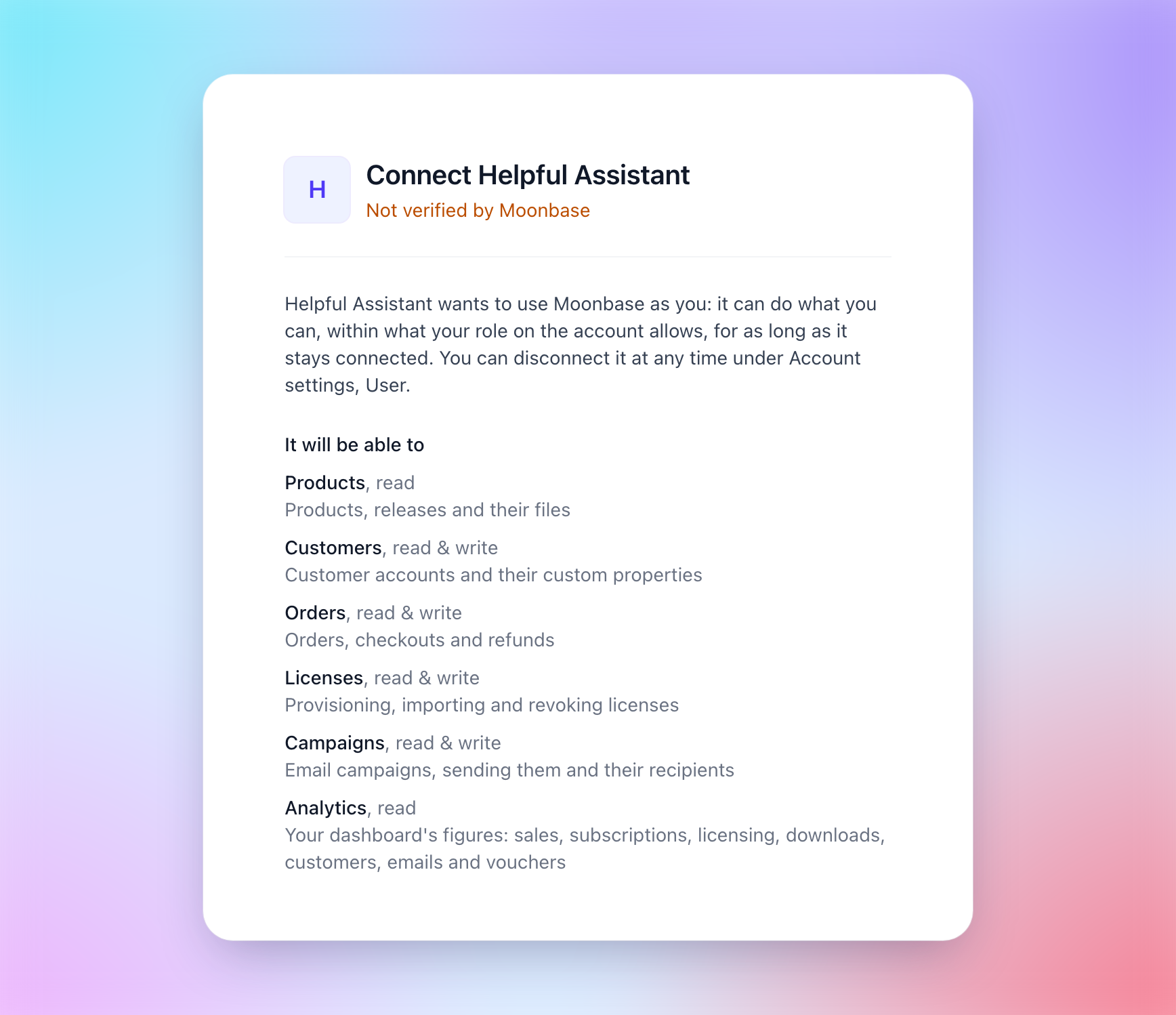
In your assistant, add the connection (it may be called a custom connector, plugin or an MCP server) with the address https://mcp.moonbase.sh. There's no API key to copy: the assistant opens Moonbase, where you sign in, pick the account, see what it will be able to do, and click Connect.

The page an assistant opens to connect, with what it will be able to do in the account

Anyone on your team can connect their own, whatever their role is. It acts as them, sees only what their role opens, and stops working when they leave the team.

What you can ask

  • Support: "Find the customer behind jane@example.com and check which devices their license is activated on." It finds customers by email or name, sees their orders, licenses, subscriptions, trials and the emails we sent them, and can resend a receipt, retry a failed order, extend a trial, give a license or refund an order.

  • Your numbers: "How did revenue in September compare with August, per product?" It reads the same figures as your dashboard, so the answers match: sales, MRR and churn, licensing, downloads, customers, emails and the product funnel.

  • Marketing: "Draft a newsletter to everyone who owns Acme Synth announcing version 2, and show me what it looks like." It writes campaigns and automations, shows you the email, sends you a test, makes segments and coupons, and tells you how a campaign did.

You decide how far it goes

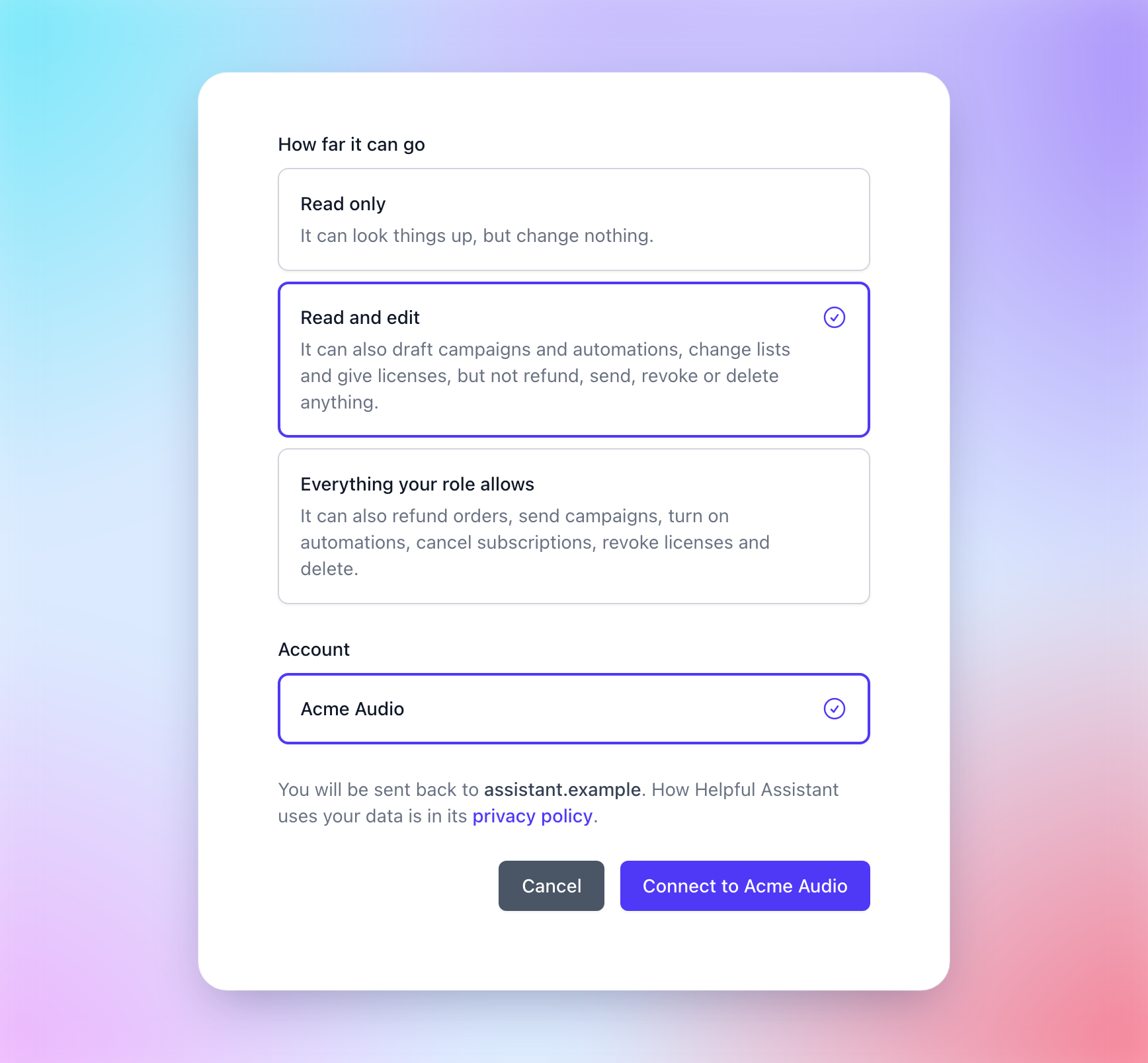
When you connect, pick one of three:

  • Read only: it looks things up and changes nothing.

  • Read and edit (the default): it can also draft campaigns and automations, change lists and give licenses, but not refund, send, revoke or delete anything.

  • Everything your role allows: it can also refund orders, send campaigns, turn on automations, cancel subscriptions, revoke licenses and delete. Even then, it's told to say what will happen and ask you first.

How far it can go: Read only, Read and edit or Everything your role allows

Campaigns and automations it writes stay drafts until they're sent or turned on, so you can look them over in Moonbase first.

Disconnect at any time

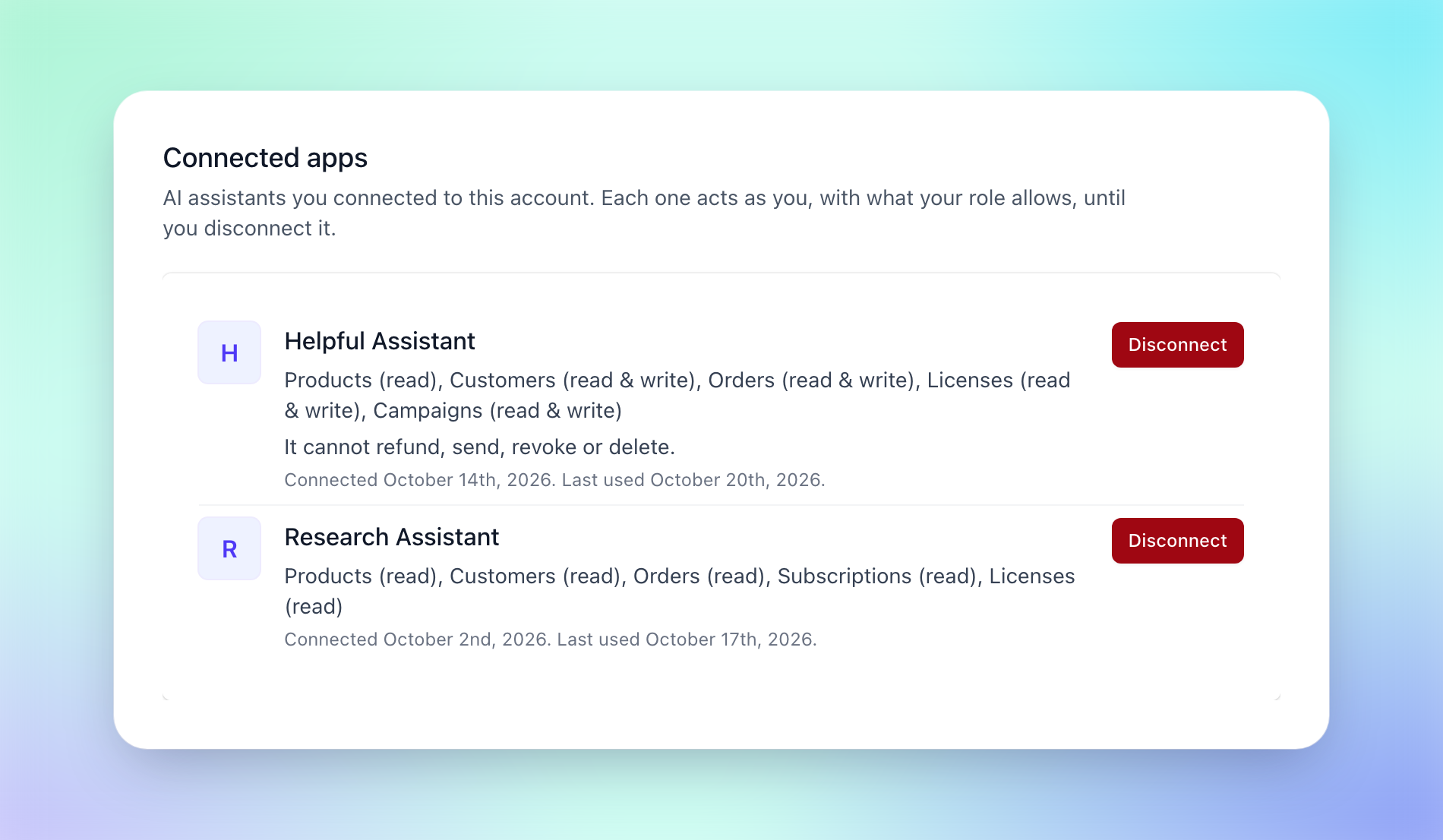
Account settings > User lists the assistants you connected, what each assistant can do and when it was last used, and Disconnect stops one within seconds.

Connected apps under Account settings > User, with Disconnect on each assistant

Setup and troubleshooting are all in our article on Connecting an AI assistant. Is there something you'd like your assistant to do in Moonbase that it can't yet? Let us know on our roadmap. 🤖

Enjoying Moonbase?

Then we'd love your honest review!

Sharing your experiences with the platform is a great way to support us, and inform others.

You can find us on Trustpilot. ❤️
New

Earlier updates