Automations
Email customers and act on their behalf automatically when they sign up, start a trial, buy or leave your checkout, starting from ready-made templates
Written By Tobias Lønnerød Madsen
Some emails only work at the right moment: a welcome when someone signs up, a few tips the day after a trial starts, or a reminder an hour after a customer leaves your checkout. Automations send them for you, right in Moonbase: something a customer does starts the automation, and Moonbase takes each customer through the steps you set up. Where a campaign is one email to a group at a time you choose, an automation reaches each customer at the moment that fits them.
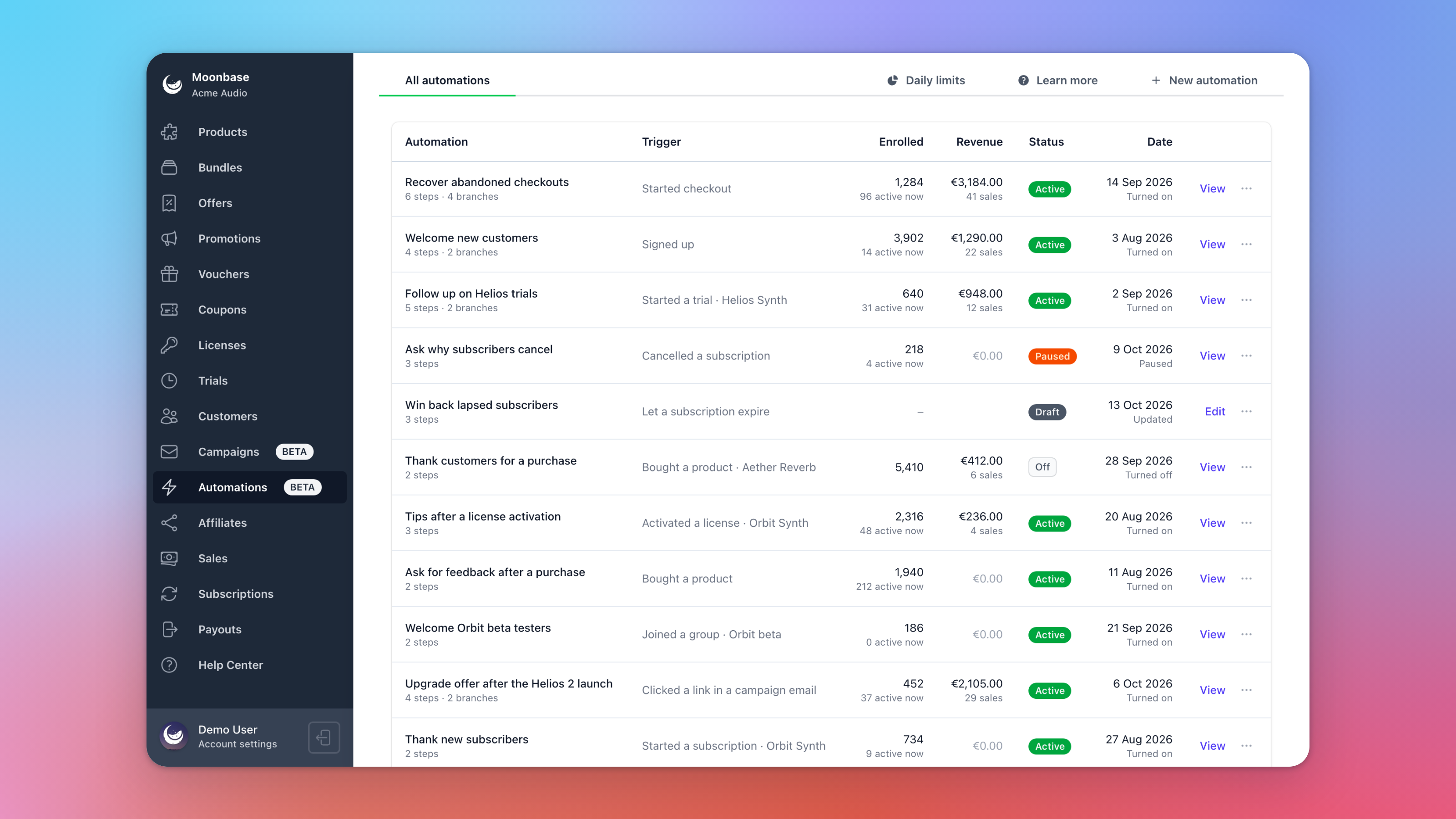
All your automations sit on the Automations page, with what starts each one, how many customers have entered it, what it has sold, and its status:
How an automation works
Every automation has a trigger, which is what a customer does to enter it, like signing up, starting a trial or starting a checkout. After that come the steps, in order from the top: wait a while, check something about the customer, send an email, give them a code or a license, and so on. Each customer goes through on their own schedule, so everyone gets the day-one email on their own day one.
You can also create and manage automations through the Moonbase API, with an API key that has access to Automations (see API keys, rate limits and webhooks), or have an AI assistant you connect to Moonbase draft them for you (see Connecting an AI assistant (MCP)).
Starting from a template
Click New automation, give it a name, and choose what to start from. Start from scratch gives you an empty automation, and each template fills in a trigger, steps and emails that are already written:
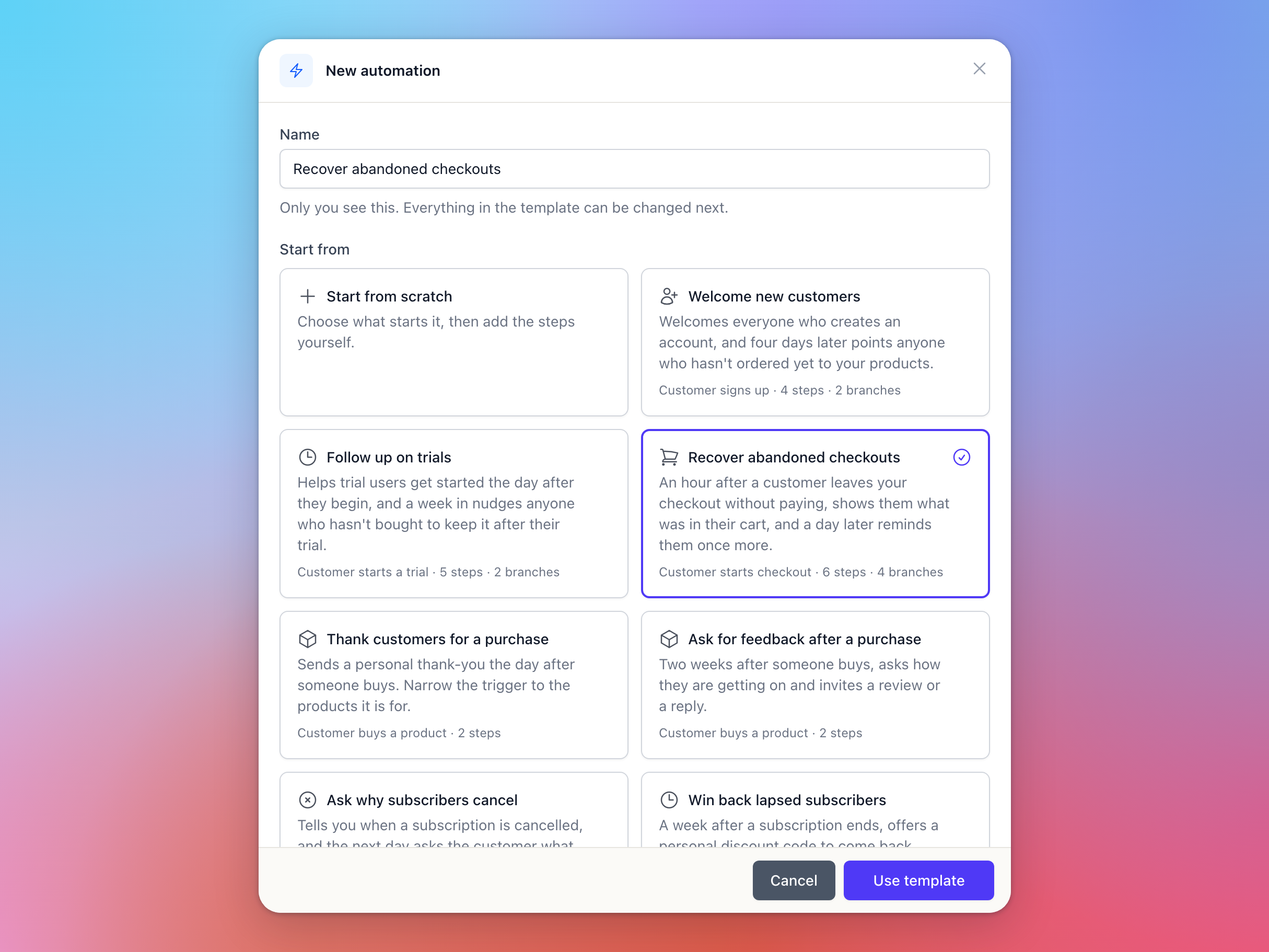
Welcome new customers: a welcome email on sign-up, and four days later a pointer to your products for anyone who hasn't ordered.
Follow up on trials: tips the day after a trial starts, and a nudge a week in for anyone who hasn't bought.
Recover abandoned checkouts: an hour after a customer leaves your checkout without paying, an email showing their cart with a Return to checkout button, and one more reminder a day later.
Thank customers for a purchase and Ask for feedback after a purchase: a thank-you the day after, or a request for a review two weeks later.
Ask why subscribers cancel and Win back lapsed subscribers: ask what made a subscription end, or offer a personal discount code a week after it does.
Template emails use your logo, colours and footer links, like every email your customers get from you (see Emails your customers receive), so they can go out as they are. Everything a template adds is an ordinary step that you can change, move or remove.
Building the flow
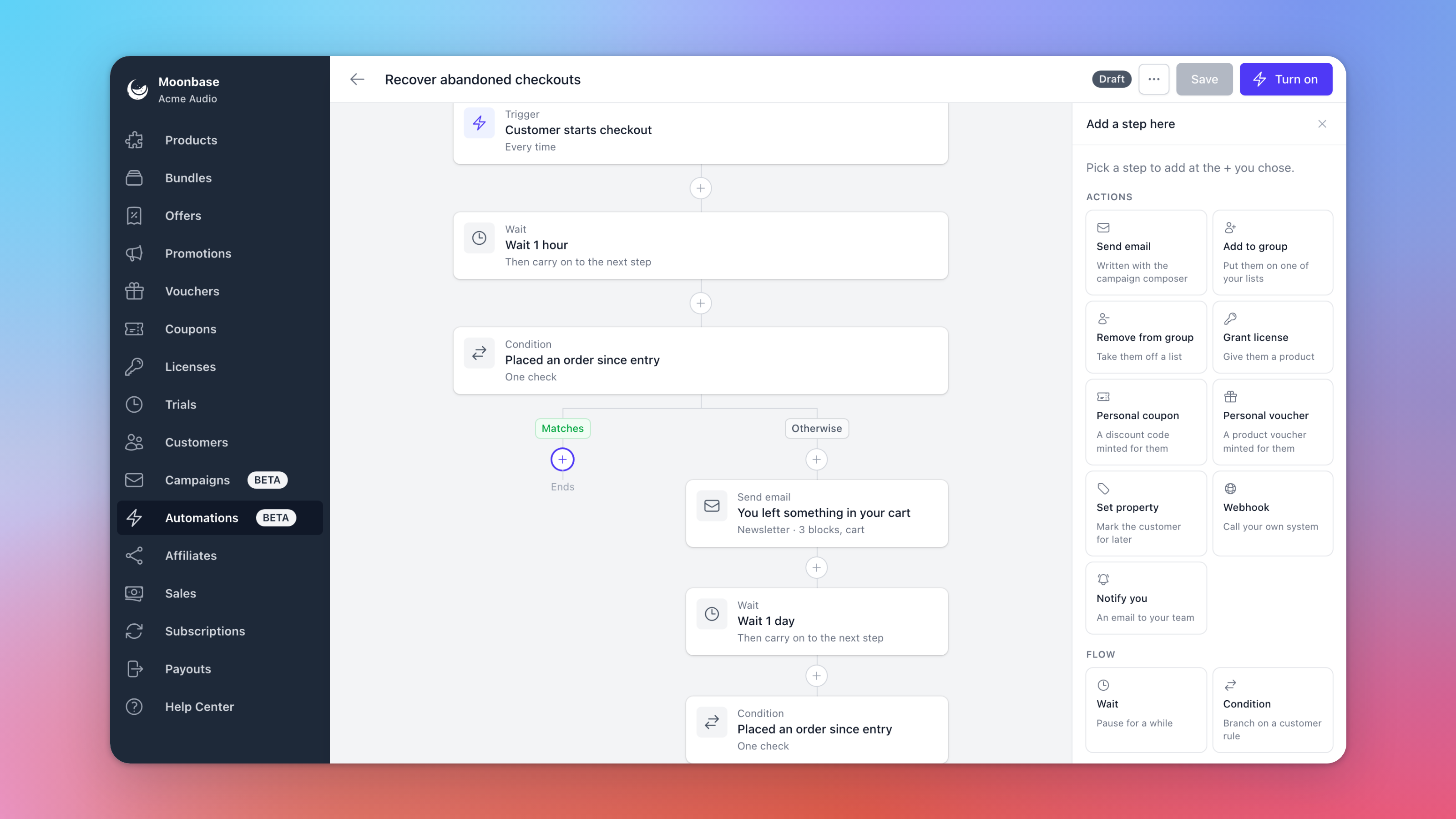
The builder shows the automation from top to bottom, starting with the trigger. Click a step to change it in the panel on the right, or click a + to add a step there:
Triggers
An automation can start when a customer:
signs up, starts a trial, starts a checkout, buys a product or places an order;
starts or cancels a subscription, or lets one expire;
activates a license;
joins or leaves one of your lists or segments (see Customer groups and segments);
opens one of your campaign emails, or clicks a link in one.
Triggers about products can be narrowed to the products or bundles you pick. If you sell in more than one place, Sold through narrows a purchase or order trigger to where the sale was made, such as your Moonbase checkout or another store. You also choose whether to enroll each customer Once, or Every time the trigger happens, and Only customers who match limits the automation to customers with, for example, a particular country or custom property.
Steps
Wait: pause for a number of hours or days.
Condition: check something about the customer, such as whether they have bought since they entered, and send them down Matches or Otherwise. The two paths never join up again, so a condition is always the last step on its path.
Send email: an email written with the same editor as your campaigns.
Grant license: give the customer a product, as if they had bought it. A newsletter contact without an account gets one, and an Account button in a later email lets them choose a password.
Personal coupon and Personal voucher: create a code just for this customer, to offer in a later email.
Add to group, Remove from group and Set property: update the customer's lists, or store a custom property on them.
Webhook: tell your own system, such as your CRM or Zapier, that a customer got here. It sends the customer, what started the automation and what earlier steps gave them to one of your webhooks under Account settings > Developer (see API keys, rate limits and webhooks). If your endpoint doesn't answer, Moonbase tries again after 1 minute, 10 minutes and 1 hour, then the customer carries on. Send a test sends one with sample values.
Notify you: email your team, for example when a long-time subscriber cancels.
Click Save to keep your changes. You can save before you're finished, and the steps that still need attention are outlined.
Writing the emails
Click Edit content on an email step to write it, with the same blocks and variables as Email campaigns. An Account button block takes each customer into their account: someone without a password chooses one through it, and everyone else goes to the log-in page.
Each email has a Type. A Newsletter or Product update email only goes to customers who opted in to that type, and anyone who hasn't skips that email and carries on. Transactional is for an email that delivers what the customer asked for, such as the license they signed up for, so it needs no opt-in. It's offered when the automation starts with a customer starting a trial, buying a product, placing an order or joining a list through a sign-up form. A transactional email can't come after a wait, has to deliver something (a license, account button or voucher block, or a Grant license or Personal voucher step before it) and can't sell anything, so no coupons, discount codes or carts.
Preview shows the email as it will be sent, and Send a test sends it to a team member's address.
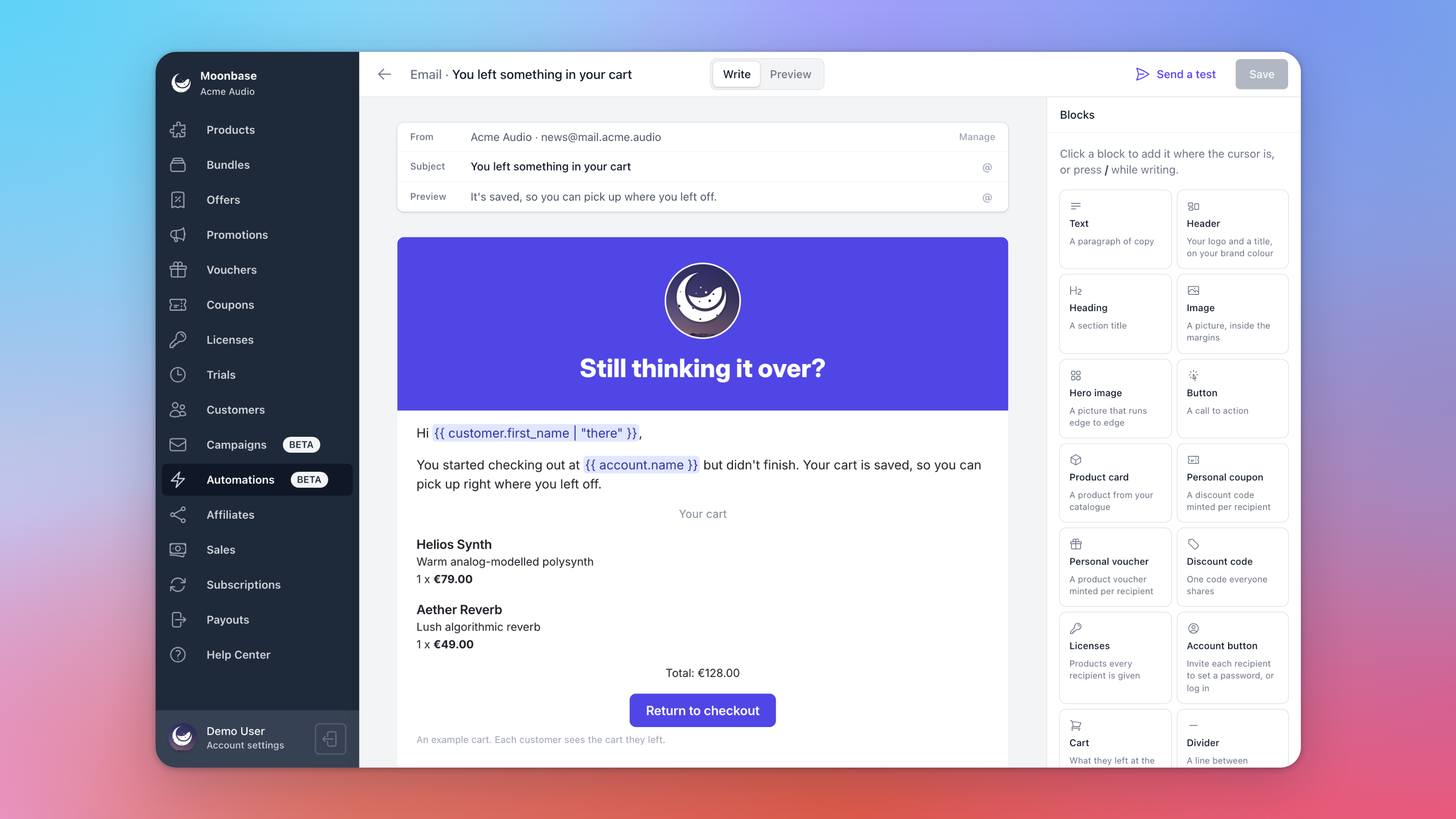
In an automation that starts with a checkout, emails can also show the customer's cart, with a button straight back to their checkout. The editor fills it with an example made from your own products, and each customer sees the cart they left:
Turning it on
When the automation is ready, click Turn on. Moonbase tells you if anything is missing. Just like for campaigns, your account needs to be live, and an automation that sends email needs a sending address with the Marketing purpose on a verified domain (see Custom email sending domains and addresses). You can build automations before either is done.
From then on, customers enter the moment the trigger happens. Customers who did it before you turned the automation on aren't enrolled.
You can keep editing an automation while it runs, and your changes apply to each customer from the step they reach next. The trigger and the Once or Every time choice are fixed once it's on: to change those, Duplicate it, from its page or from the ... menu on its row in the list, and turn on the copy. Pause stops new customers from entering, while the ones inside wait where they are until you Resume. Turn off lets everyone inside leave at once.
Limits and automatic pauses
To protect your sending reputation, and your customers' inboxes, a few limits apply:
Daily limits: every account has a daily allowance of enrollments, automation emails, codes, customer updates, webhook deliveries and team notifications, which grows with your number of customers and resets at midnight UTC. Daily limits at the top of Automations shows how much is used today. Past a limit, new customers aren't enrolled for the rest of the day, and other steps wait until the next day.
Per customer: a customer gets at most 4 automation emails a day, and at most 10 from one trip through an automation.
Automatic pauses: Moonbase pauses an automation by itself if far more customers enter it in an hour than usual, if more than 0.5% of the emails it sent in the last 7 days were marked as spam, or if its emails can't be sent, for example because your sending domain's DNS records changed. The automation shows a banner saying what happened, and the people who get integration alerts in Email notifications are emailed. Fix the cause, then click Resume.
What automations cost
Automations are charged per action: a step from the builder's Actions section done for one customer, like an email sent, a group or property changed, a license granted, a code created, a webhook called or your team notified. Waits, conditions and entering an automation are free, and so is a step that was skipped, failed or changed nothing.
The first 1,000 actions each month are free. After that it's EUR 2.00 per 1,000 actions up to 25,000, and EUR 1.00 per 1,000 above that, so 5,000 actions in a month cost EUR 8. They're counted separately from campaign emails, which have their own free 1,000. Actions are charged from November 2026, on the month's last payout. Account settings > Account > Pricing Plan shows this month's actions so far, with an estimate for the whole month.
How is your automation doing?
Open an automation that has been turned on to see its report:
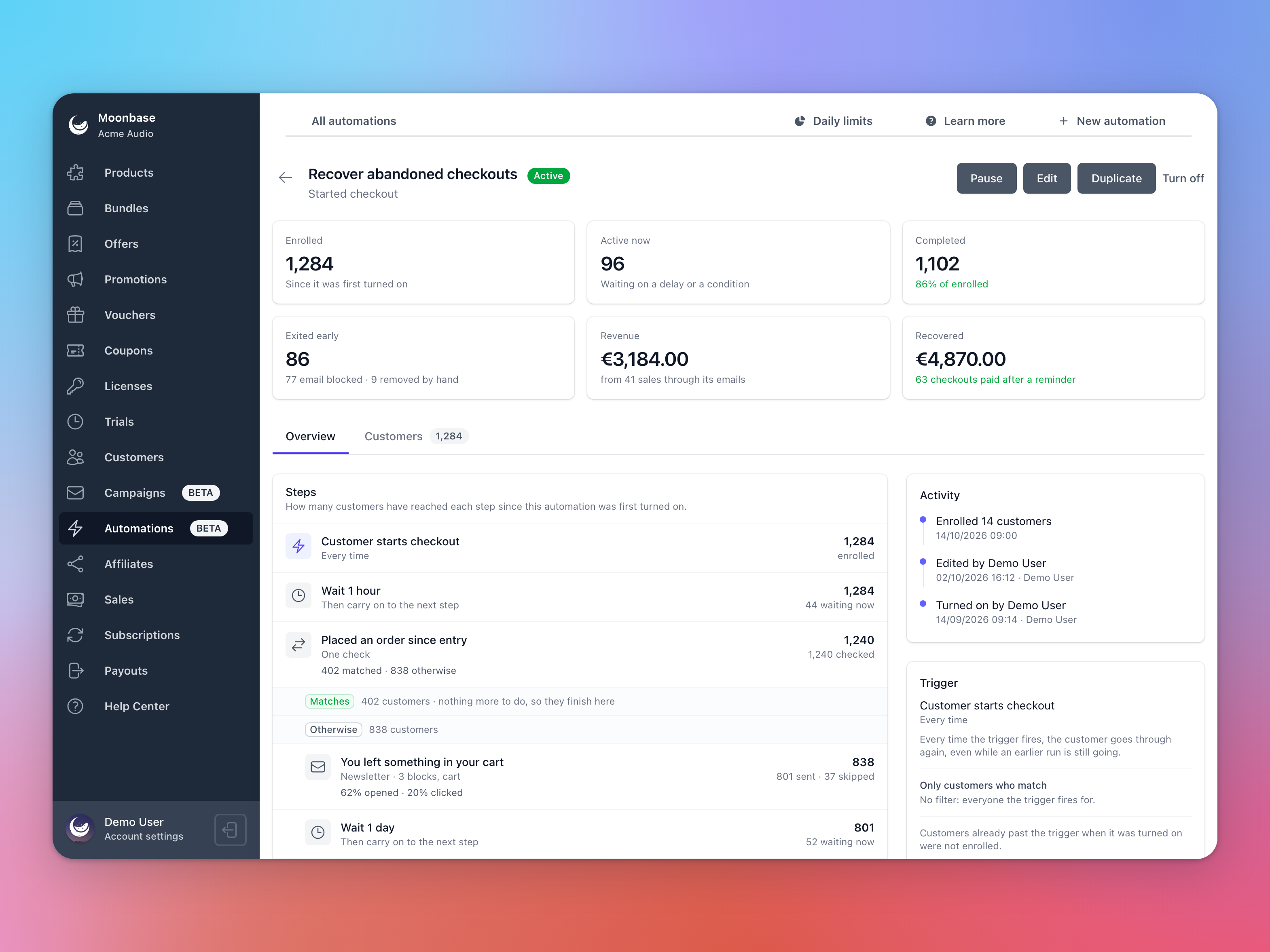
The figures at the top: how many customers have entered, are in it now, have completed it, or left early, and why.
Revenue: what customers bought after following a link in its emails, counted the same way as a campaign's revenue. On automations that start with a checkout, Recovered also counts every checkout that was paid for after a reminder went out, however the customer came back.
Overview: every step with how many customers reached it, and how many opened and clicked each email. Activity shows who turned it on, paused it or edited it.
Customers: everyone who entered and where they are now. View shows every step one customer went through.
On a customer's page, the Automations tab lists the automations they have entered. Add to an automation, under Quick actions, puts them into an active automation by hand, as if the trigger had just happened. Remove from automation takes them out wherever they are: they never enter that automation again, and anything already done, like emails sent or codes and licenses given, stays as it is.
Frequently asked questions
A customer did the trigger, but wasn't enrolled. Why?
Usually the automation enrolls each customer Once and they had been through it before, you removed them from it earlier, they don't match its Only customers who match filter, or it happened before the automation was turned on or while it was paused. On a very busy day, the daily limit on enrollments may also have been reached.
Why didn't my abandoned checkout email reach someone?
An automation can only reach buyers who are already your customers: signed in, or checking out with an email address you already have. Someone buying from you for the first time as a guest only becomes a customer when they pay. And if a customer pays, or empties their cart, before the reminder goes out, the email is skipped.
Why was an email skipped for a customer?
It's a Newsletter or Product update email and they haven't opted in to that type, or they had already received 4 automation emails that day. A Transactional email under a list trigger only goes to customers who signed up to the list themselves, not to ones added by hand. If your account asks customers to confirm their email address, a customer who hasn't yet waits at the email for up to 7 days, and gets it the moment they confirm.
Was this helpful?
Still need help? Ask the team