Moonbase Hub: your own install manager for Mac and Windows
Give your customers an app with your name and icon that installs, activates and updates everything they own from you, and set up your installers to work with it
Written By Tobias Lønnerød Madsen
Moonbase Hub is an app with your name, icon and colors that your customers install on their Mac or PC. They sign in with their customer account, see everything they own, and install, activate and update it from one place. Its Discover section and banners show them what they don't own yet. Moonbase builds the Hub for you, signs it, and keeps it up to date.
This article covers what the Hub does, how to set it up, and how to make your products' installers work with it.
What your customers get
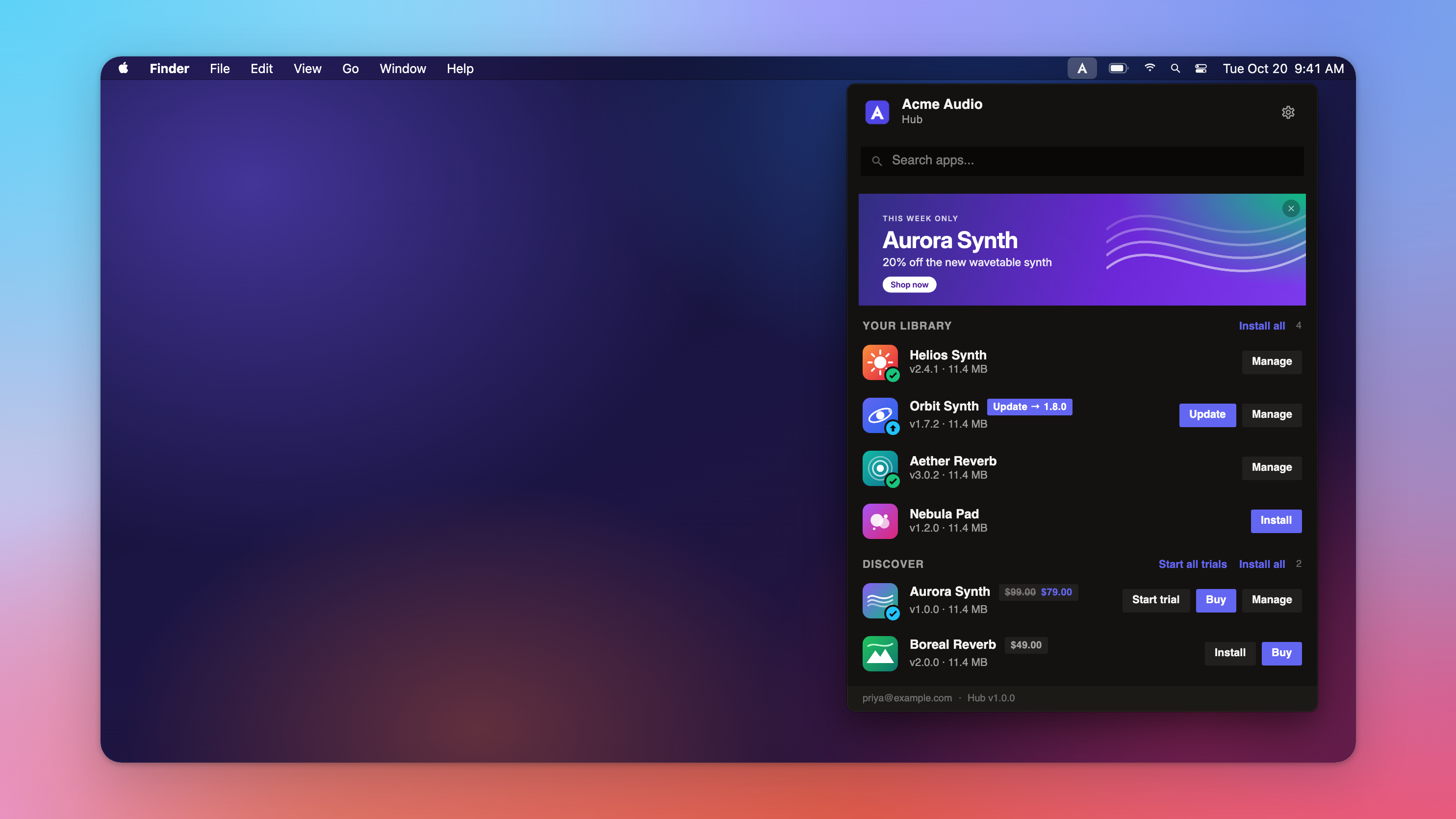
Everything they own: the Hub lists every product the customer has a license for, with its icon, version and size. They install one with a click, or all of them with Install all.
Updates: when you publish a new release, the Hub shows Update on the product, and Update all when there are several. See Downloads / Releases.
Activation: if you set it up (see Licensing and activation), the Hub activates a product on the computer as soon as it is installed, so nobody copies a license key.
Trials: a customer can start a trial of an installed product they don't own, or of all of them at once. See Trials.
Discover: products in your store that the customer doesn't own, with their price and a Buy button that opens your checkout.
Banners: images that link wherever you like, for a sale or a new product, hidden from customers who already own what they promote.
Your brand: your app name, icon, accent color and corners, in the customer's light or dark mode. It lives in the macOS menu bar and the Windows notification area, and starts with the computer if the customer wants it to.
Its own updates: the Hub downloads new versions of itself in the background and asks the customer to restart it to finish.
The Hub runs on macOS 12 or later (Apple silicon and Intel) and Windows 10 or later (64-bit).
Who can have a Hub, and what it costs
The Hub is in beta and not yet available on every account. An account can turn it on once it has at least 4 products and 500 sales made through Moonbase. Until then, Account settings has no Hub page.
It costs €69 a month, charged on your payouts like your other Moonbase fees. The month you turn it on is charged from that day, so turning it on on the 25th of a 31-day month costs 7/31 of the monthly fee for that month. A month it is on as the month begins is charged in full, even if you turn it off during it.
Setting up your Hub
Go to Account settings > Hub. The page previews everything as you set it.
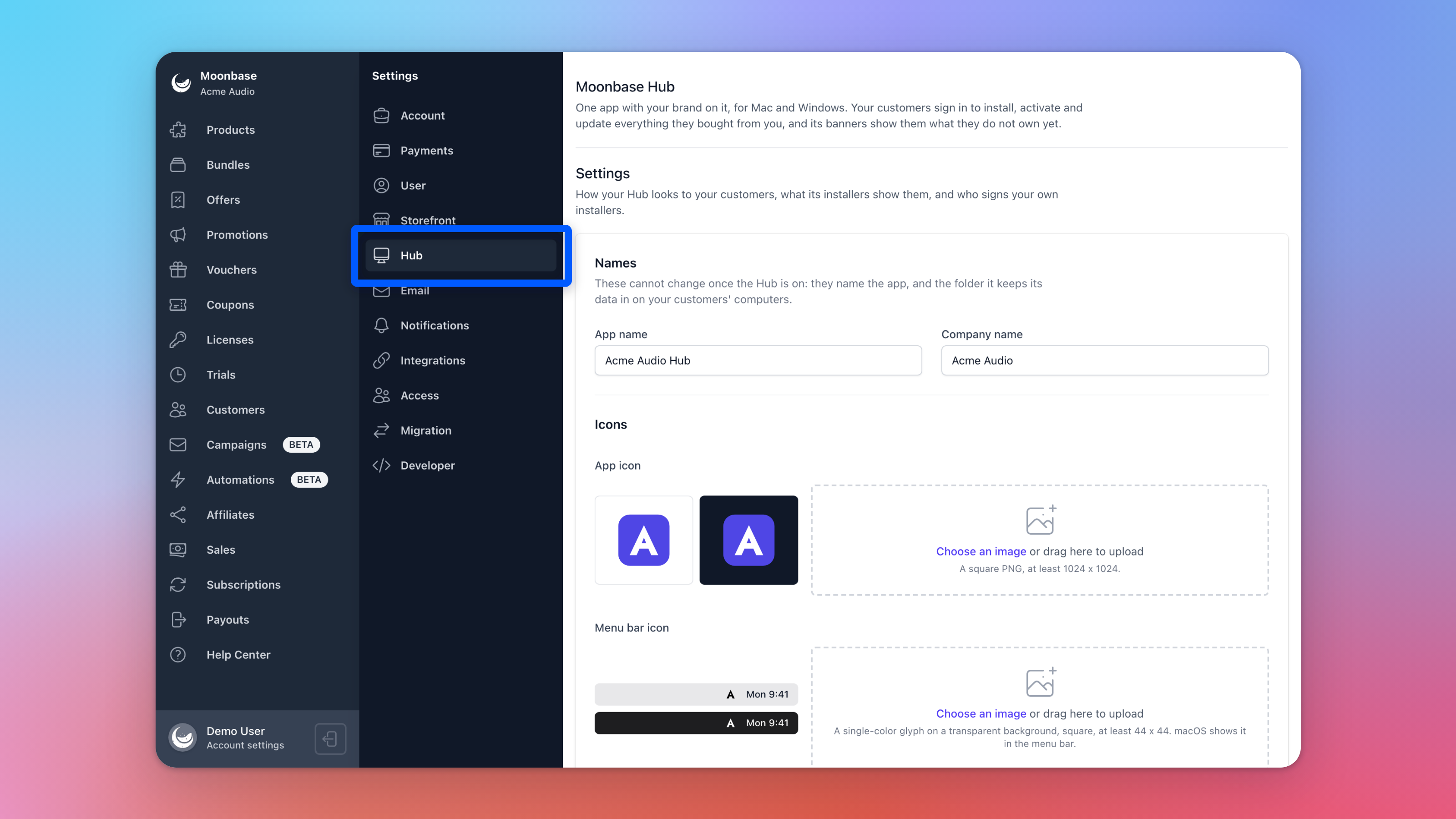
Names: your app's name and your company name. They can't be changed once the Hub is on.
Icons: your app icon and the icon your customers see in the menu bar or the Windows notification area.
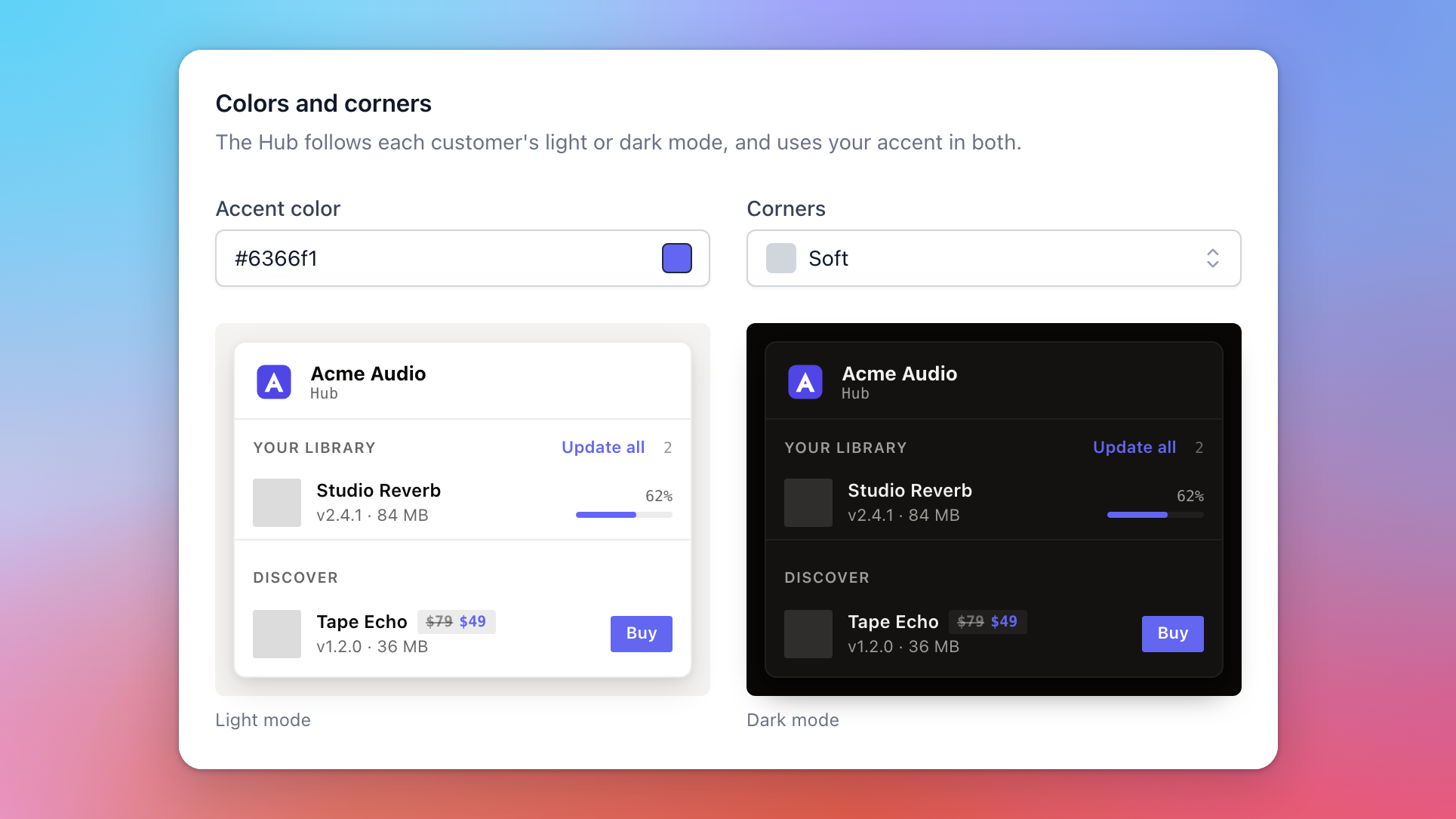
Colors and corners: your accent color and corner style.
Installers: an optional license agreement and artwork for the Hub's own installers.
Installer signers: who signs your products' installers. See Signing your installers.
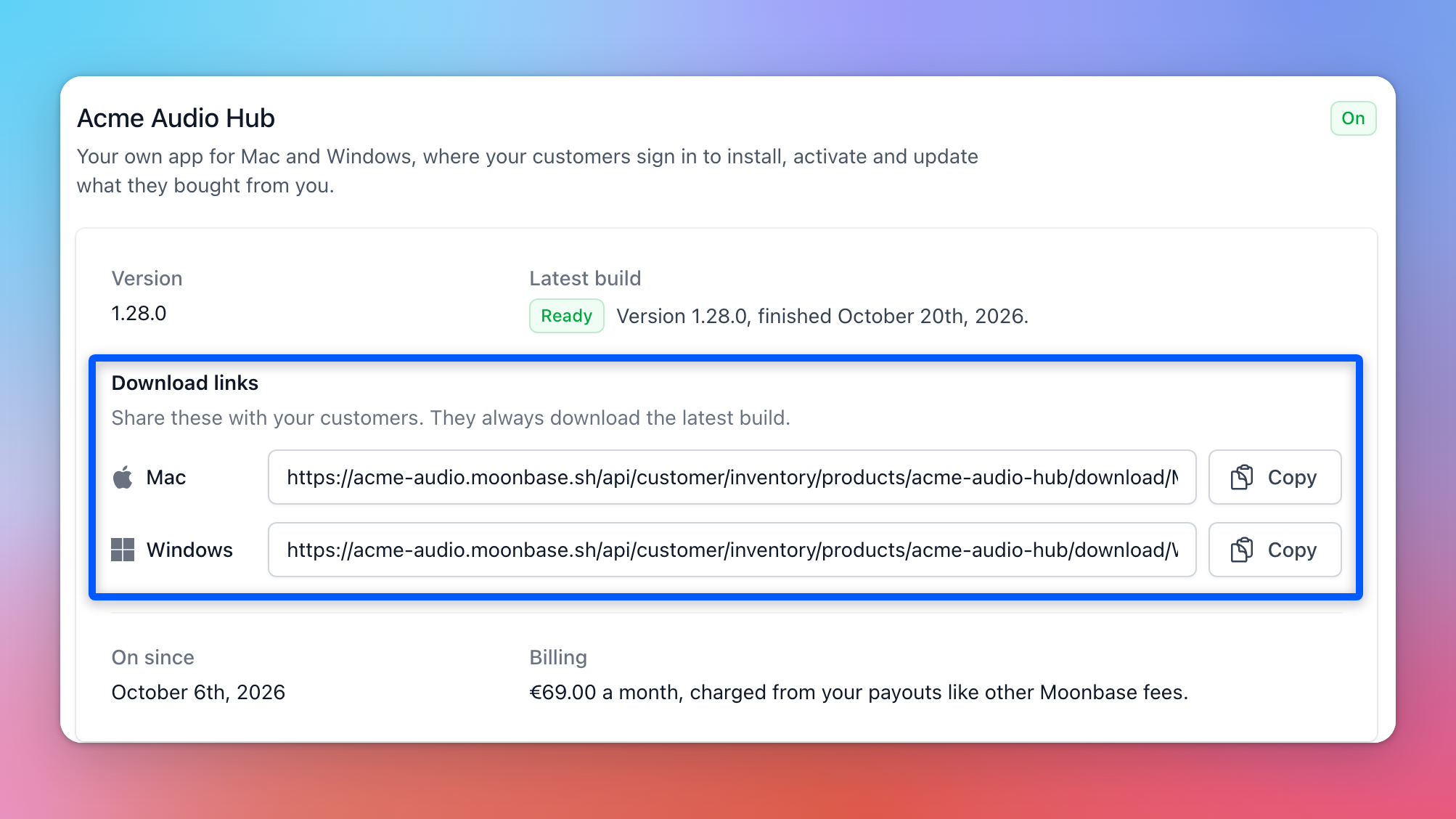
Click Save, then Turn on Hub. Moonbase builds the Hub for Mac and Windows, which usually takes under an hour. When the build is ready, Download links gives you a Mac and a Windows link that always download the newest Hub, for your website or emails.
Changing your settings while the Hub is on starts a new build. New downloads get the change when it is ready, and installed Hubs get it with their next update.
Trying a new Hub version first
Moonbase sometimes asks a few businesses to try a new version of the Hub before releasing it to everyone. If you are one of them, the Hub page shows Version 1.29.0 is ready to test, with a Mac and a Windows link to that build. Install it on your own computers, or share the links with anyone helping you test, and check it with your products.
It is a pre-release. Your customers, your Download links and the Hubs already installed all stay on the version they have, and your Hub's releases in Products list it as Pre-release. Once Moonbase releases the version, your customers get it as an update.
Your Hub in Products
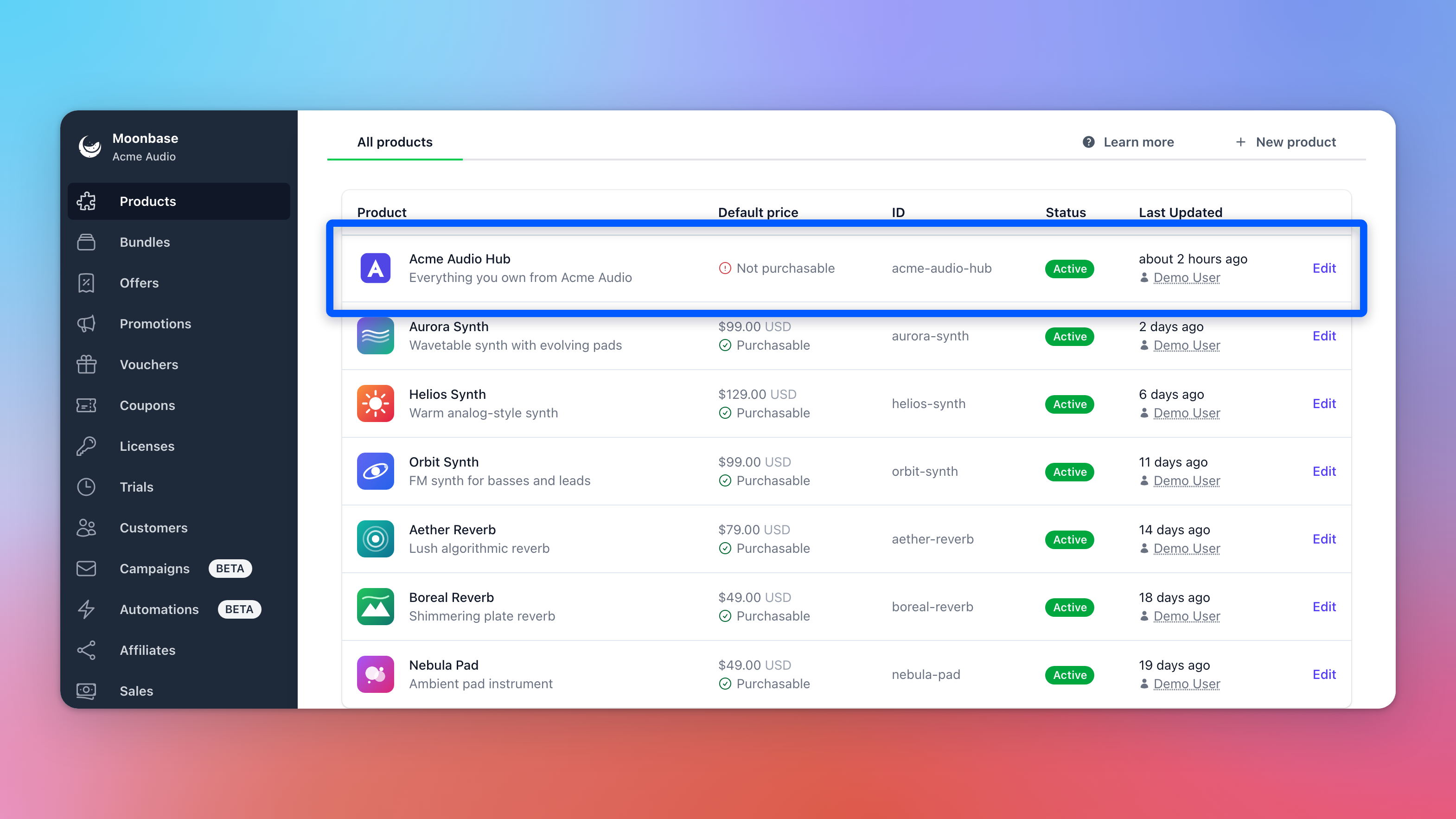
Turning the Hub on adds it to your Products list, named after your app. Moonbase publishes its releases for you, and you can track it like any other product, for example its downloads on your dashboard.
Banners
Add banners on the Hub page, or on the Hub's page in Products: an image, a link, and optionally the products and bundles the banner promotes, so customers who already own them don't see it. Banners show in priority order, and a customer can dismiss one.
How the Hub decides what to show
Library lists every product the customer has a license for, and every product whose customer visibility is set to Always.
Discover lists products in your store that are active and for sale, and that the customer doesn't already have.
To keep a product out of the Hub altogether, add a public custom property named
hub-visibleto it, set tofalse.A product shows even without a download for the customer's computer, but then it has no Install button.
Which download a computer gets
Each release can have downloads for Mac and Windows. On a given computer, the Hub picks the download for that operating system and processor, then one marked as universal for that system, then one without a processor set.
Releases you publish in Moonbase (see Downloads / Releases) don't record a processor, so the simplest setup is one installer per operating system: a universal .pkg for Mac (Apple silicon and Intel) and one Windows installer. If you publish separate Apple silicon and Intel builds, set each download's architecture with the Moonbase CLI or API.
A download for "any platform" (such as a PDF or a sample pack) shows as Download: the Hub saves the file wherever the customer chooses and doesn't install it.
Making your installers work with the Hub
The Hub installs your product by running your own installer, unattended, then checks the files it expected to find. Most of what follows is about making sure your installer can run without anyone clicking through it, and telling the Hub what it installs.
Installer formats
Each installer can be up to 4 GB.
On Mac, the Hub installs your package on the startup disk with its default choices. Customers don't see your package's screens, so anything they would normally choose there (such as plugin formats) gets its default.
On Windows, the Hub runs your installer silently (/VERYSILENT for Inno Setup, /S for NSIS), and installs an .msi quietly.
Either way, your installer has to finish without asking anything and report success. One that asks for a restart counts as installed. It also has to do the installing itself: an installer that starts another program and quits before that one has finished is reported as failed, because the Hub checks for your files as soon as it quits. If your installer needs administrator rights, Windows asks the customer to allow it, as it would for any installer.
Signing your installers
Mac: sign your package with a Developer ID Installer certificate. A package signed with a Developer ID Application certificate, an App Store certificate, or not at all is refused. We recommend notarizing it too.
Windows: sign your installer with an Authenticode code signing certificate. Unsigned installers are refused.
Then add your signers in Account settings > Hub > Installer signers:
Apple Team IDs: the 10-character ID in brackets on your Developer ID Installer certificate.
pkgutil --check-signature YourInstaller.pkgshows it.Windows publisher names: the name your certificate is issued to, as shown under the installer's Properties > Digital Signatures.
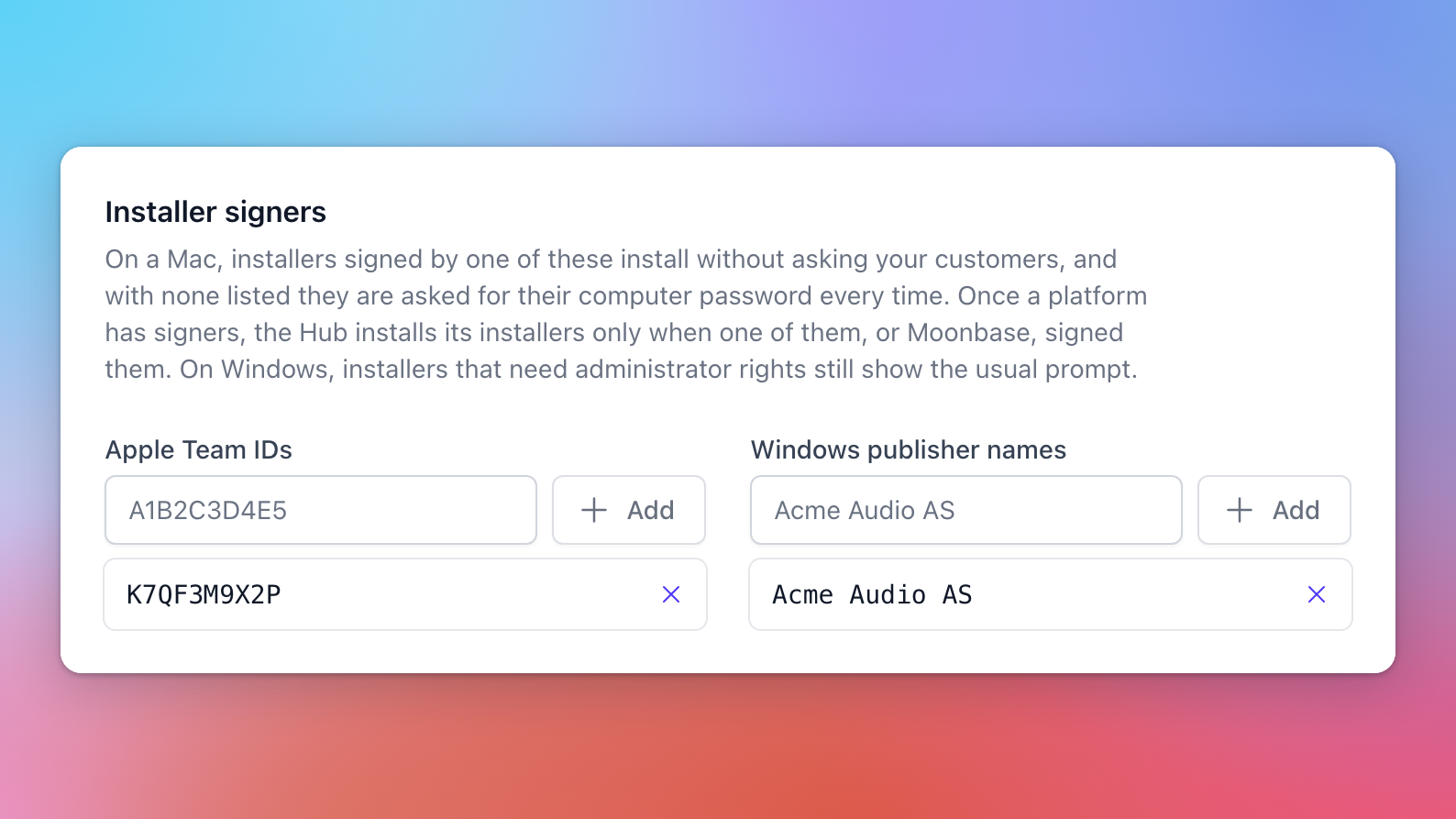
With your Team ID listed, Mac customers install your products without being asked for their computer password. Once you list signers for a platform, the Hub only installs installers for that platform that one of them signed, so a package signed by someone else is refused. Without any listed, Mac customers are asked for their computer password on every install. Signers are decided per platform, so listing only Windows publishers doesn't affect your Mac installers.
Download manifests
A download manifest tells the Hub what your installer puts on the computer, and optionally where your product keeps its license. Without one, the Hub can install your product but can't tell that it is installed, so the product keeps offering Install, has no Manage menu, and never shows updates.
Set one per platform on the product's page: Releases > Actions > Default manifests. It applies to every release of the product, unless a download sets its own through the API.
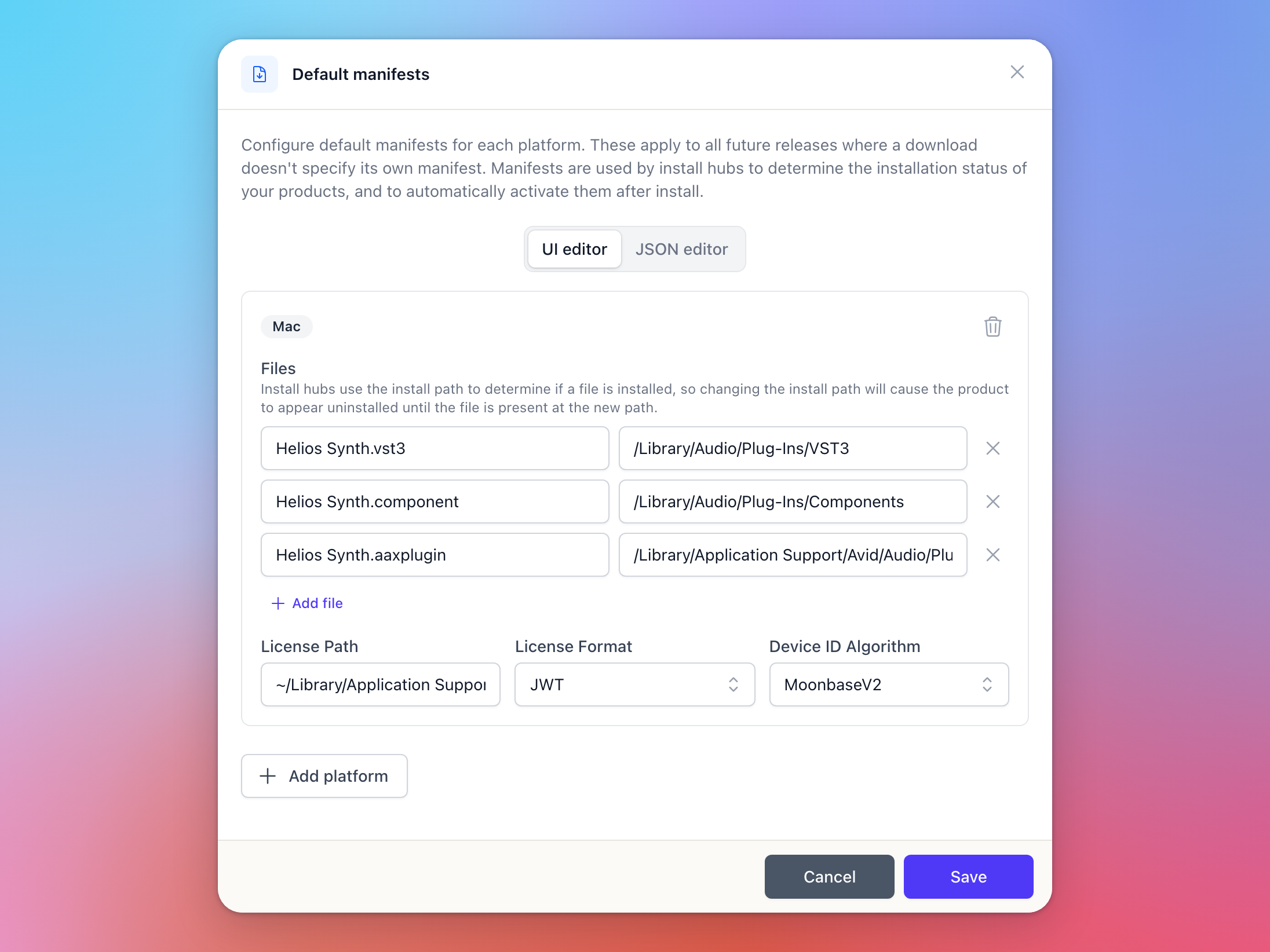
Files: list each file or bundle your installer places, as a folder (Path) and the name inside it (Name). For example, for a plugin on Mac:
and on Windows:
A path can start with ~ for the customer's home folder, or with __userAppDataDir__ for their app data folder on Windows.
How the Hub uses the list:
Installed when everything listed is there, Partially installed (with a Repair option) when only some of it is. So list only what your installer for that platform actually places: an AAX you don't ship, or an AU on Windows, leaves the product partially installed for good.
Version comes from the files you list: a bundle's version on Mac, and a file's version on Windows. Windows can't read a version from a folder, which is why the Windows example above names the plugin file inside each bundle.
Updates are offered when the version on the computer is lower than your product's current release. So give your binaries the same version number as the release (
1.4.2). A product the Hub can't read a version from is never offered an update.
Licensing and activation
If your manifest also has a license path, a license format and a device ID algorithm, the Hub activates the product on the computer right after installing it, and again whenever an installed product has no license file. It writes the license file to the license path, where your product reads it on its next start. Start trial uses the same fields.
Leave the license fields empty if your product activates itself (the customer signs in or enters a key in your product). The Hub then installs and updates the product, and your product handles activation as it does today.
Device ID algorithm: use the one your product checks its license against. That is MoonbaseV2 if it uses a current Moonbase licensing SDK (C++/JUCE, .NET or JavaScript; see Licensing SDKs and your implementation guide), or JuceModule if it uses Moonbase's original JUCE licensing module. The Hub works out the same device ID your product does, so the license it activates validates in your product.
License format: JWT (the default) or Legacy, whichever your product reads.
License files
The Hub only writes license files inside a folder named after your Hub's company name, in a subfolder of your choice, with a name of the form license.<ext> (.mb, .lic, .dat, .jwt or .yfs). For a company name of "Acme Audio":
Mac:
~/Library/Acme Audio/Helios Synth/license.mbor~/Library/Application Support/Acme Audio/Helios Synth/license.mbWindows:
__userAppDataDir__/Acme Audio/Helios Synth/license.mb
The subfolder can't be named Hub, which is the Hub's own. The Default manifests editor suggests a path in that folder and warns you when a path won't work with the Hub.
Your product reads the license file from the same path and validates it with your Moonbase public key, as described in your licensing SDK's documentation. Activation needs an internet connection: the Hub doesn't do offline activation.
Uninstalling
The Hub can uninstall plugins: it removes the plugin bundles your manifest lists from the standard plugin folders (VST3, AU, AAX and CLAP, plus VST on Mac), along with the license file, and frees the customer's activation. For any other kind of product (an app, presets, or plugins outside those folders), the Hub doesn't offer Uninstall, and customers remove it as they would without the Hub.
Checklist before you tell customers about your Hub
Your Mac
.pkgis signed with a Developer ID Installer certificate and installs with no choices needed.Your Windows installer is signed and installs silently: an Inno Setup or NSIS
.exe, or an.msi.Your signers are listed under Installer signers.
Each product has a download manifest per platform listing exactly what its installer places.
Your binaries' version numbers match the release versions.
If the Hub activates your product, its license path is in your company folder, your product reads it from there, and the device ID algorithm is the one your product uses.
Install, update and activate each product with your own Hub on a Mac and a PC, from a customer account that owns it.
Any issues installing some of your products? Get in touch with us so we can assess compatibility!
Frequently asked questions
Where do I see why a product didn't install?
Under its name in the Hub. For more detail, ask the customer for the Hub's logs: Settings > Open log folder in the Hub (also on its sign-in screen). The logs are kept for 7 days. If they don't show you the cause, send them to us in the chat.
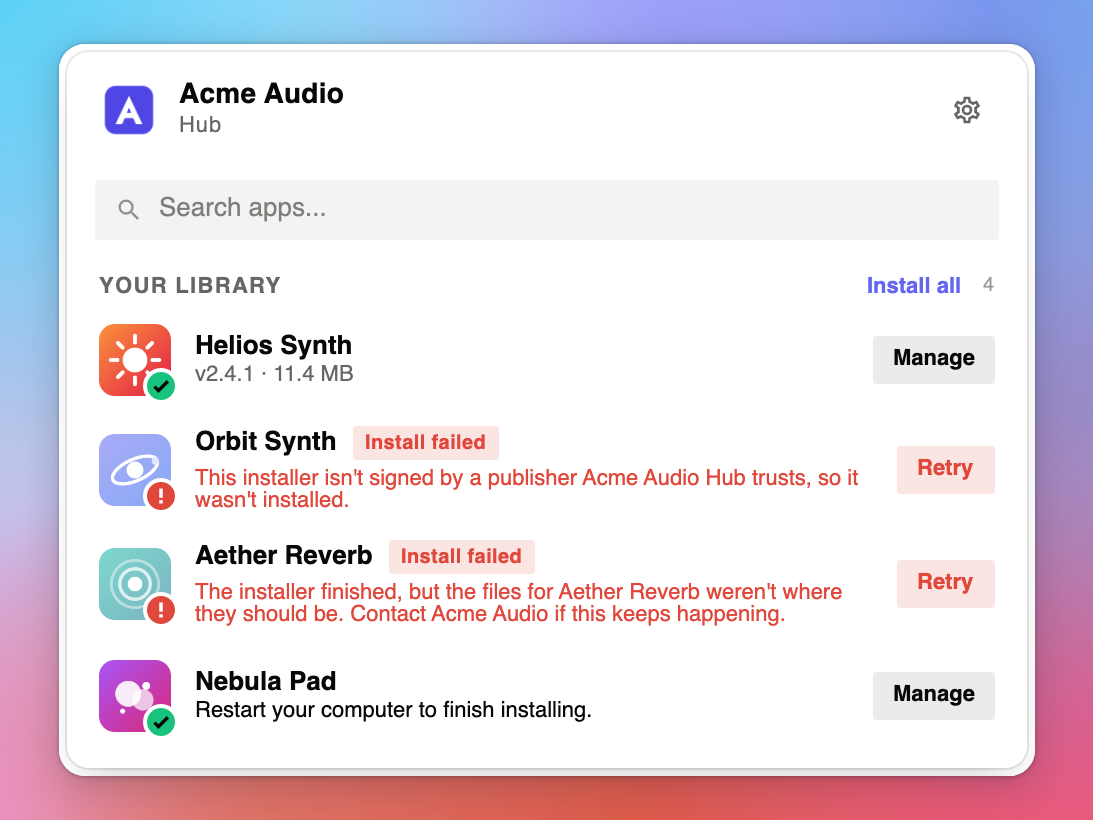
A customer sees "This installer isn't signed by a publisher … trusts, so it wasn't installed."
Check the installer's signature, and that its signer is listed under Installer signers for that platform. See Signing your installers.
A customer sees "The installer finished, but the files for … weren't where they should be."
The files and paths in the product's download manifest don't match what its installer places on that platform.
A product goes back to Install right after installing.
It has no download manifest for that platform, so the Hub can't tell that it is installed. See Download manifests.
A customer sees "Restart your computer to finish installing."
Nothing is wrong: your Windows installer asked for a restart, and the product is installed.
A product shows as Partially installed.
Its manifest lists something the installer didn't place, such as a plugin format you don't ship for that platform.
Update never goes away.
The version the Hub reads from your binaries doesn't match the release version. Give them the same version number as the release.
A product isn't activated after installing.
Check that the license path is in your company folder, that the device ID algorithm is the one your product uses, and that the customer owns the product. For activation problems in general, see Troubleshooting license activation.
A product has no Install button.
Its current release has no download for that operating system (or processor).
Was this helpful?
Still need help? Ask the team